Installing Android TV on Nintendo Switch using LineageOS
Prerequisites
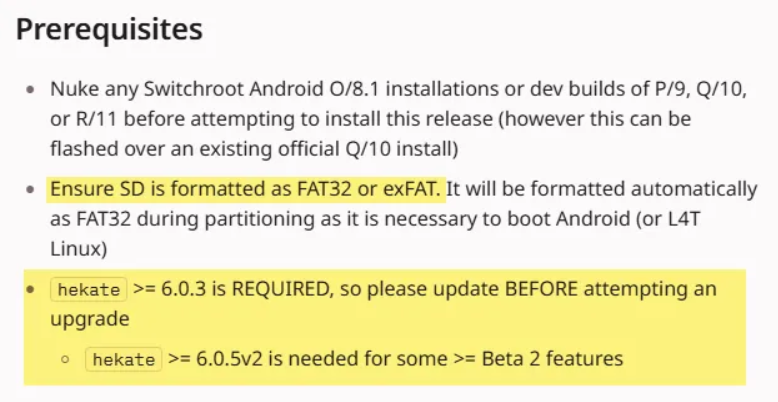
- A modded Nintendo Switch with working Hekate bootloader (recommend using the latest Hekate via fusee or similar; version 6.0.3 or newer required).
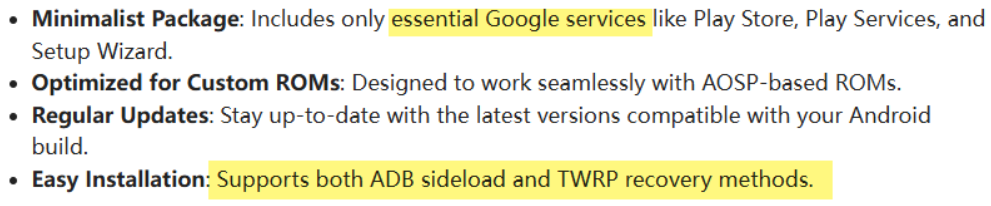
- LineageOS for nx (Android TV build) – currently LineageOS 21 (Android 14) or 22.2 (Android 15) depending on the latest available from switchroot / LineageOS.
- SD card formatted as FAT32 or exFAT with enough free space.
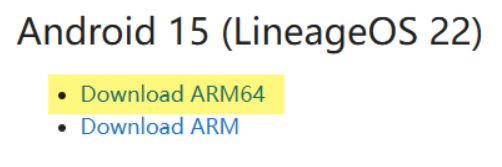
- MindTheGapps package for the corresponding Android version and architecture (arm64 ATV variant).
![]()
About MindTheGapps
MindTheGapps is a lightweight, custom Google Apps package maintained for LineageOS. For Android TV builds, use the ATV-specific variant (full or minimal). It includes core Google services without the heavy bloat found in stock OpenGApps.
Download MindTheGapps – a custom Google Apps package for Android
- Website:
Why Choose MindTheGapps?
- Smaller footprint compared to full OpenGApps.
- Better compatibility with LineageOS Android TV builds on Switch hardware.
- Officially recommended on the LineageOS GApps page for recent versions.
![]()
How to Install MindTheGapps?
Installing GApps
If you’ve already booted into Android TV once without GApps, installing them directly will usually cause bootloops or crashes due to mismatched system properties and missing framework hooks.
Recommended procedure
- Wipe data if the system has already booted once
- Boot into Hekate(Hold Volume Up while launching Hekate) → More Configs → Hold VOL+ to select LineageOS Recovery (or TWRP if using that).
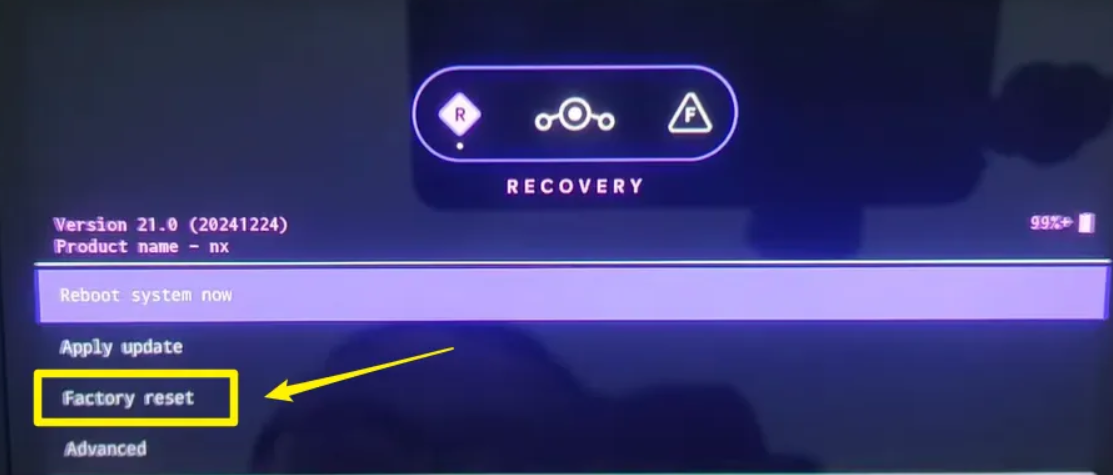
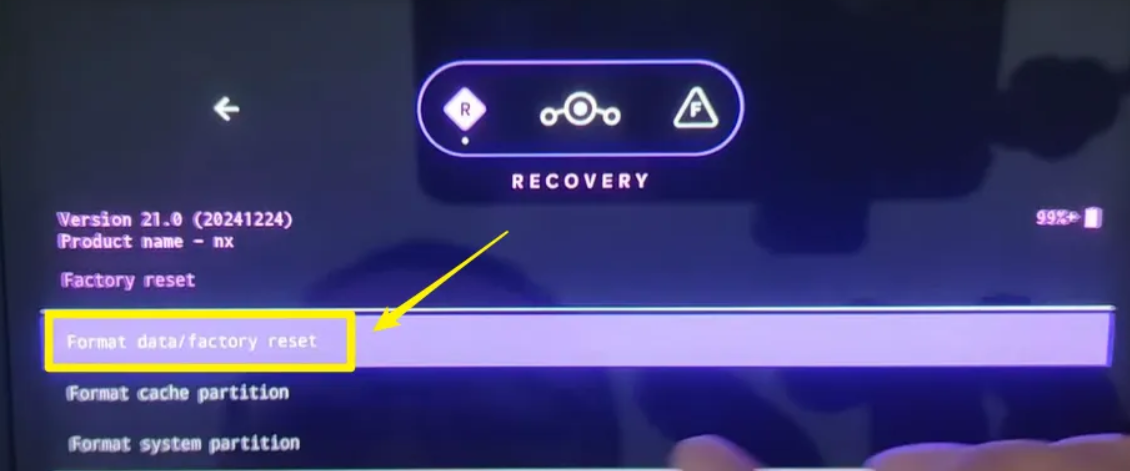
- In recovery: Wipe → Factory Reset / Format data / factory reset.
![]()
![]()
- This clears the Android data and cache partitions only — it does not touch Horizon OS (HOS) or your emuMMC/sysMMC.
- Download the correct GApps package
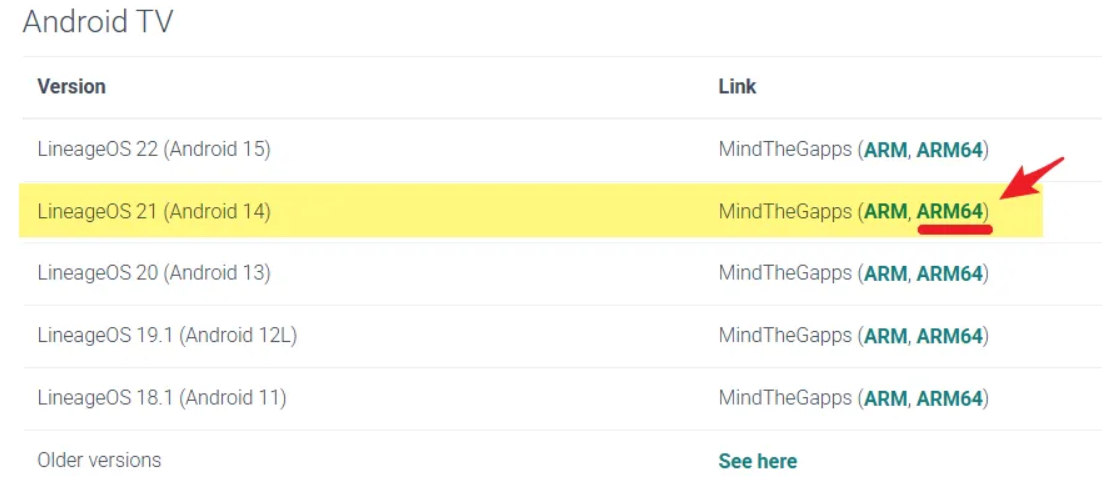
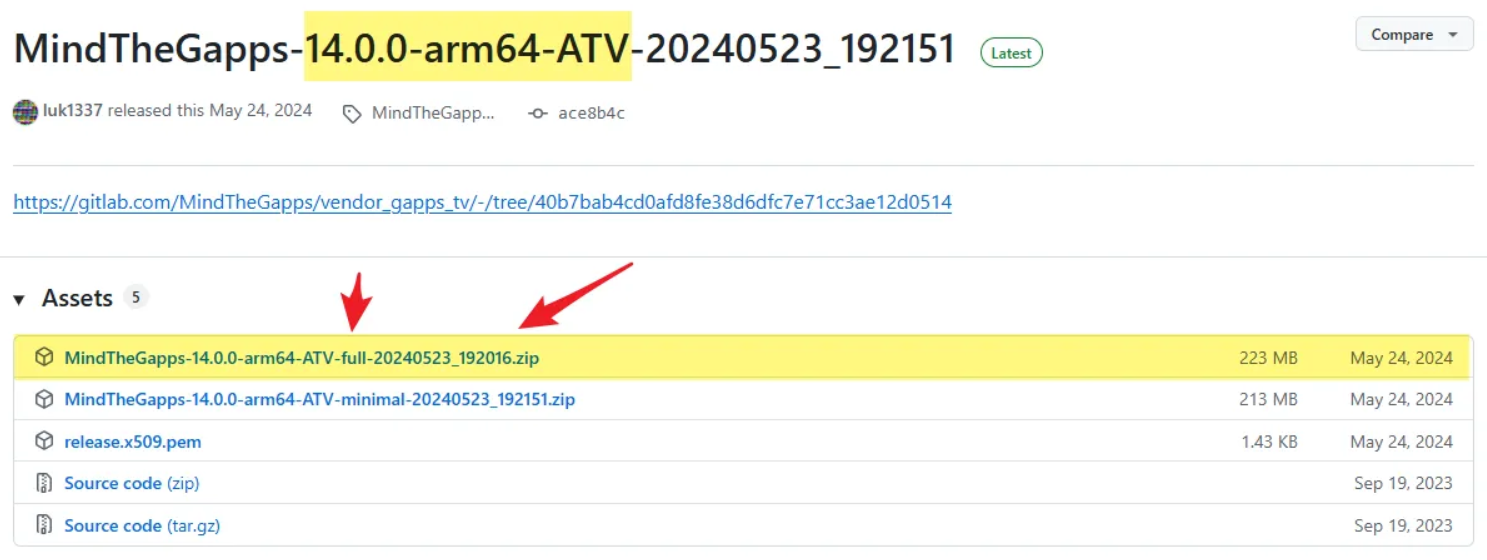
- Go to https://wiki.lineageos.org/gapps/ or directly to MindTheGapps GitHub releases.
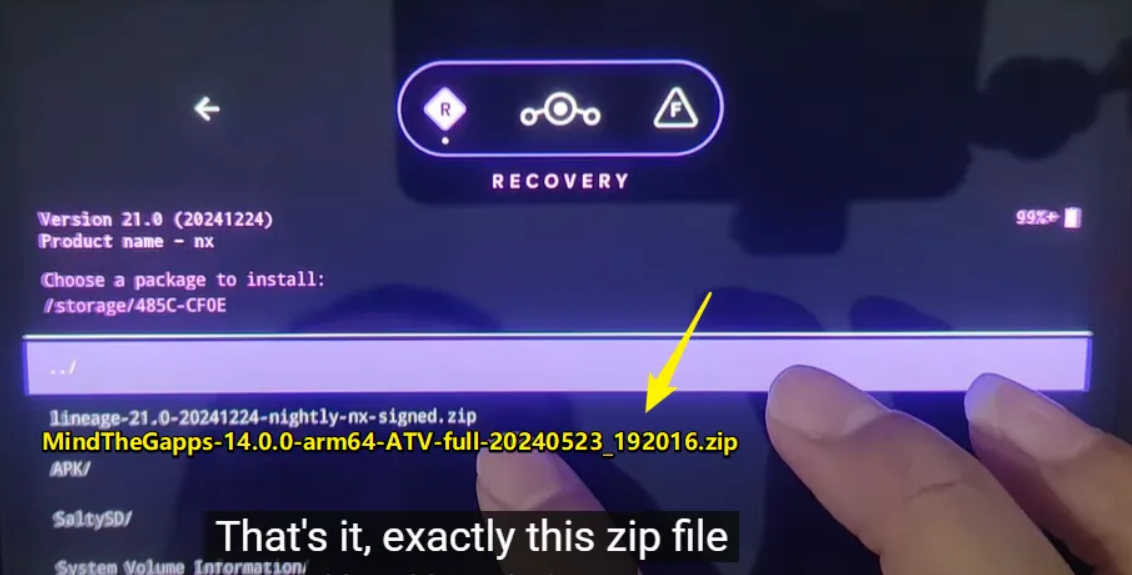
- For Android 14 (LineageOS 21): MindTheGapps-14.0.0-arm64-ATV-full-[date].zip
![]()
![]()
- For Android 15 (LineageOS 22): MindTheGapps-15.0.0-arm64-ATV-[variant].zip
- Place the zip on the root of your SD card.
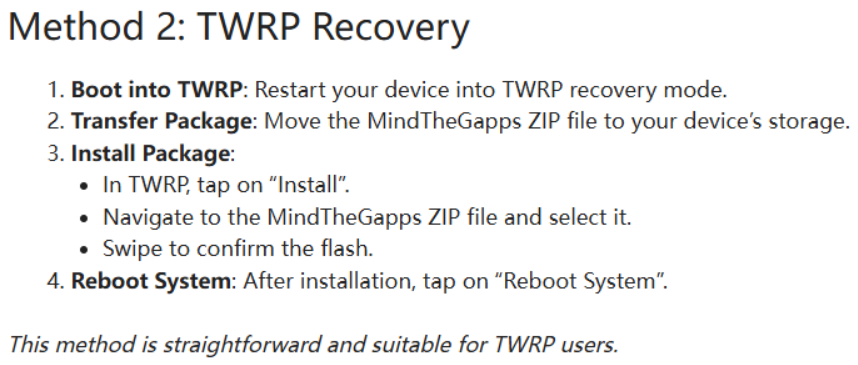
- Flash GApps in recovery
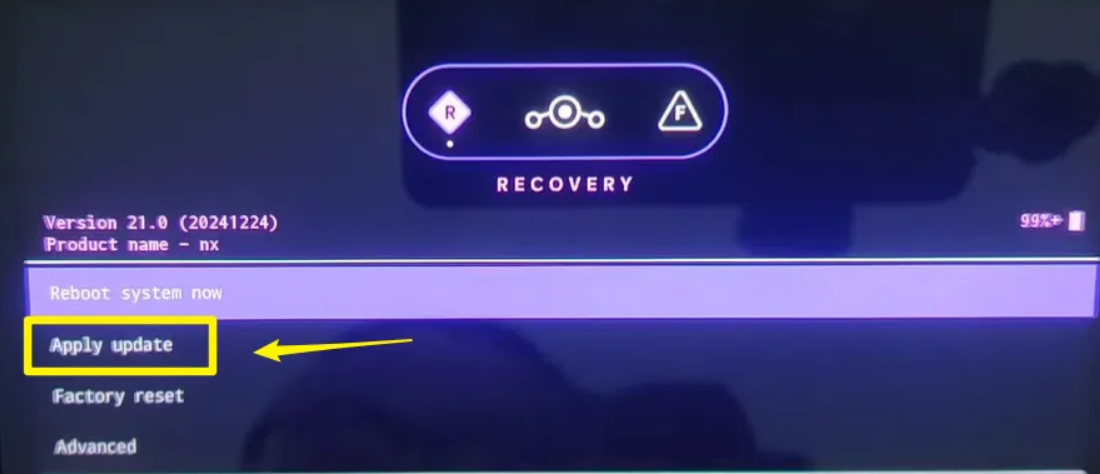
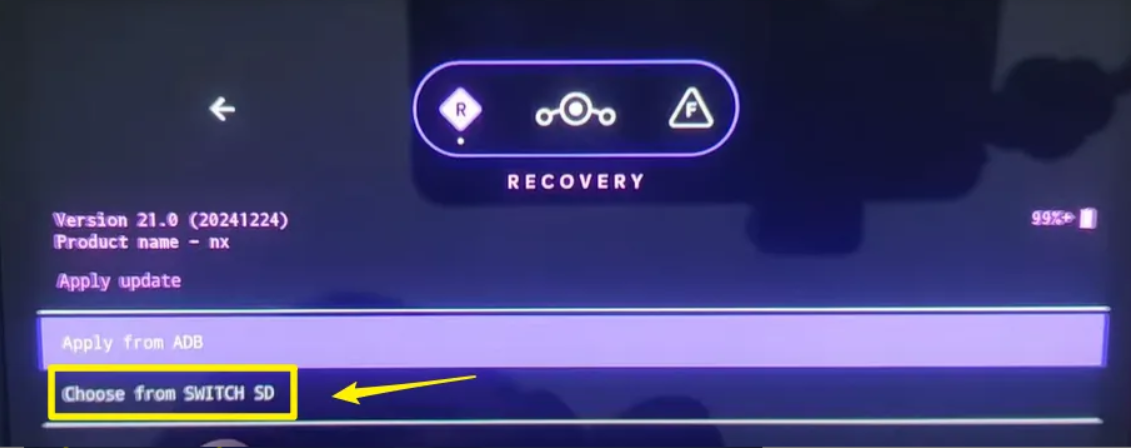
- In LineageOS Recovery: Install → Apply Update → Choose from SWITCH SD (or SD card).
![]()
![]()
![]()
- Select the MindTheGapps zip.
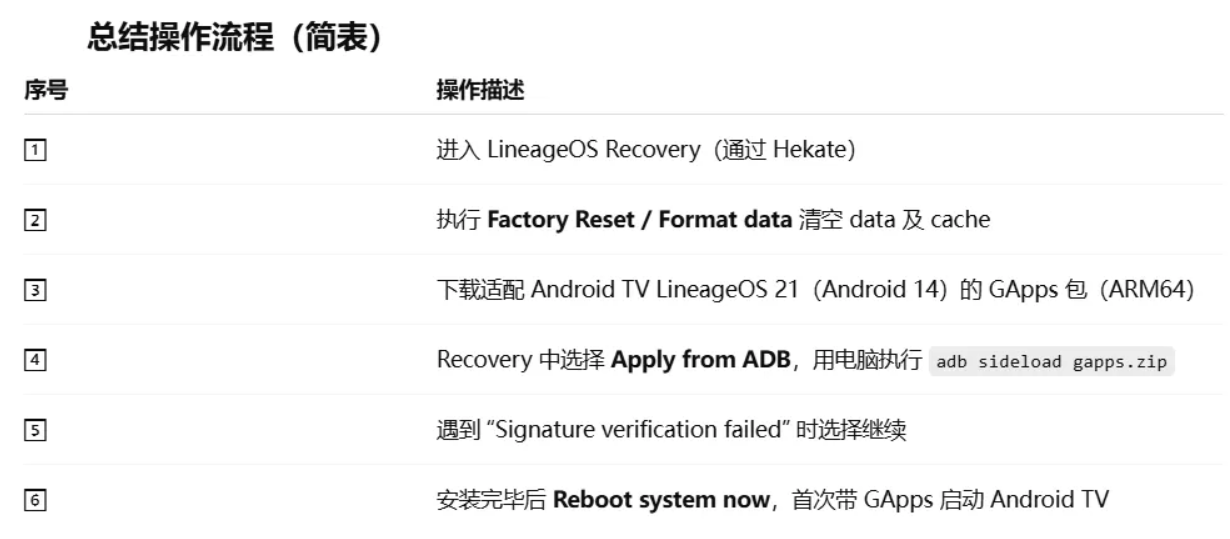
- When you see “Signature verification failed”, choose Yes to proceed (normal for sideloaded packages).
- Let it install completely.
- In LineageOS Recovery: Install → Apply Update → Choose from SWITCH SD (or SD card).
- Reboot
- Return to main recovery menu → Reboot system now.
- The device should now boot into Android TV with Google services available for the first-time setup.
- Conclusion
![]()
Magisk (Root)
To gain root access on the Android installation
- For most models (especially OLED / Mariko units), use Magisk v25.2 (newer versions may have compatibility issues with older boot images or SELinux policies on Switch hardware).
- Download: Magisk-v25.2.apk from https://github.com/topjohnwu/Magisk/releases/tag/v25.2
- Install the APK like any app once Android is running, then follow the standard Magisk patching procedure (patch boot image via the app or manually via recovery if preferred).
Video References
- Dual-boot Atmosphere + Android setup and root guide (older but concepts still apply)
- Recent 2025 Android 15 flashing tutorial
- Comprehensive Switch Android install covering OLED compatibility
Official Resources
- Switchroot downloads
- LineageOS device page (nx / nx_tab variants
- Switchroot LineageOS Downloader tool
- Main documentation
Notes
- Always double-check your Switch model (Erista vs Mariko / OLED) and download the matching build variant (nx for TV on some, nx_tab for tablet-style).
- Android TV builds are optimized for docked/controller use; touch works poorly or not at all.
- Backup your SD card contents before repartitioning or major changes.
- If you run into signature mismatches or boot issues after GApps, repeat the data wipe + clean flash sequence.
This should get you a clean, functional Android TV environment on your Switch. Test thoroughly after first boot.