Task Manager Power Tips for Windows
Overview
This is a quick roundup of lesser-known but genuinely useful shortcuts and behaviors in Windows Task Manager that save time when troubleshooting or managing processes.
Launching Task Manager
Standard ways everyone knows
- Ctrl + Shift + Esc
- Right-click taskbar → Task Manager
- Ctrl + Alt + Del → Task Manager
Lesser-known: force the classic (Windows 10-style) top-tab UI instead of the modern sidebar layout (especially helpful on Windows 11):
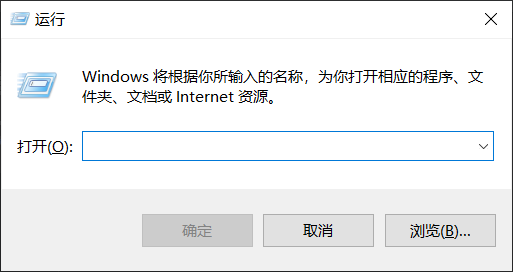
1 | Win + R → taskmgr -d |
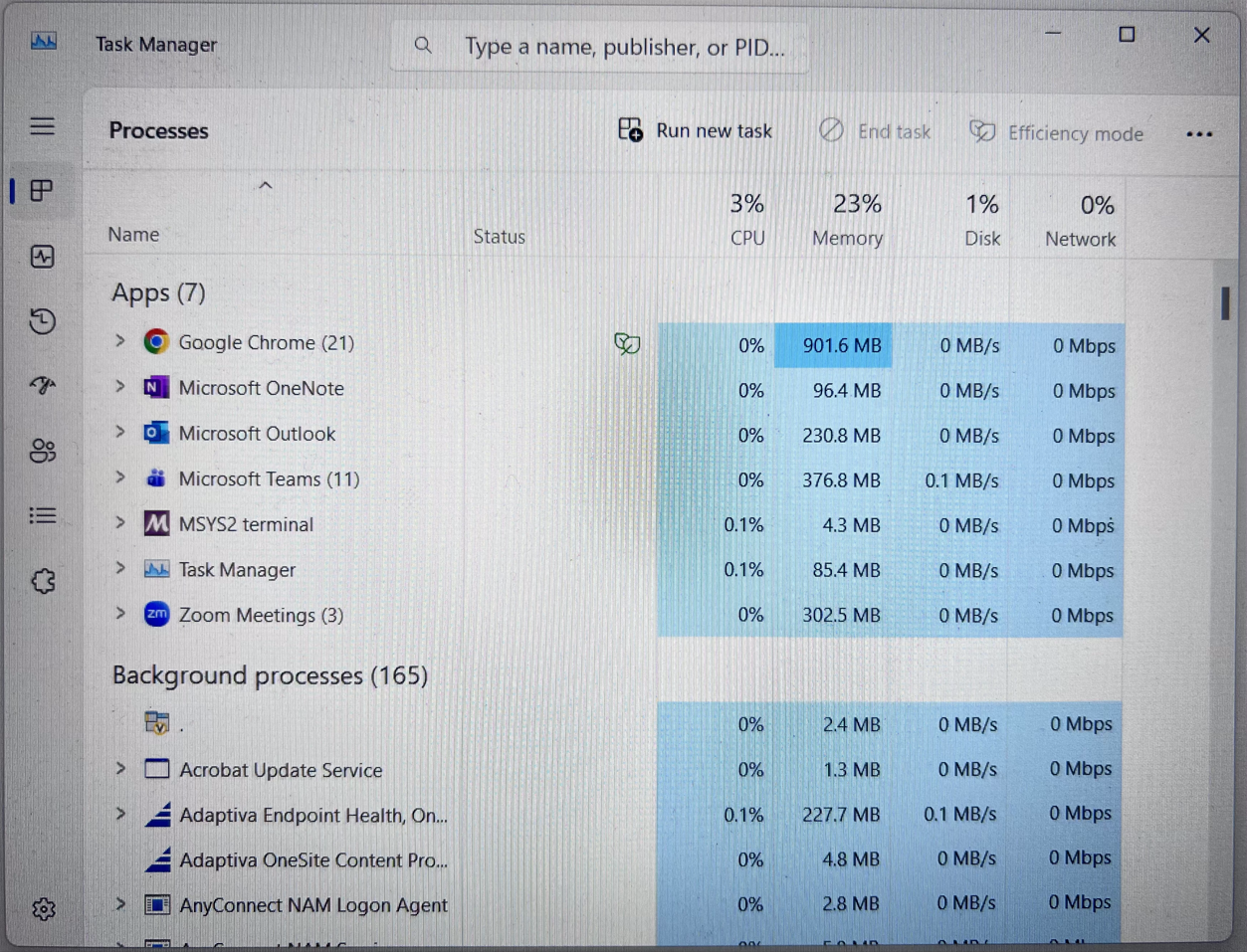
Modern UI (default on Win 11)
- vertical tabs on the left (Processes, Performance, App history, etc.)
![]()
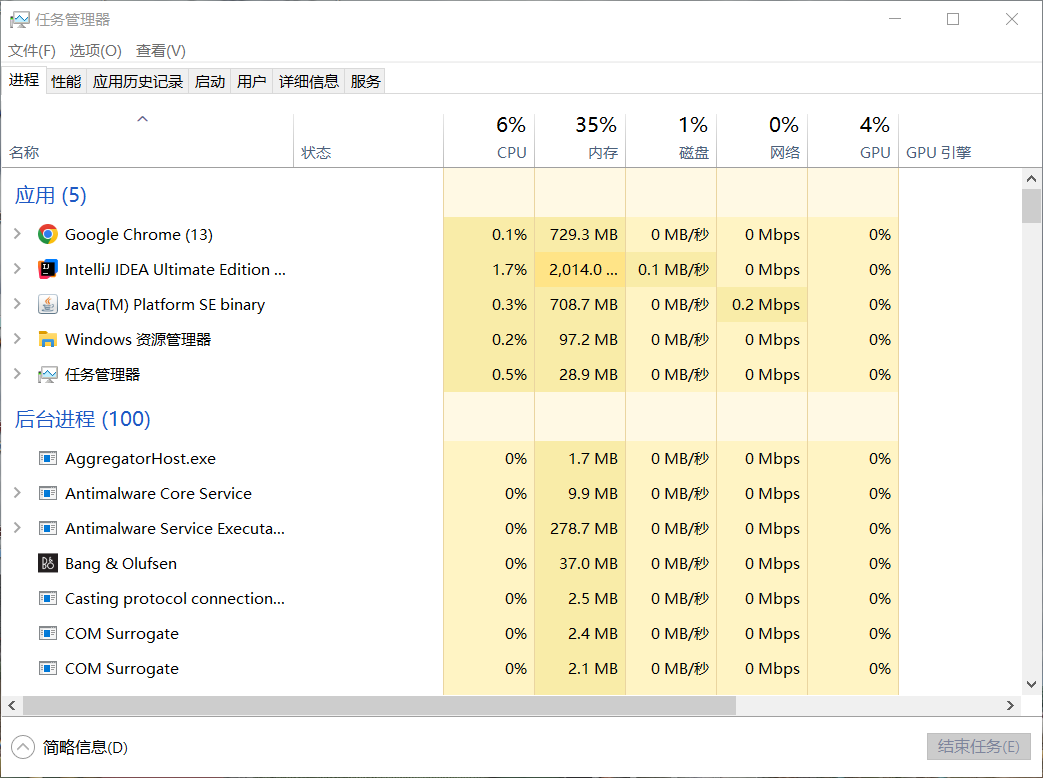
Classic UI (-d flag)
- horizontal text tabs across the top, more compact for some workflows
![]()
Tip
Tip 1: Freeze Refresh with Ctrl (Pause Updates)
- Problem: On the Processes or Details tab, high-CPU or memory-hogging entries keep jumping around every second, making it hard to right-click → End task, open file location, or even read the exact name.
- Fix:
- Switch to Processes, Details, or Performance tab.
- Hold down the Ctrl key and keep it held.
- → All graphs, percentages, and sort order freeze instantly.
- Do whatever you need (select, sort manually, right-click actions).
- Release Ctrl → live updating resumes.
This is especially useful when hunting a process that’s spiking and moving up/down the list rapidly.
Tip 2: Ctrl + Click “Run new task” → Elevated Command Prompt
Normal behavior
File → Run new task → opens a simple Run dialog (like Win + R) that runs as your current user.
Hidden behavior
- Go to File menu.
- Hold Ctrl key.
- Click “Run new task”.
→ Instead of the dialog, Windows launches an elevated (Administrator) Command Prompt (cmd.exe) directly. - No UAC prompt if you’re already an admin; otherwise it prompts as usual.
This is faster than searching for cmd → right-click → Run as administrator, especially when Task Manager is already open because something is seriously misbehaving.
Quick Notes
- The modern sidebar UI became default in Windows 11 (and late Windows 10 builds).
-dflag forces the legacy top-tabs layout on any recent Windows version that still supports it.- Both Ctrl tricks work in the modern and classic UIs.
References
- Originally spotted and confirmed in this V2EX thread (Chinese tech forum, lots of good replies)
These are small quality-of-life things, but once you know them they become muscle memory for sysadmin/ troubleshooting sessions.