Install CasaOS on Raspberry Pi 4B
Introduction
CasaOS is an open-source home cloud system built on the Docker ecosystem. It provides a clean web interface and allows you to install applications such as NAS tools, media servers, and smart home services with just a few clicks.
Running CasaOS on a Raspberry Pi 4B is a popular setup for building a small home server. CasaOS works well with Raspberry Pi OS (the 64-bit version is recommended), and the installation only takes a few minutes.
Prerequisites
- Hardware
- Raspberry Pi 4B (2GB RAM or more recommended)
- MicroSD card (at least 16GB, Class 10 recommended)
- Power adapter
- Network connection (Ethernet or WiFi)
- Install Raspberry Pi OS
- Please refer to the following guide - Installing Rpi OS Legacy Lite on Raspberry Pi 4B
Update System Packages
- Connect to your Raspberry Pi via SSH.
- Default credentials
- Username:
pi - Password:
raspberry
- Username:
- Default credentials
- Update the system packages
1
sudo apt update && sudo apt upgrade -y
- Install curl if it is not already installed
1
sudo apt install curl -y
Run the CasaOS Installation Script
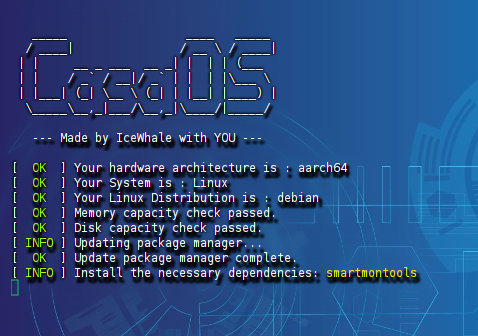
CasaOS provides a one-line installation script. Run the following command in the terminal:
1 | curl -fsSL https://get.casaos.io | sudo bash |
- The script will automatically download and install CasaOS along with its Docker dependencies.
- During installation, you will be asked to set the CasaOS administrator username and password.
- Default credentials:
- Username:
casaos - Password:
casaos - You can change them during setup.
- Username:
- Default credentials:
- After installation finishes, CasaOS will start automatically.
Alternative command (if curl is unavailable)
1 | wget -qO- https://get.casaos.io | sudo bash |

Access the CasaOS Web Interface
- Find the Raspberry Pi IP address
- Run the following command in the terminal:
hostname -I - You should see an IP address like 192.168.x.x.
- Run the following command in the terminal:
- Open the web interface
- On a device in the same network, open a browser and visit:
http://<RaspberryPi-IP>:80( Example:http://192.168.0.109 ) - Log in using the username and password you configured earlier.
- On first login, CasaOS will guide you through the initial setup. After that, you can open the app store and install applications such as Nextcloud, Plex, or Home Assistant with a single click.
- On a device in the same network, open a browser and visit:


Uninstall CasaOS (Optional)
If you want to remove CasaOS, run the following command:
1 | curl -fsSL https://get.casaos.io/uninstall | sudo bash |
Notes and Tips
- Port conflicts
- CasaOS uses port 80 by default. If another service (such as Apache) is already using this port, you may need to change the CasaOS port in its configuration file.
- Performance
- CasaOS runs smoothly on Raspberry Pi 4B. When installing multiple applications, monitor CPU and memory usage. Using an external SSD instead of a MicroSD card can significantly improve performance.
- Updating CasaOS
- You can check for updates from the web interface under Settings, or run the following command
casaos-ctl update.
- You can check for updates from the web interface under Settings, or run the following command
- Firewall settings
- If ufw is enabled, make sure port 80 is allowed
sudo ufw allow 80.
- If ufw is enabled, make sure port 80 is allowed