Tech-Roy Blog

技術分享 技術無界 開源至上

Overview

Jellyfin is a free, open-source media server that lets you organize, manage, and stream your personal collection of movies, TV shows, music, and photos. It turns your local files into a clean, Netflix-like library accessible from phones, TVs, browsers, or any compatible client — all without subscriptions, licenses, or paywalls. You own your data completely.
Key strengths on a Pi 4B: lightweight enough to run 24/7, supports basic transcoding (though CPU-limited), multi-user accounts, plugins for metadata scraping (Douban, TMDb, etc.), and a nice web UI + apps for almost every device.

Features at a Glance

  • Personal media library with automatic organization
  • On-the-fly transcoding (CPU fallback on Pi)
  • Clients for Android, iOS, Roku, Fire TV, web, etc.
  • Extensible via plugins (metadata, skins, intro skipper, etc.)
  • Poster walls, collections, watch lists, live TV/DVR support

Docker is the cleanest way on Raspberry Pi OS — easy updates, isolated, and portable.

Update the system (always start here)

1
sudo apt update && sudo apt upgrade -y

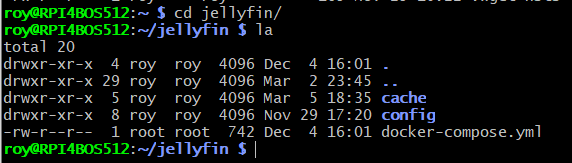
Create directories for persistent data

Use a dedicated folder under your home dir (or wherever you prefer).

1
mkdir -p ~/jellyfin/config ~/jellyfin/cache


Create and edit docker-compose.yml

1
2
cd ~/jellyfin
sudo nano docker-compose.yml

Here’s a solid, modern compose file (adjusted for Pi 4B realities):

1
2
3
4
5
6
7
8
9
10
11
12
13
14
15
16
17
18
19
20
21
22
23
version: "3.8"

services:
jellyfin:
image: jellyfin/jellyfin:latest
container_name: jellyfin
restart: unless-stopped
network_mode: bridge
ports:
- 8096:8096 # HTTP
- 8920:8920 # HTTPS (optional)
environment:
- PUID=1000 # your user ID (id -u)
- PGID=1000 # your group ID (id -g)
- TZ=Asia/Taipei # or Asia/Shanghai if preferred
volumes:
- ./config:/config
- ./cache:/cache
- /mnt/NAS8T/Movies:/media/Movies:ro # read-only for safety
- /mnt/NAS8T/TVShows:/media/TVShows:ro
- /home/roy/shared/JellyfinShows:/media/NetWorkVideo:ro
# devices: # commented out — see note below
# - /dev/dri:/dev/dri
  • Important note on hardware acceleration
    1
    2
    On Raspberry Pi 4B, hardware transcoding via /dev/dri (VideoCore VI) is deprecated and unreliable in recent Jellyfin versions (10.9+). Official docs dropped support because it was immature, often fell back to CPU anyway, and Pi 5 has no hardware encoder at all.
    Most users on Pi 4B run without it — direct play works fine for compatible clients (e.g., VLC, Infuse). If you force /dev/dri, you might get partial decode but no real gains and possible crashes. Leave it commented unless you're on an older version and have tested it.

Start the container

1
2
cd ~/jellyfin
docker compose up -d

Access the web UI

  • Open your browser
    1
    http://<your-pi-ip>:8096 (e.g., http://192.168.0.109:8096)

    First run → wizard sets up library paths, users, metadata languages, etc.

Useful Docker Commands (CLI cheatsheet)

1
2
3
4
5
6
7
8
9
10
11
# Follow logs in real time
docker logs -f jellyfin

# Stop / start / restart
docker compose down
docker compose up -d
docker compose restart

# Or single container
docker stop jellyfin
docker start jellyfin

Making Jellyfin Better (Plugins & Tweaks)

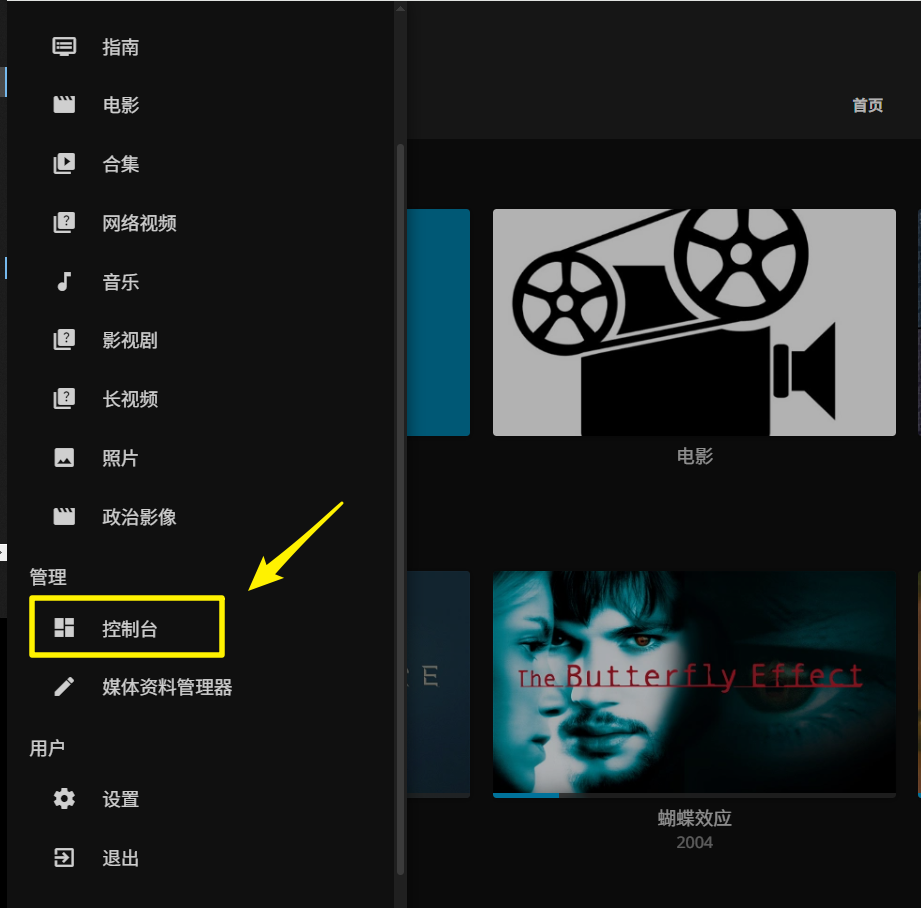
Install plugins via Dashboard → Plugins → Catalog

  • Douban metadata (for Chinese titles, actors, ratings)
  • TMDb Box Sets / Collections
  • Intro Skipper (auto-skip TV intros)
  • MetaShark or similar for better scraping

Please following articles as below to enhance your Jellyfin

YouTube guides worth watching

  • 利用NAS加Jellyfin打造个人影音库

  • Jellyfin实用插件两枚 — MetaShark + intro skipper

  • 群晖Jellyfin装豆瓣插件

  • 家庭影院一条龙开源免费,实现本地视频自动刮削,字幕下载,海报墙展示

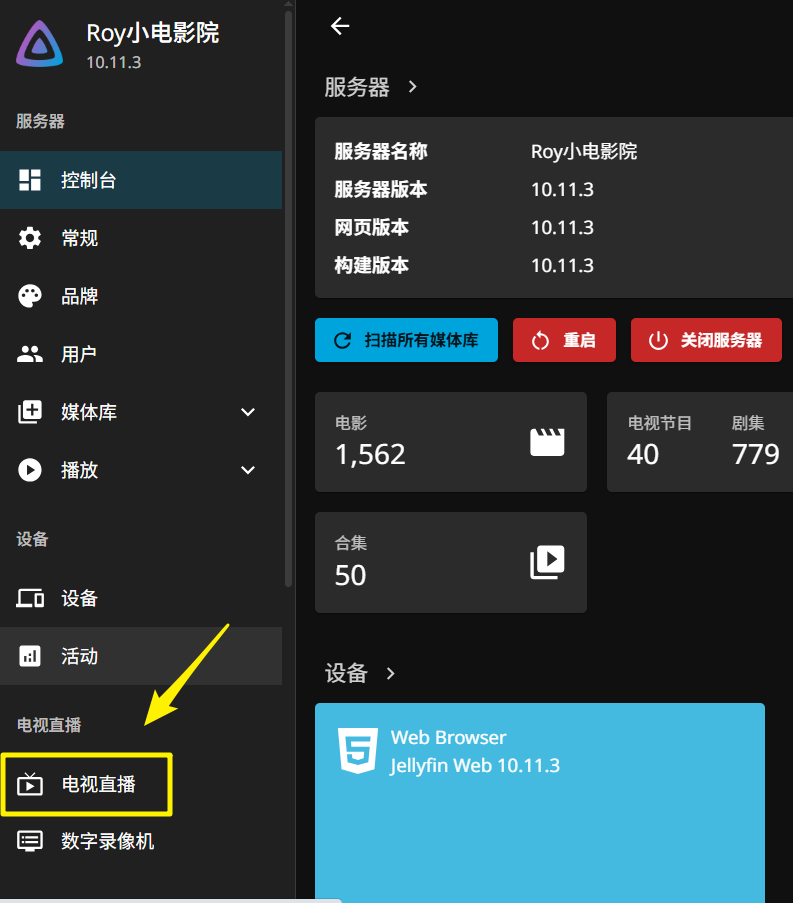
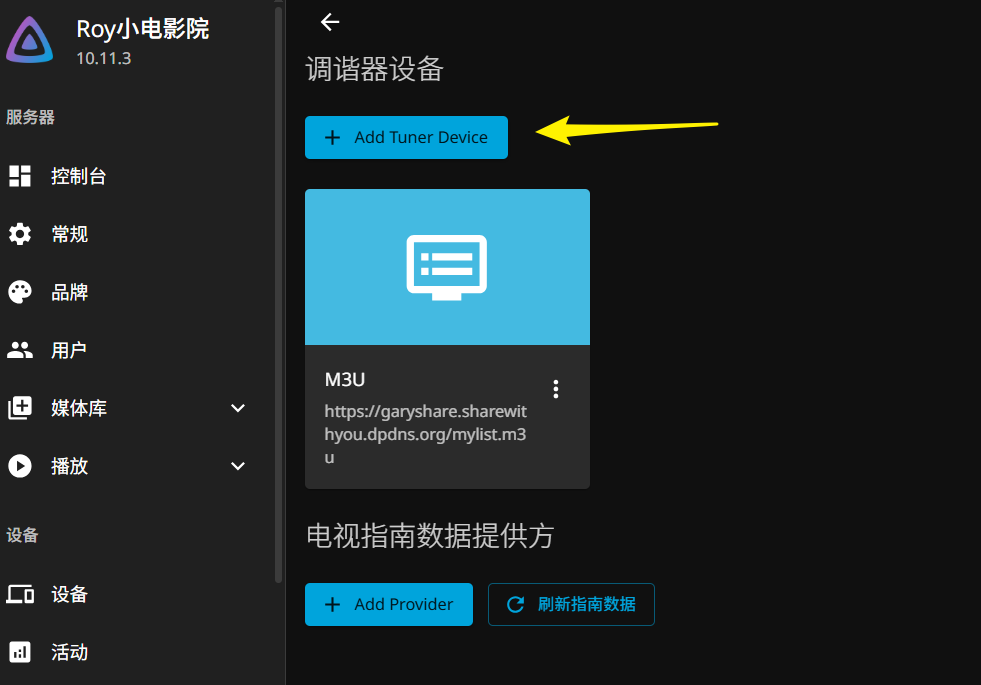
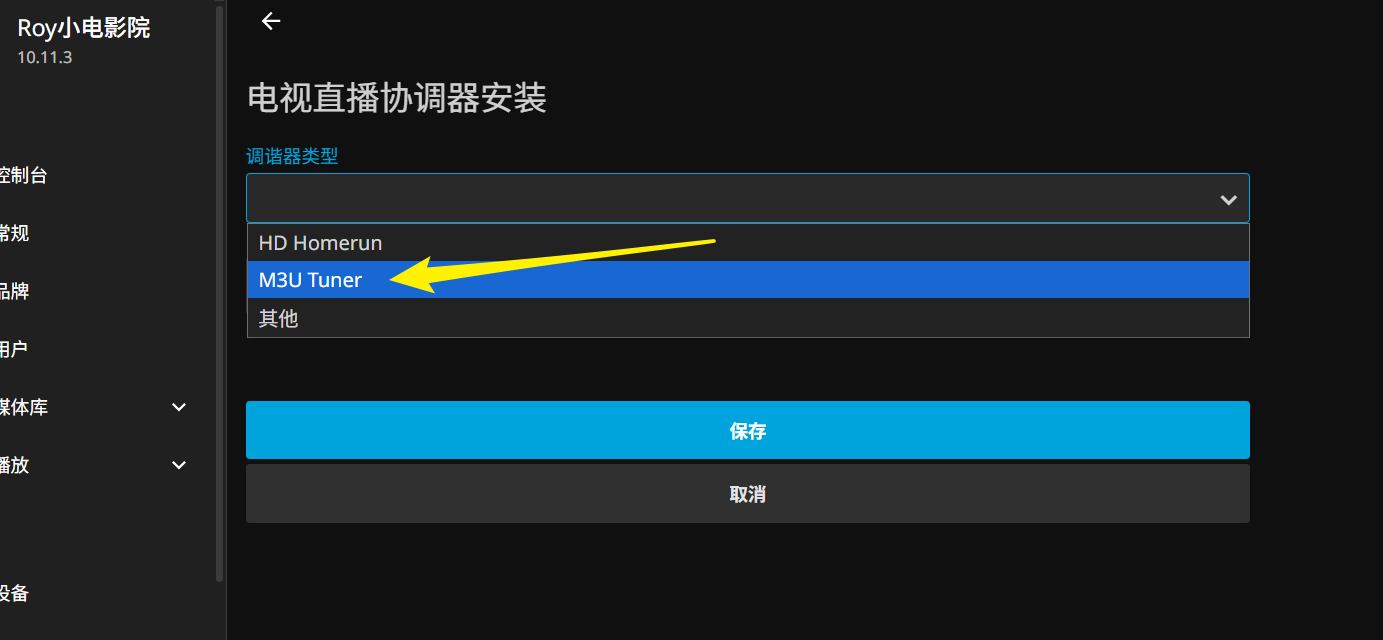
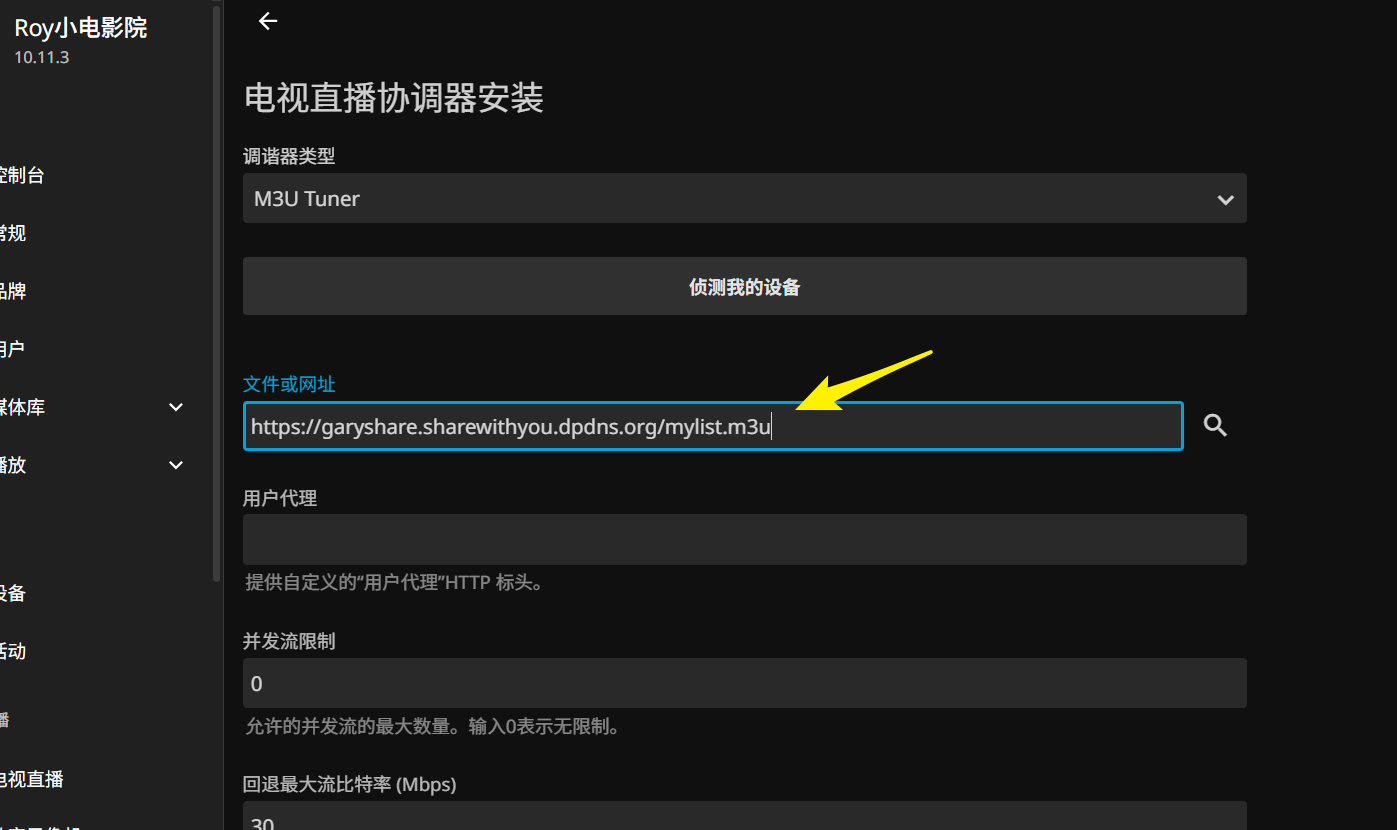
Live TV / IPTV Setup

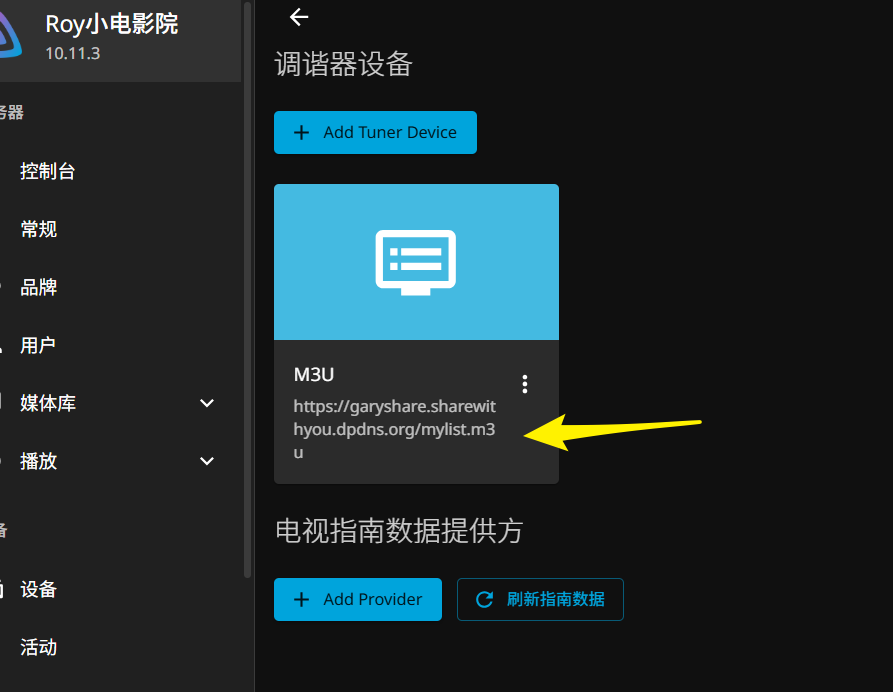
Add an M3U playlist for free channels:


References

This setup gives you a rock-solid personal media server on Pi 4B — low power, always-on, and expandable. Direct play is king here; avoid heavy transcoding unless you upgrade to a mini PC later. Hit me up if you run into permission issues with volumes or plugin setup. Enjoy the poster wall! 🍿

Overview

yddict is a lightweight CLI dictionary tool that queries Youdao Dictionary (有道词典) directly from the terminal. It’s perfect for developers who want quick English ↔ Chinese lookups without opening a browser or dealing with heavy GUI apps full of ads.

Features

  • English → Chinese translation
  • Chinese → English translation
  • Phonetic symbols / pronunciation hints
  • Web-sourced definitions and examples
  • Custom proxy support
  • Custom output color
  • Completely ad-free

Requirements

  • Node.js ≥ 12.0.0
  • npm ≥ 6.0.0

yddict is pure JavaScript, so it runs fine on ARM64 like Raspberry Pi 4B — no compilation needed.

Demo

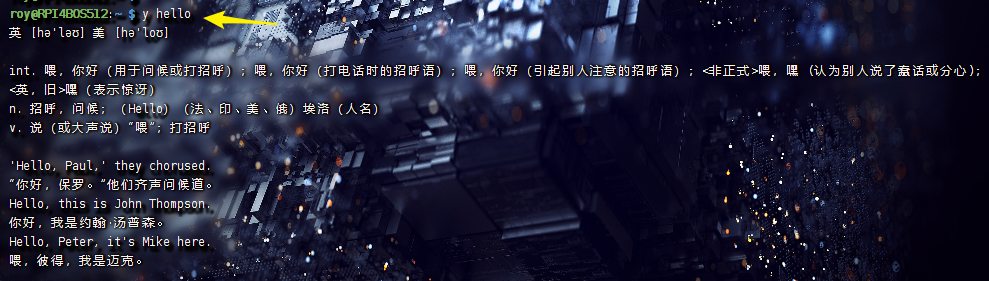
yddict demo

Installation Steps

Update your system

Always a good first step on fresh Raspberry Pi OS installs.

1
sudo apt update && sudo apt upgrade -y

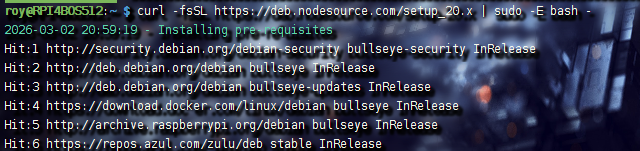
The Node source repo gives you a clean, up-to-date version. Here we’re using v20.x (stable as of 2025–2026).

1
2
curl -fsSL https://deb.nodesource.com/setup_20.x | sudo -E bash -
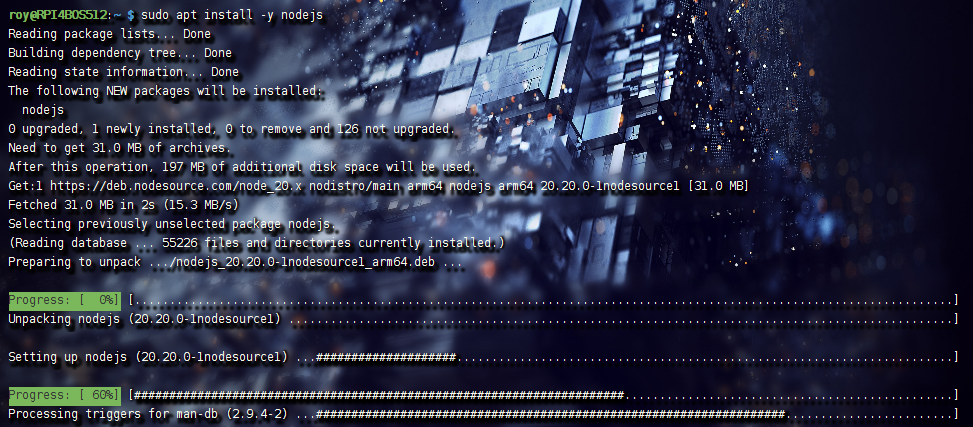
sudo apt install -y nodejs


Verify versions

1
2
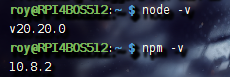
node -v    # should show v20.x.x
npm -v # should show 10.x.x or similar

Install yddict globally

1
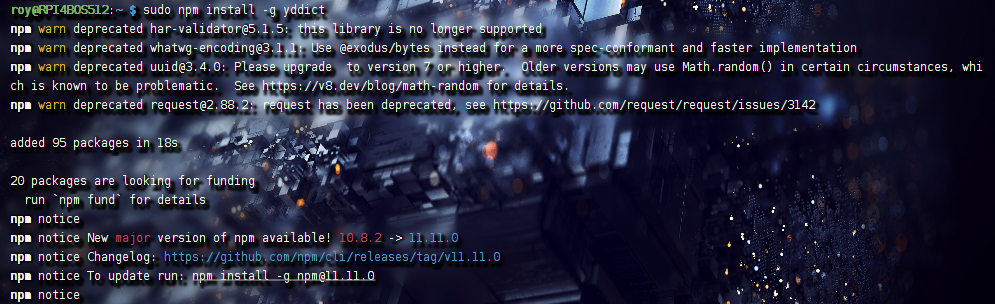
sudo npm install -g yddict

Quick check that it’s installed

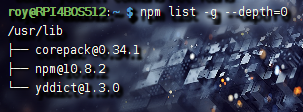
1
npm list -g --depth=0

You should see yddict listed under global packages.

Optional: Verify Installation Paths

  • Check the package metadata
    1
    cat /usr/lib/node_modules/yddict/package.json

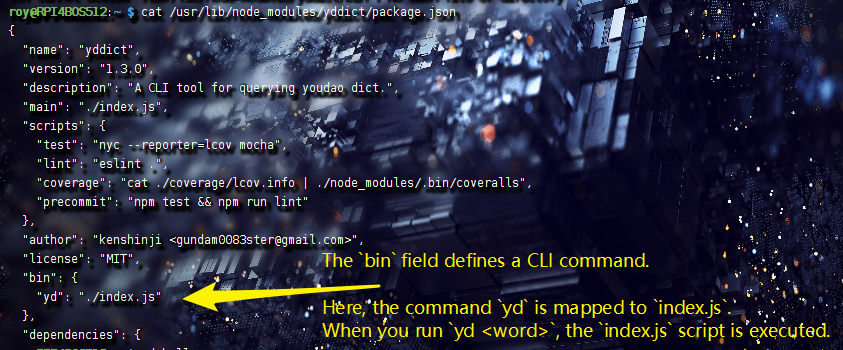
    Look for the bin field — it maps the yd command to index.js.

  • Peek at the main script (just for curiosity)
    1
    cat /usr/lib/node_modules/yddict/index.js

    You’ll see it uses request, chalk, cli-spinner, etc., to fetch and pretty-print results from Youdao.

1
2
3
4
5
6
7
8
9
10
11
12
13
14
15
16
17
18
19
20
21
22
23
24
25
26
27
28
29
30
31
32
33
34
35
36
37
38
39
40
41
42
43
44
#!/usr/bin/env node

const request = require('request')
const chalk = require('chalk')
const Spinner = require('cli-spinner').Spinner
const isChinese = require('is-chinese')
const urlencode = require('urlencode')
const noCase = require('no-case')
const config = require('./lib/config')
const Parser = require('./lib/parser')

let word = process.argv.slice(2).join(' ')
if (!word) {
console.log('Usage: yd <WORD_TO_QUERY>')
process.exit()
}

const spinner = new Spinner('努力查询中... %s')

if (config.spinner) {
spinner.setSpinnerString('|/-\\')
spinner.start()
}

const isCN = isChinese(word)

word = isCN ? word : noCase(word)

const options = {
'url': config.getURL(word) + urlencode(word),
'proxy': config.proxy || null
}

const ColorOutput = chalk.keyword(config.color)
request(options, (error, response, body) => {
if (error) {
console.error(error)
}

if (config.spinner) {
spinner.stop(true)
}
console.log(ColorOutput(Parser.parse(isCN, body)))
})

Basic Usage

Run lookups directly in the terminal

1
2
yd hello
yd 世界

It handles both directions automatically (detects Chinese characters).

Convenience Tip: Shell Alias

If you prefer a shorter command:

1
nano ~/.bashrc

Add this line at the end:

1
alias y='yd'

Save, then reload:

1
source ~/.bashrc

Now you can just type:

1
y hello

Uninstall (if needed)

1
sudo npm uninstall -g yddict

Notes & Gotchas

  • Proxy setup: If you’re behind a corporate/VPN/proxy, edit ~/.config/configstore/yddict.json after first run
    1
    2
    3
    4
    {
    "proxy": "https://your-proxy:port",
    "color": "yellow"
    }
  • No releases published on GitHub, but the repo is still active (Hacktoberfest-tagged, ongoing commits). Install via npm is the official way.
  • Works great on headless Pi setups — super lightweight for quick lookups while coding or reading docs.

References

That’s it — you now have a fast, terminal-based dictionary on your Pi. Handy when you’re knee-deep in code and need to check a word without breaking flow. Enjoy!

Overview

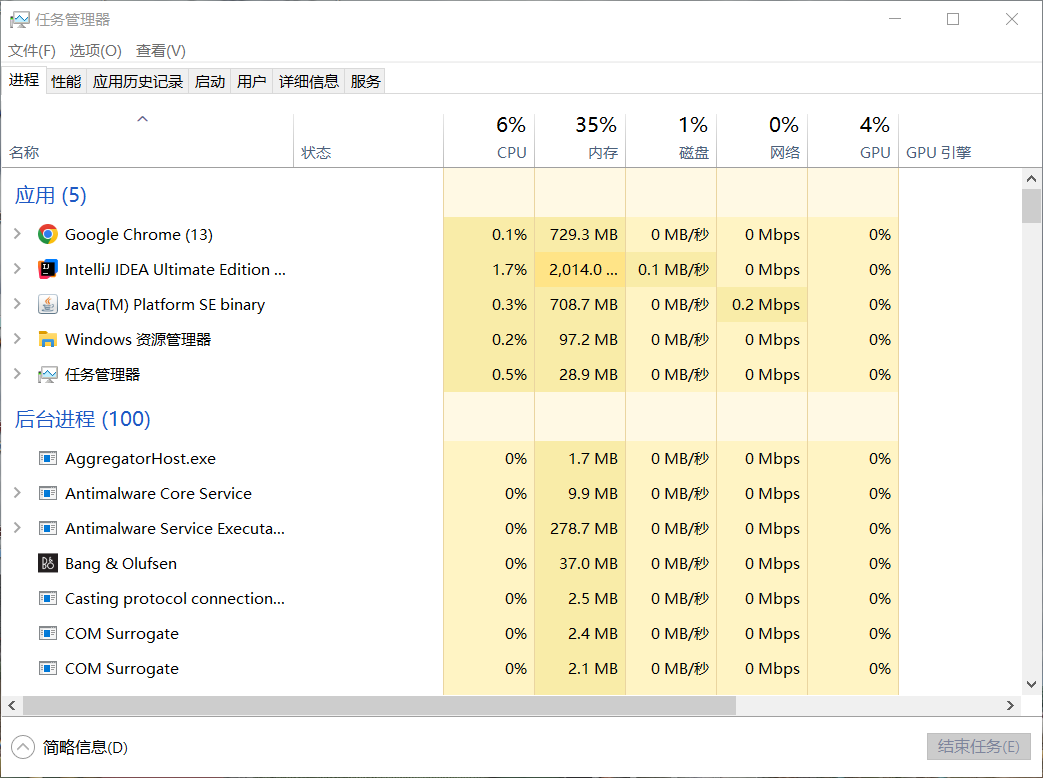
This is a quick roundup of lesser-known but genuinely useful shortcuts and behaviors in Windows Task Manager that save time when troubleshooting or managing processes.

Launching Task Manager

Standard ways everyone knows

  • Ctrl + Shift + Esc
  • Right-click taskbar → Task Manager
  • Ctrl + Alt + Del → Task Manager

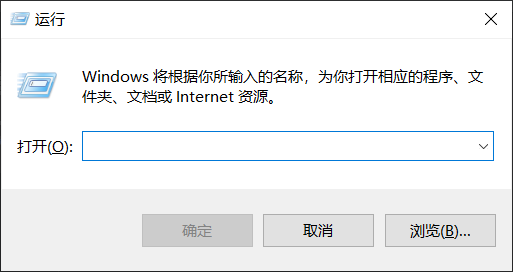
Lesser-known: force the classic (Windows 10-style) top-tab UI instead of the modern sidebar layout (especially helpful on Windows 11):

1
Win + R → taskmgr -d

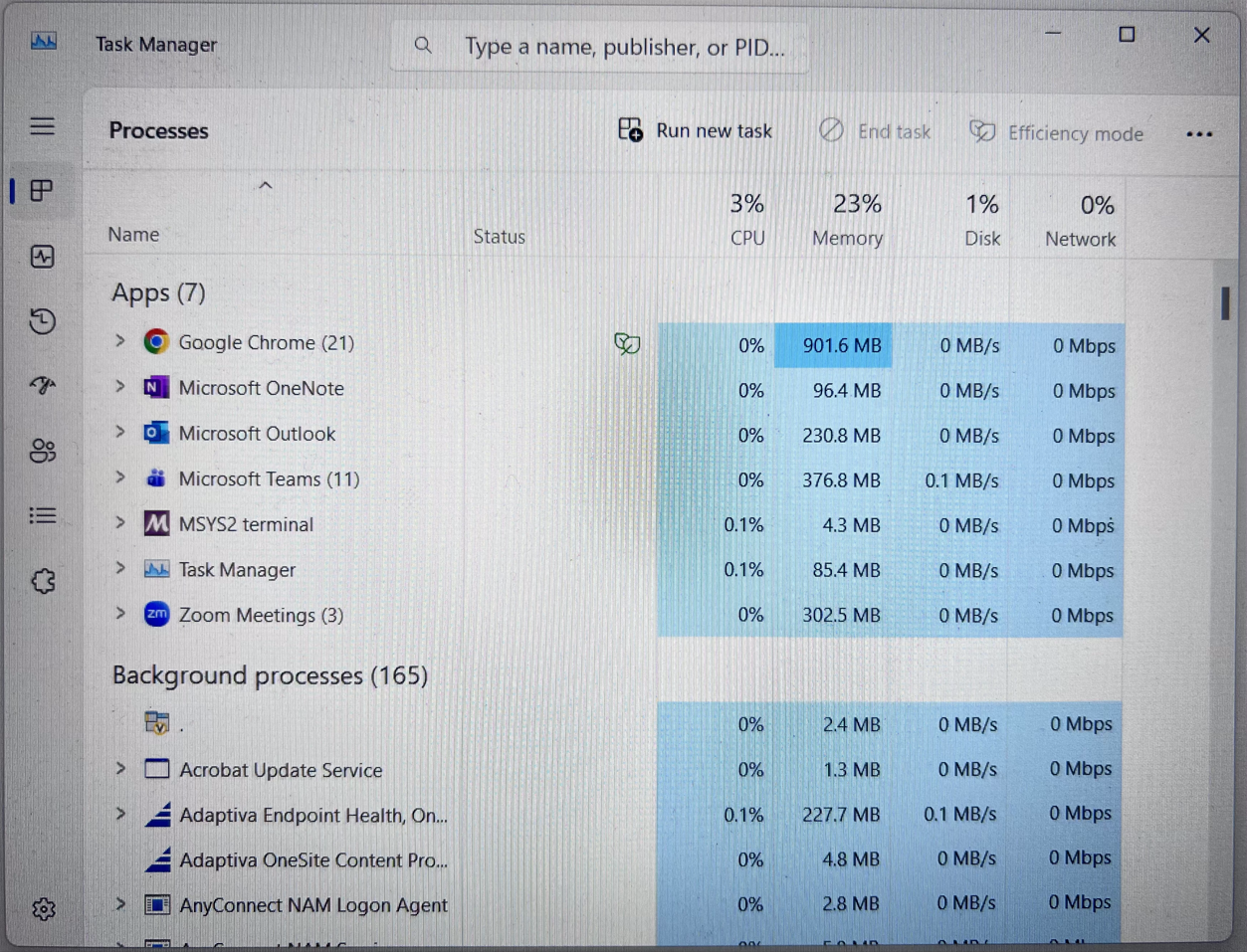
Modern UI (default on Win 11)

  • vertical tabs on the left (Processes, Performance, App history, etc.)

Classic UI (-d flag)

  • horizontal text tabs across the top, more compact for some workflows

Tip

Tip 1: Freeze Refresh with Ctrl (Pause Updates)

  • Problem: On the Processes or Details tab, high-CPU or memory-hogging entries keep jumping around every second, making it hard to right-click → End task, open file location, or even read the exact name.
  • Fix:
    • Switch to Processes, Details, or Performance tab.
    • Hold down the Ctrl key and keep it held.
      • → All graphs, percentages, and sort order freeze instantly.
    • Do whatever you need (select, sort manually, right-click actions).
    • Release Ctrl → live updating resumes.

This is especially useful when hunting a process that’s spiking and moving up/down the list rapidly.

Tip 2: Ctrl + Click “Run new task” → Elevated Command Prompt

Normal behavior

File → Run new task → opens a simple Run dialog (like Win + R) that runs as your current user.

Hidden behavior
  • Go to File menu.
  • Hold Ctrl key.
  • Click “Run new task”.
    → Instead of the dialog, Windows launches an elevated (Administrator) Command Prompt (cmd.exe) directly.
  • No UAC prompt if you’re already an admin; otherwise it prompts as usual.

This is faster than searching for cmd → right-click → Run as administrator, especially when Task Manager is already open because something is seriously misbehaving.

Quick Notes

  • The modern sidebar UI became default in Windows 11 (and late Windows 10 builds).
  • -d flag forces the legacy top-tabs layout on any recent Windows version that still supports it.
  • Both Ctrl tricks work in the modern and classic UIs.

References

These are small quality-of-life things, but once you know them they become muscle memory for sysadmin/ troubleshooting sessions.

Overview

This is a battle-tested workflow for exporting Docker images from a Raspberry Pi (or any ARM-based Linux box) to an exFAT-formatted USB drive, then loading them back on a fresh install or different machine. It avoids network pulls, preserves exact image tags and IDs, and sidesteps common permission headaches when dealing with auto-mounted removable media.
Tested on Raspberry Pi 4B running Raspberry Pi OS / Debian-based distro, but the commands are generic to any modern Linux with Docker.

Why This Matters

Docker images on embedded devices eat up space fast. TF cards and small SSDs fill quickly, and rebuilding everything from scratch over slow or unreliable internet is painful. A reliable offline backup lets you:

  • Wipe/reinstall the OS without losing your container environment
  • Migrate to new hardware quickly
  • Keep a cold spare of critical images (e.g. transmission, cloudreve, custom builds)

Exporting Images to USB

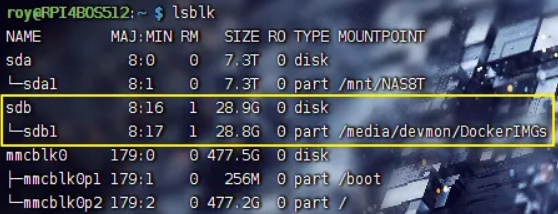
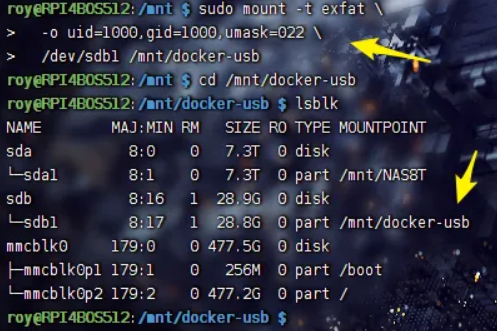
Plug in the USB drive and identify it.

  • execute: lsblk

    Look for something like /dev/sda1 or /dev/sdb1 with exFAT filesystem. Never guess — double-check size and label.

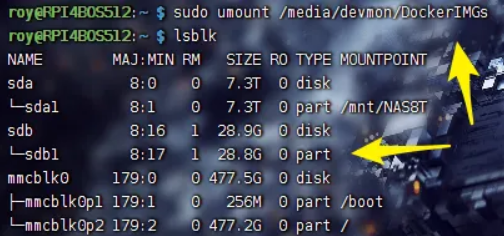
Unmount any auto-mount (devmon/udisks2 usually mounts to /media//

  • execute: sudo umount /media/devmon/DockerIMGs
  • adjust path to match your system

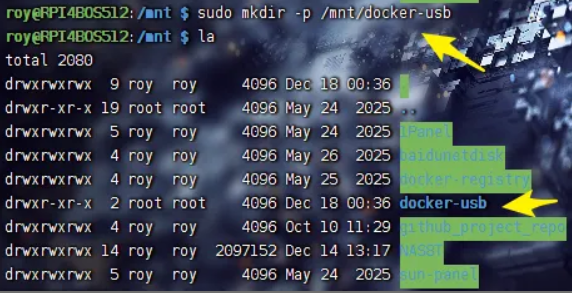
Create a clean mount point

  • execute: sudo mkdir -p /mnt/docker-usb

Mount the drive manually with proper ownership and permissions

This is the most important step — auto-mounts almost always give root:root or 1000:1000 with restrictive umask, making it annoying to write from non-root.

  • execute:
    1
    2
    3
    sudo mount -t exfat \
    -o uid=1000,gid=1000,umask=022 \
    /dev/sdb1 /mnt/docker-usb
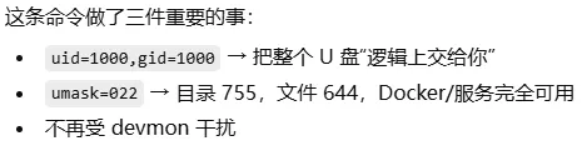
  • uid=1000,gid=1000 → files appear owned by your regular user
  • umask=022 → creates files as 644, directories as 755 (normal user-writable)

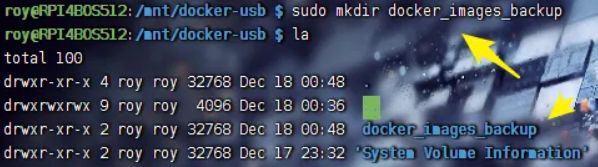
Create backup directory on the drive

  • execute
    1
    2
    3
    cd /mnt/docker-usb
    sudo mkdir docker_images_backup
    sudo chown $USER:$USER docker_images_backup # optional but cleaner

Export images

Use docker save to create a single .tar per image (or multi-image tar if you prefer).
Replace with your actual image:tag pairs.

1
2
sudo docker save -o /mnt/docker-usb/docker_images_backup/transmission_latest.tar lscr.io/linuxserver/transmission:latest
sudo docker save -o /mnt/docker-usb/docker_images_backup/cloudreve_4.10.1-arm.tar cloudreve:4.10.1-arm

Run as your user if the mount is correctly owned; otherwise prefix with sudo.

Verify sizes and integrity

  • execute:
    1
    2
    ls -lh /mnt/docker-usb/docker_images_backup
    du -sh /mnt/docker-usb/docker_images_backup/*

Safely unmount

  • execute:
    1
    2
    cd ~
    sudo umount /mnt/docker-usb

    Wait for the command to return, then physically remove the drive.

Restoring Images on a New / Reinstalled System

Plug in the USB drive.

It will probably auto-mount again (often to /media//

Locate the mount point and check contents

  • execute:
    1
    2
    lsblk -f
    ls -lh /mnt/docker-usb/docker_images_backup # adjust path

Load the images

  • execute
    1
    sudo docker load -i /media/devmon/ImgBackU/docker_images_backup/openwrt-aarch64.tar
  • You’ll see output like Loaded image: buddyfly/openwrt-aarch64:latest

Verify everything came back intact

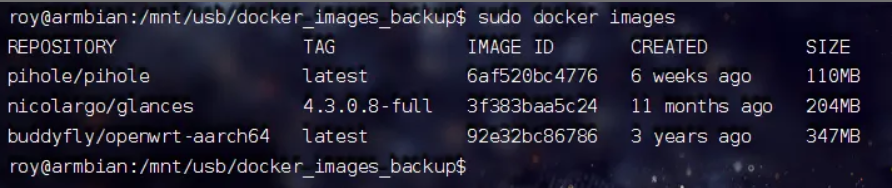
  • execute: sudo docker images
  • Check that repository:tag and IMAGE ID match exactly what you had before. If IDs match, layers were preserved perfectly.

(Optional) Unmount when done

  • execute:
    • sudo umount /mnt/usb
  • or wherever it mounted

Quick Tips & Gotchas

  • Always use docker save / docker load — never copy /var/lib/docker directly. The latter is dangerous and usually breaks.
  • exFAT is ideal for cross-platform (Linux ↔ Windows/Mac) backups. If you only stay on Linux, ext4 works too but isn’t as portable.
  • If mount -t exfat fails → install exfatprogs or exfat-utils (sudo apt install exfatprogs).
  • Large images (>10–20 GB) take time to save/load — be patient and watch iotop or htop if curious.
  • For bulk export of all images:
    1
    docker images --format '{{.Repository}}:{{.Tag}}' | xargs -n1 docker save -o backup.tar

    but single-file tar gets huge; per-image is usually better for manageability.

References

This workflow has survived multiple Pi reimages and migrations for me. Keep your USB drive in a safe place — it’s now your offline Docker lifeline.

Overview

This guide explains the boot chain for early 2017 Nintendo Switch units (unpatched, vulnerable to Fusee-Gelee). It covers how the console is forced into a user-controlled bootloader environment instead of the stock Horizon OS (HOS).
The short version: We’re exploiting a hardware-level vulnerability in the Tegra X1 bootROM to inject Hekate as the primary bootloader. This lets you chainload custom firmware (Atmosphère), manage NAND/emuMMC, run backups, boot Android/Linux, and more — all while keeping the original system intact if you use proper isolation.

Key Terms

Unpatched Switch (2017 models)

Only early units with serials in specific ranges are vulnerable to Fusee-Gelee (a permanent bootROM exploit). Later models (2018+, Mariko chip: V2, Lite, OLED) are hardware-patched and require a modchip. No software update or NAND restore can fix the vulnerability — it’s in silicon.

RCM (Recovery Mode)

NVIDIA’s factory recovery mode on the Tegra X1. When triggered, the console halts boot before loading any OS and waits for a signed payload over USB. This is the entry point for all softmods on unpatched units.

RCM Jig

A simple shorting tool (often a metal clip or 3D-printed piece) that bridges pin 10 on the right Joy-Con rail to ground. This tricks the console into entering RCM on power-on.

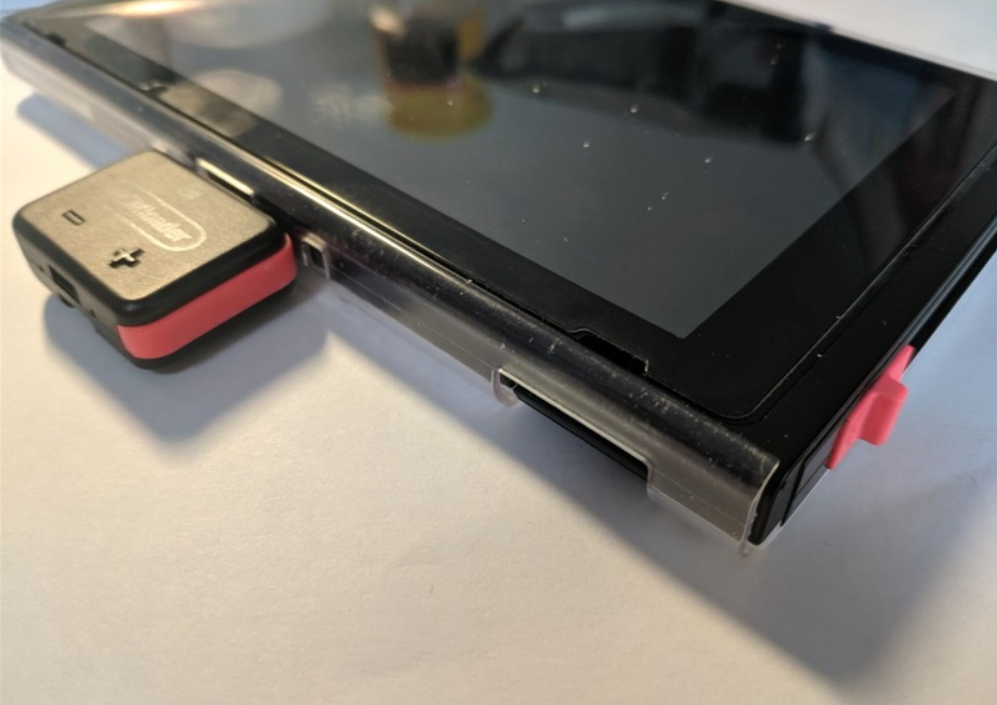
Payload Injector / RCM Loader

Hardware dongle (e.g., small USB device with blue LED) that stores and sends the Hekate payload (hekate_ctcaer_x.x.x.bin) over USB when the console is in RCM. Without one, you need a PC/phone running TegraRcmGUI, Rekado, etc., every boot.

Hekate

  • A full-featured, GUI-based bootloader (comparable to GRUB on PC). It handles:
    • Chainloading CFW (Atmosphère via fusee or package3)
    • eMMC/emuMMC backup & restore
    • emuMMC creation/migration/repair
    • SD partitioning for multi-OS setups
    • USB mass storage (UMS) mode for SD/eMMC
    • Hardware info readout
    • Auto-boot configuration

Atmosphère (CFW)

The de-facto custom firmware layer. It patches Horizon OS on-the-fly rather than replacing it. Enables homebrew, sysmodules, overlays, emuMMC booting, etc.

Tesla Overlay

A modular overlay framework (accessed via key combo in-game or menu). Allows real-time system tweaks, monitoring, and plugin loading without replacing the UI.

Verifying Compatibility

Only unpatched (V1) Switches support this method. Check your serial number (System Settings → System, or on the bottom sticker)
If your unit is patched, this guide does not apply — look into modchip solutions instead.

  • Use a checker like https://ismyswitchpatched.com/
  • Safe ranges (unpatched): XAW1xxxxxx–XAW7xxxxxx, etc.
  • “Possibly patched” ranges require testing with a jig.
  • Anything XKWxxxxxx, XKJxxxxxx, or later is patched (Mariko).

Step-by-Step Boot Process (Unpatched V1 Only)

  1. Format your microSD card to FAT32 (use a tool like guiformat or Rufus if needed; 128GB+ recommended for emuMMC).
  2. Copy the full Atmosphère package (e.g., latest stable release + sigpatches) to the SD root. Typical structure includes /atmosphere/, /bootloader/, /switch/, etc. Ensure Hekate files are present in /bootloader/.
  3. Insert the SD card into the Switch. Remove the right Joy-Con.
  4. Power on normally (briefly) to ensure it reaches the lock screen or menu, then power off completely.
  5. Insert the RCM jig into the right Joy-Con rail.
  6. Connect your payload injector / RCM loader (or USB cable to PC/phone). The LED should turn blue/indicate successful injection when Hekate loads.
  7. Power off fully (hold POWER button).
  8. Hold VOL+ and tap POWER once. The console enters RCM → Hekate boots.

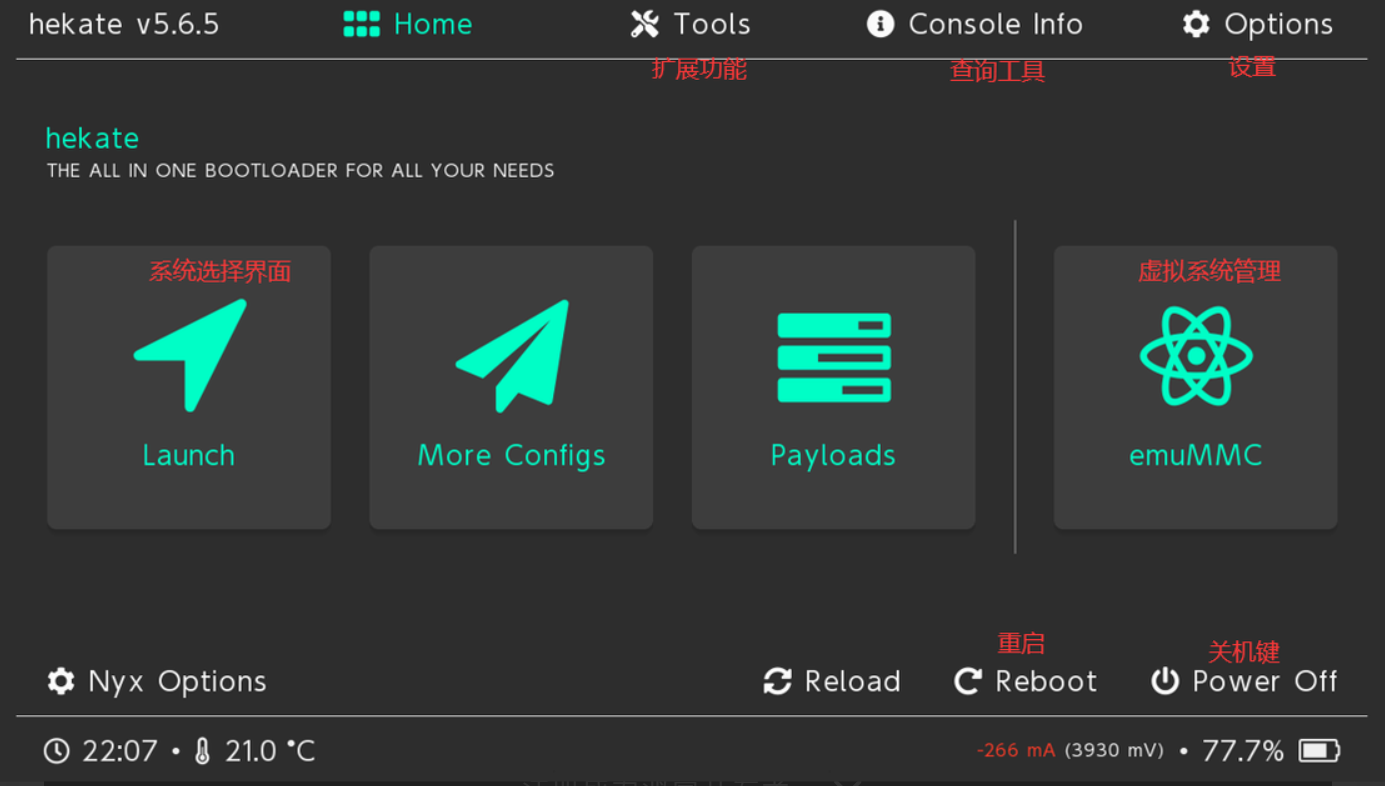
You should now see the Hekate splash, then the Nyx GUI menu.

Hekate Nyx GUI Breakdown

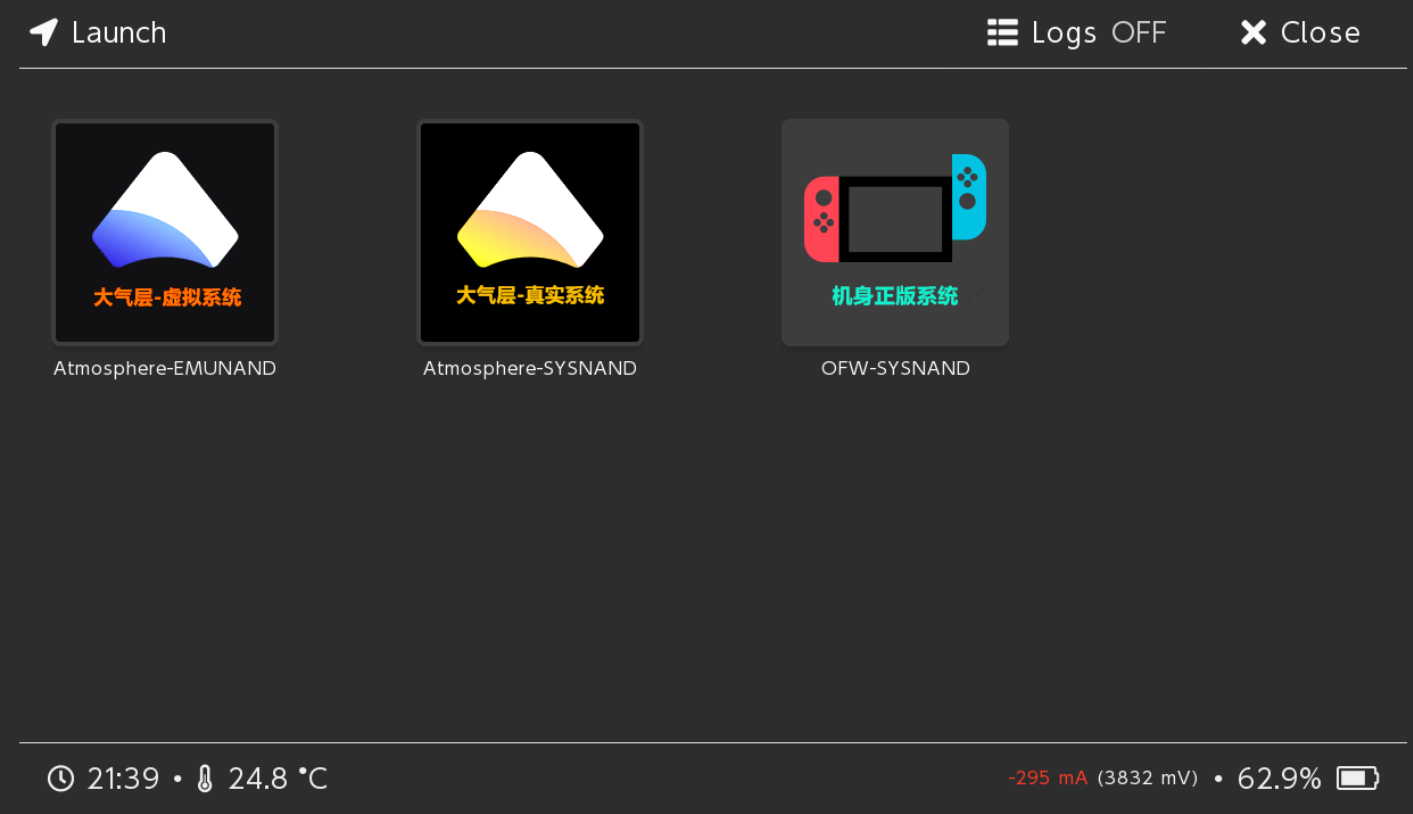
Home / Launch

  • Main screen with boot entries (e.g., CFW (emuMMC), CFW (sysNAND), Stock, Android/Linux if configured). Select to boot.

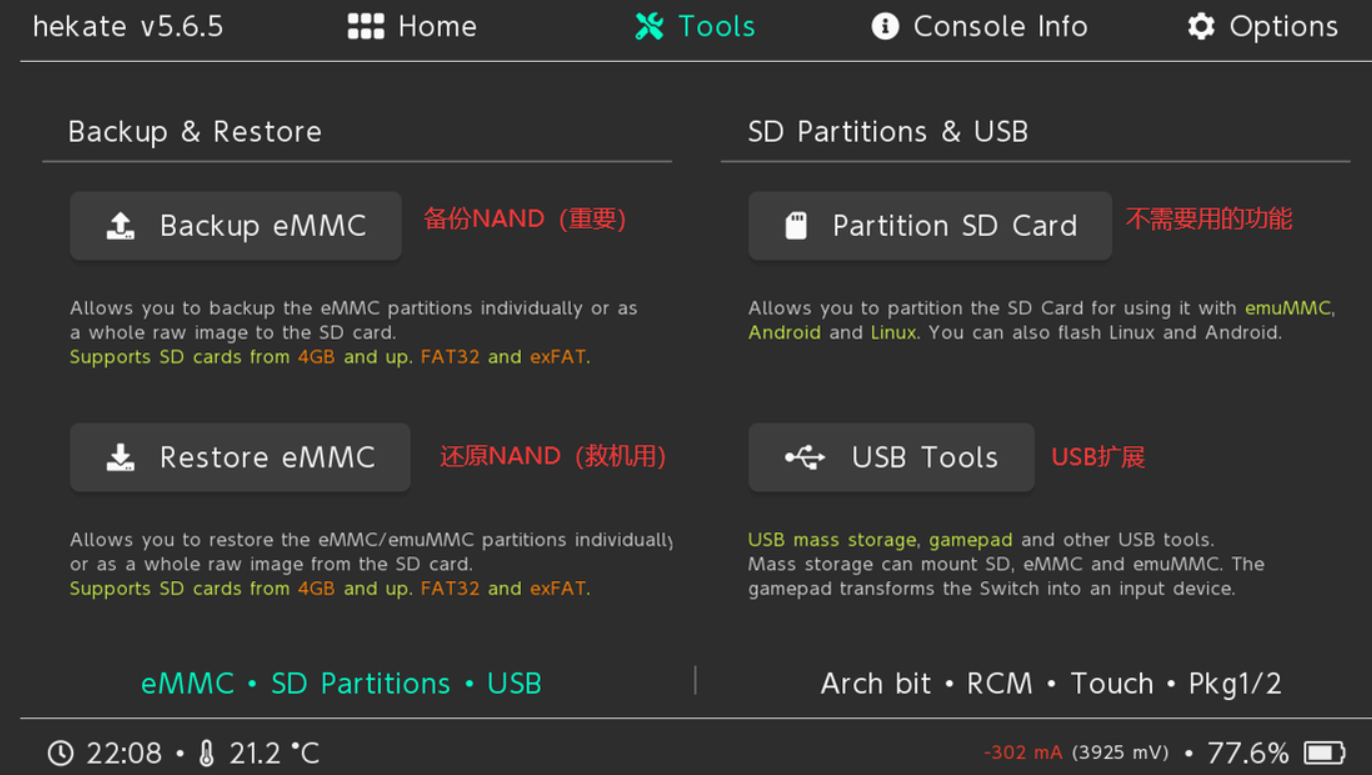
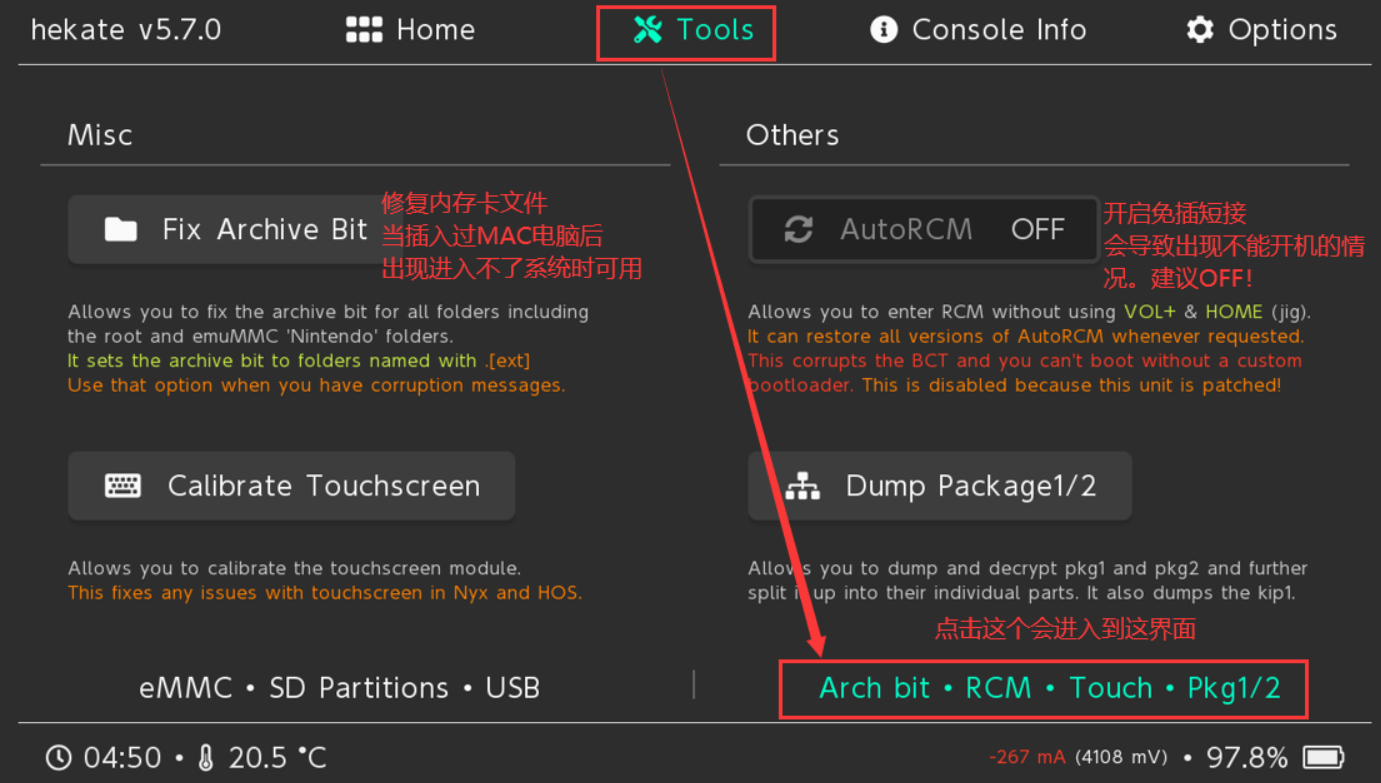
Tools

  • Backup/Restore eMMC or emuMMC (BOOT0/BOOT1/GPP partitions — always do full backups first).
  • Partition SD Card (for multi-boot setups).
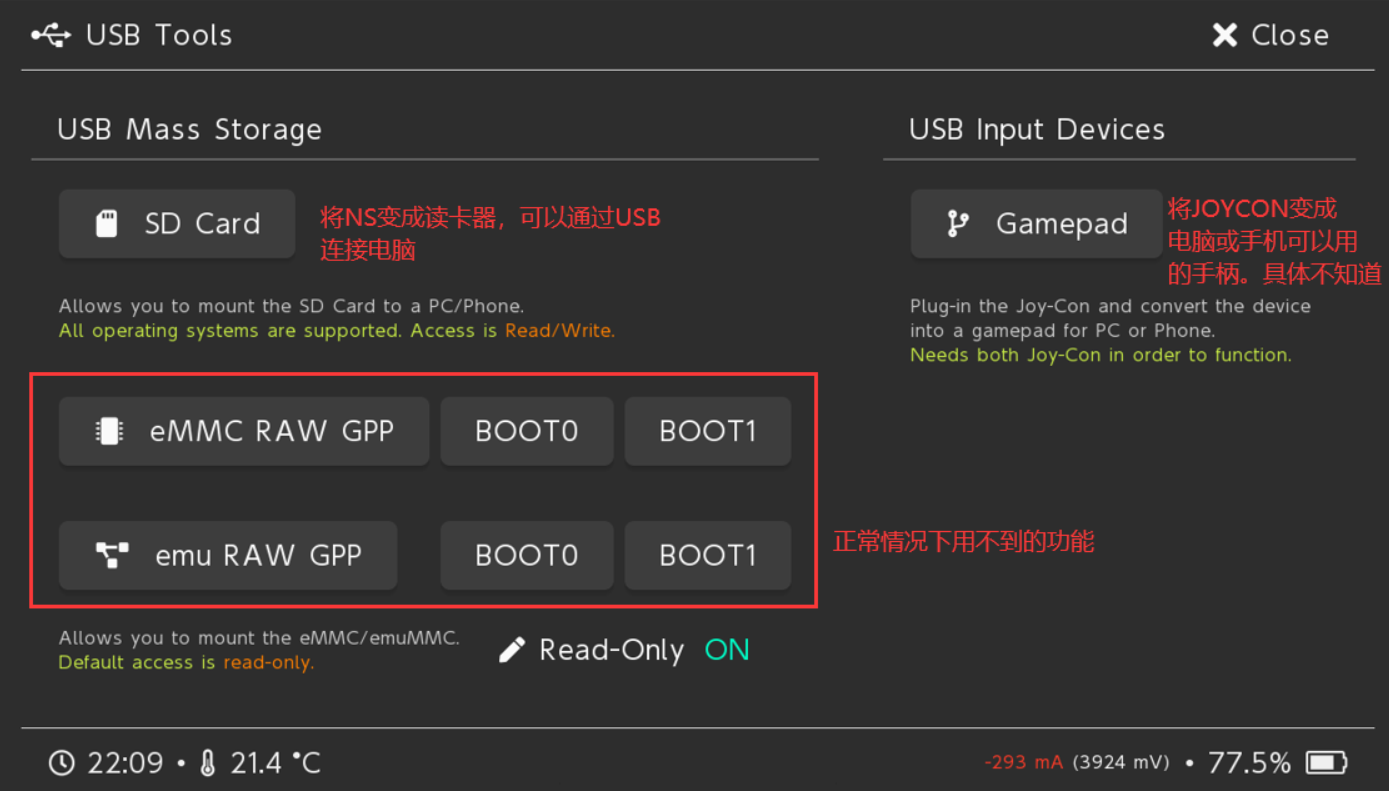
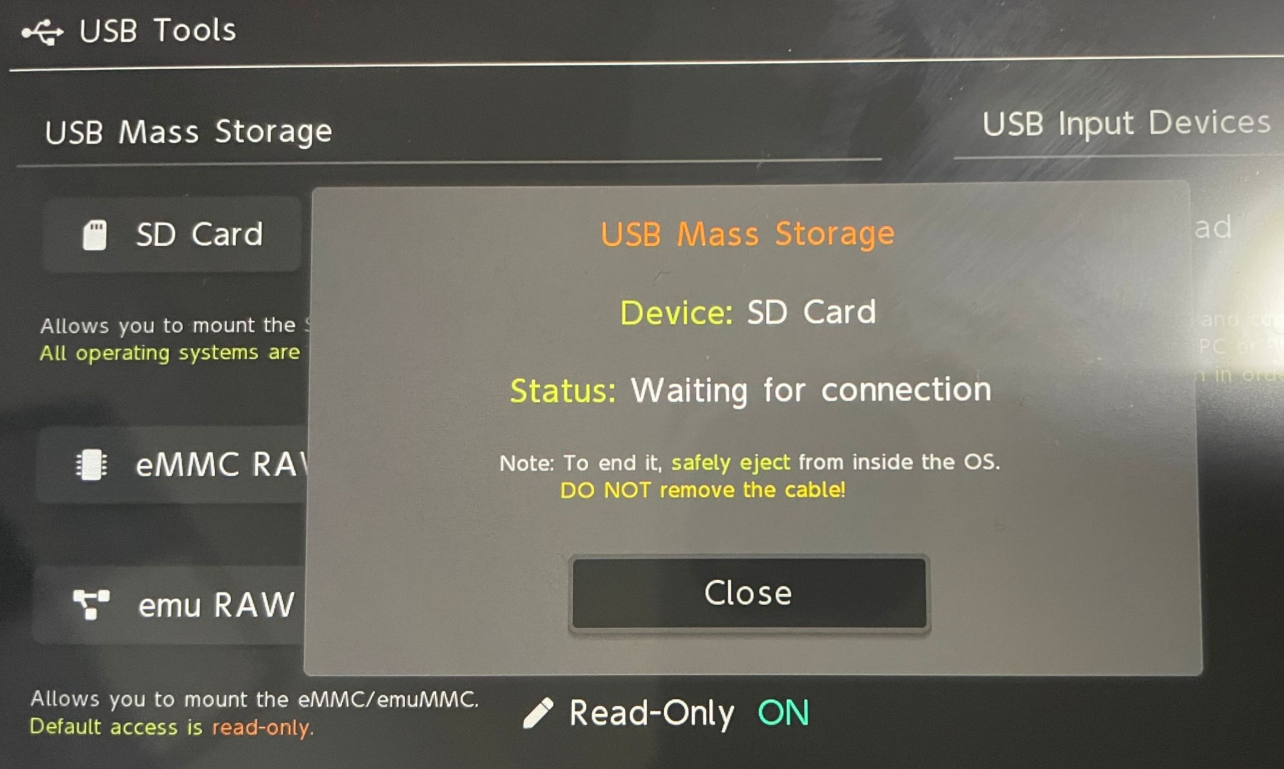
  • USB Mass Storage: Mount SD/eMMC/emuMMC as a drive on PC (eject properly via “Close” before unplugging).
  • USB Gamepad mode.
  • Archive bit fixer, touch calibration, benchmarks, AutoRCM toggle (avoid on patched units).

USB Tools

  • Dedicated section for UMS modes (SD, eMMC raw partitions) and gamepad emulation.

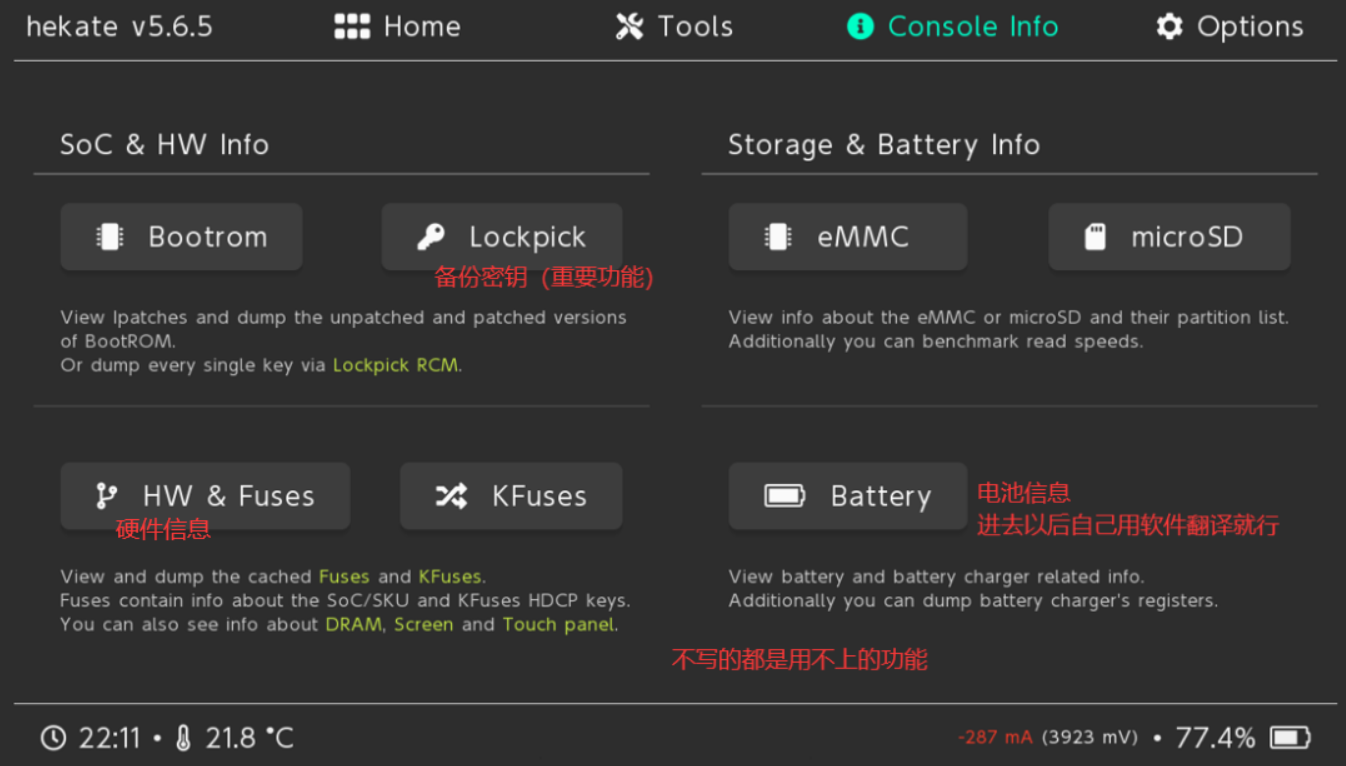
Console Info

  • Detailed readout: SoC revision, fuse status, RAM config, display/touch, eMMC/SD health, battery/PSU/charger stats.

Options

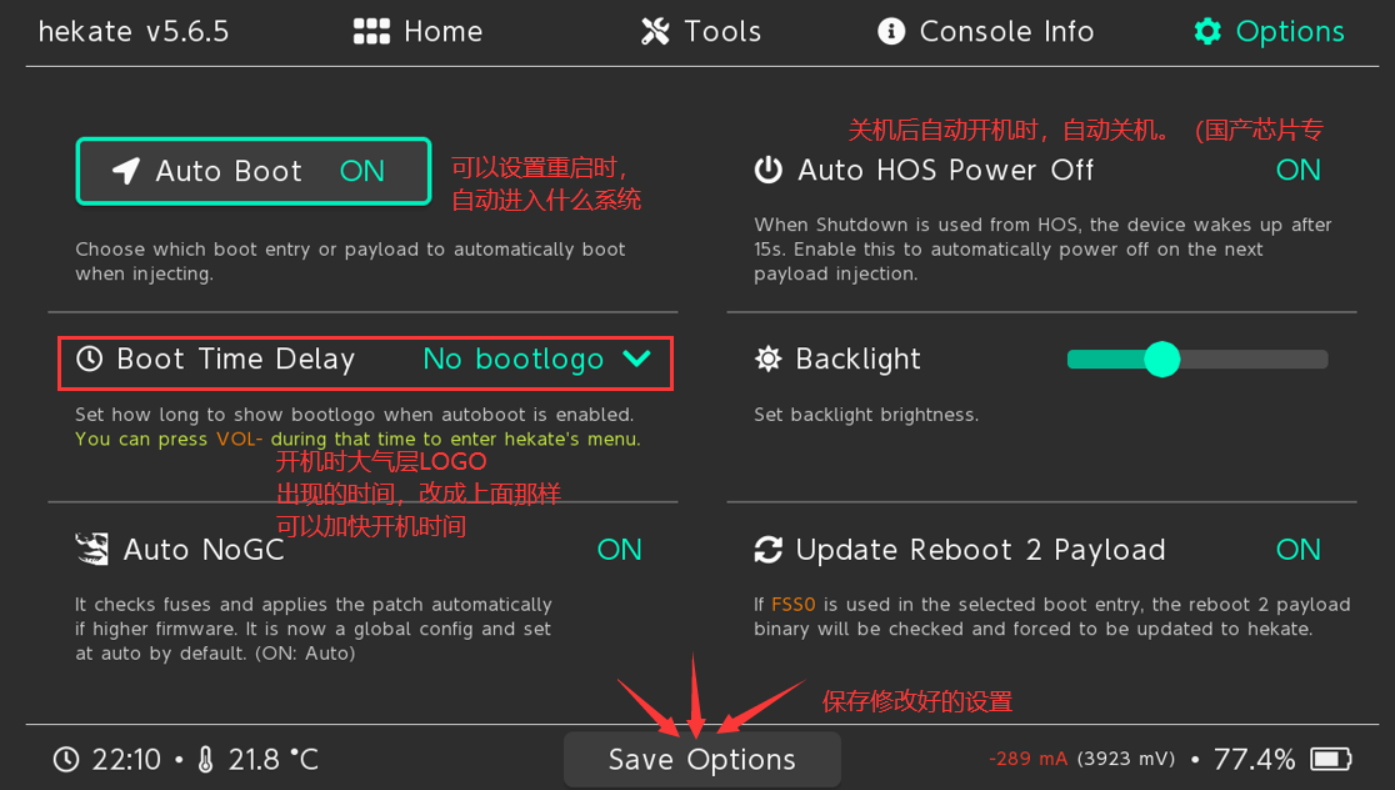
  • Set autoboot entry (e.g., emuMMC CFW) and boot delay (bootwait in seconds).
  • Backlight level, themes (via nyx.ini).
  • Boot protection, auto-patching flags (NoGC, etc.).
  • Recommended: Enable autoboot to emuMMC with 3–5s delay for quick normal boots while still allowing VOL- interrupt to enter menu.

What This Actually Achieves

  • Boot control — Hekate intercepts boot before Horizon loads, giving you root-level choice over what runs.
  • Isolation via emuMMC — Keep a clean sysNAND for online/stock use; run CFW/plugins only in emulated NAND on SD. Minimizes ban risk if you block Nintendo servers properly (exosphere, DNS-MITM, 90DNS).
  • Hardware freedom — Turns the Switch into a general-purpose ARM device capable of running Linux, Android, bare-metal tools, etc.

This isn’t about piracy — it’s about owning the boot process and exploring what the hardware can really do.

References

Always verify downloads from official repos. Keep backups current. Test in emuMMC first.

Prerequisites

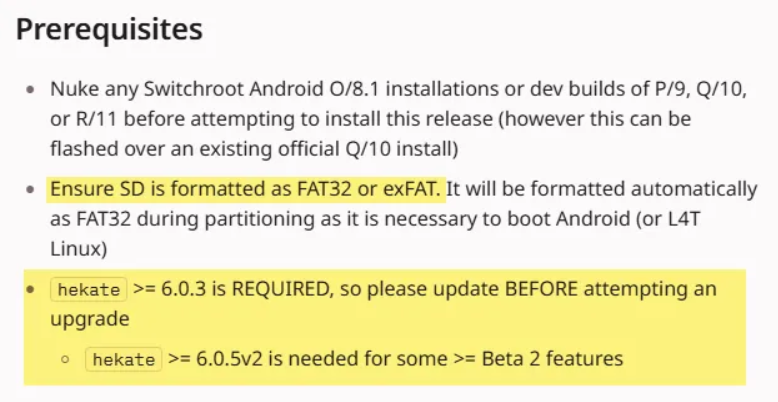
  • A modded Nintendo Switch with working Hekate bootloader (recommend using the latest Hekate via fusee or similar; version 6.0.3 or newer required).
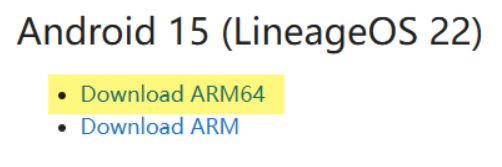
  • LineageOS for nx (Android TV build) – currently LineageOS 21 (Android 14) or 22.2 (Android 15) depending on the latest available from switchroot / LineageOS.
  • SD card formatted as FAT32 or exFAT with enough free space.
  • MindTheGapps package for the corresponding Android version and architecture (arm64 ATV variant).

About MindTheGapps

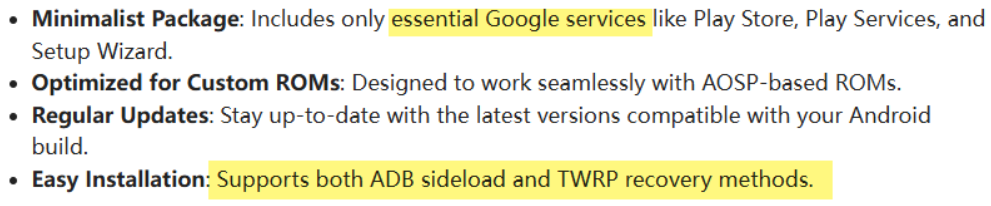
MindTheGapps is a lightweight, custom Google Apps package maintained for LineageOS. For Android TV builds, use the ATV-specific variant (full or minimal). It includes core Google services without the heavy bloat found in stock OpenGApps.

Download MindTheGapps – a custom Google Apps package for Android

Why Choose MindTheGapps?

  • Smaller footprint compared to full OpenGApps.
  • Better compatibility with LineageOS Android TV builds on Switch hardware.
  • Officially recommended on the LineageOS GApps page for recent versions.

How to Install MindTheGapps?

Installing GApps

If you’ve already booted into Android TV once without GApps, installing them directly will usually cause bootloops or crashes due to mismatched system properties and missing framework hooks.

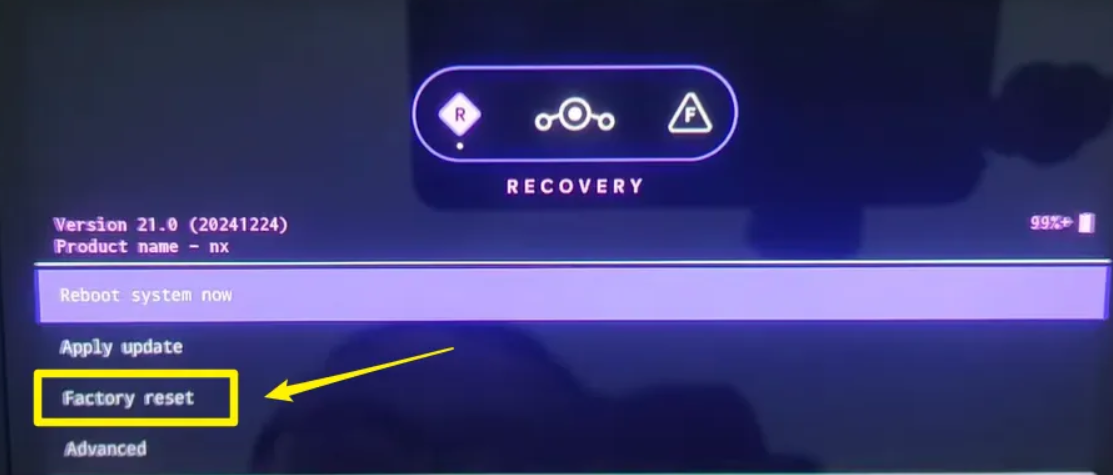
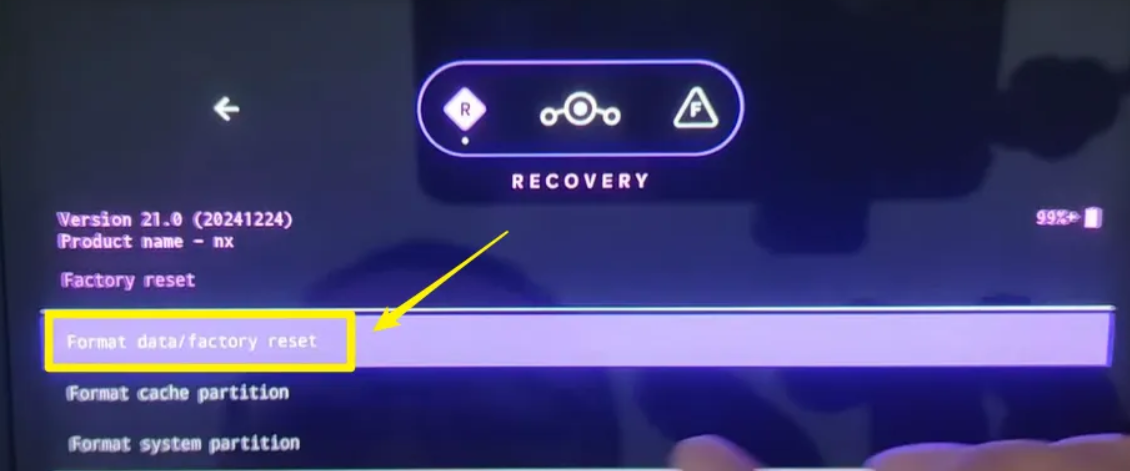
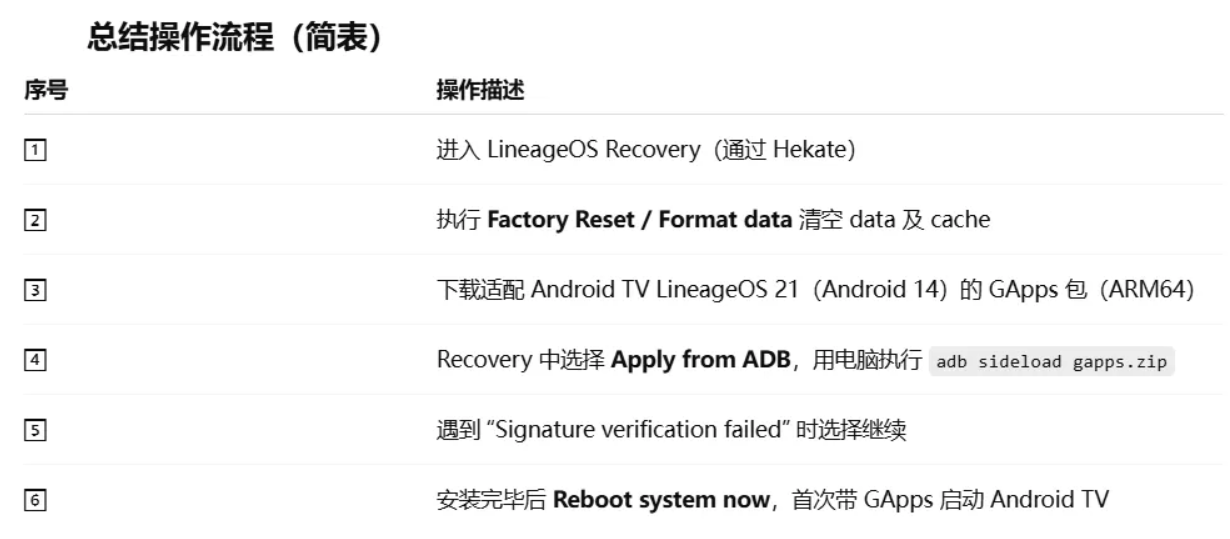
  1. Wipe data if the system has already booted once
    1. Boot into Hekate(Hold Volume Up while launching Hekate) → More Configs → Hold VOL+ to select LineageOS Recovery (or TWRP if using that).
    2. In recovery: Wipe → Factory Reset / Format data / factory reset.

    3. This clears the Android data and cache partitions only — it does not touch Horizon OS (HOS) or your emuMMC/sysMMC.
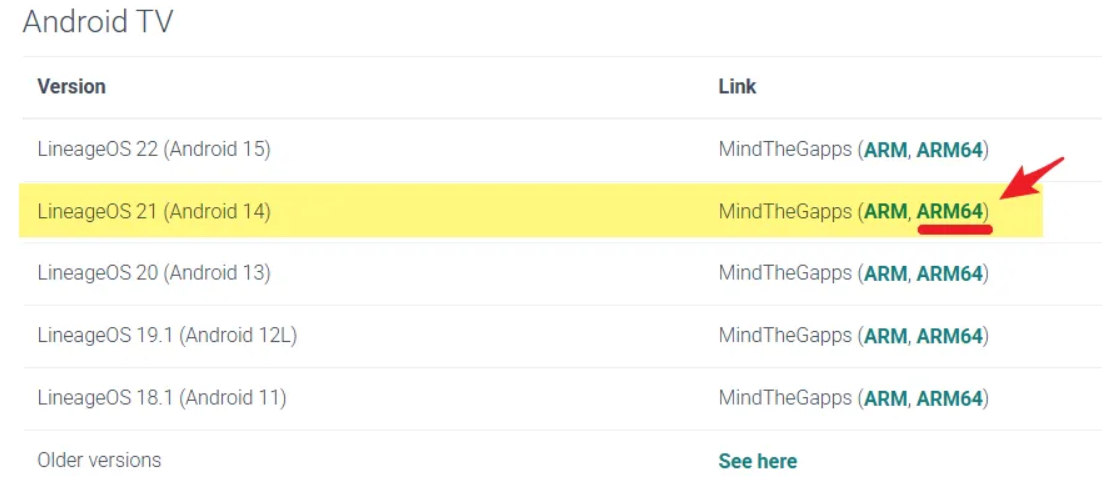
  2. Download the correct GApps package
    1. Go to https://wiki.lineageos.org/gapps/ or directly to MindTheGapps GitHub releases.
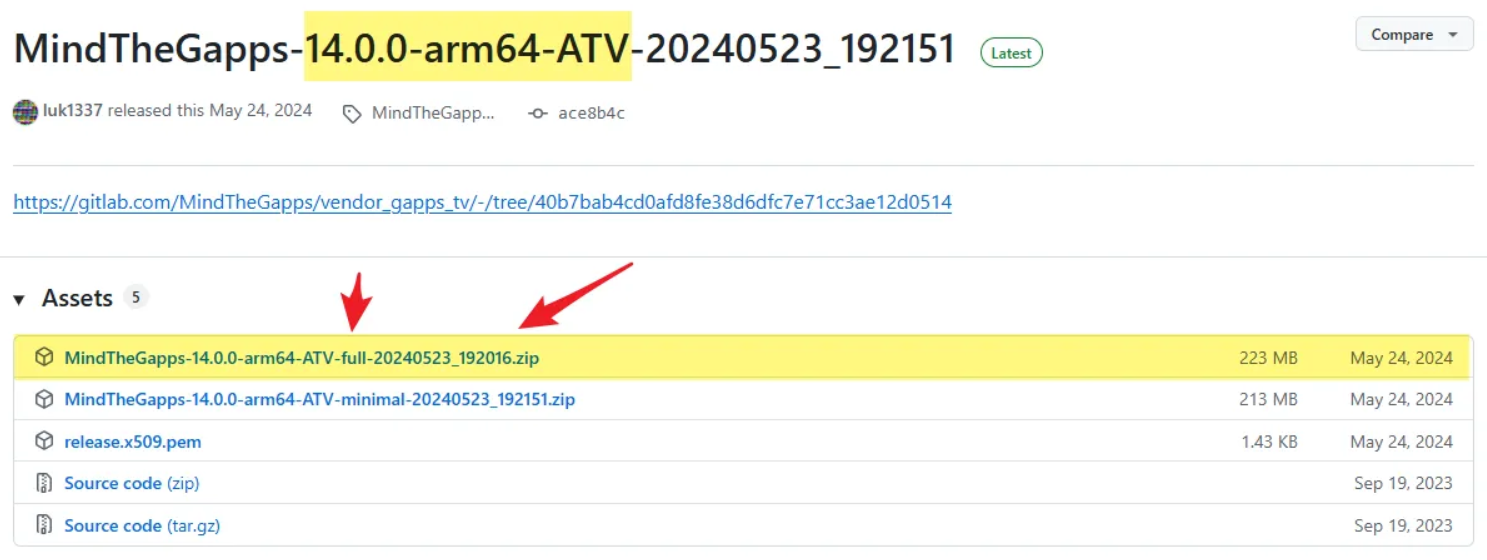
      1. https://github.com/MindTheGapps/14.0.0-arm64-ATV/releases/tag/MindTheGapps-14.0.0-arm64-ATV-20240523_192151
    2. For Android 14 (LineageOS 21): MindTheGapps-14.0.0-arm64-ATV-full-[date].zip

    3. For Android 15 (LineageOS 22): MindTheGapps-15.0.0-arm64-ATV-[variant].zip
    4. Place the zip on the root of your SD card.
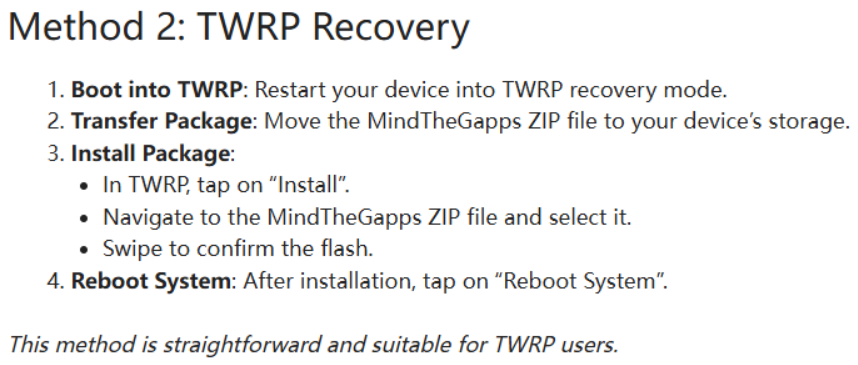
  3. Flash GApps in recovery
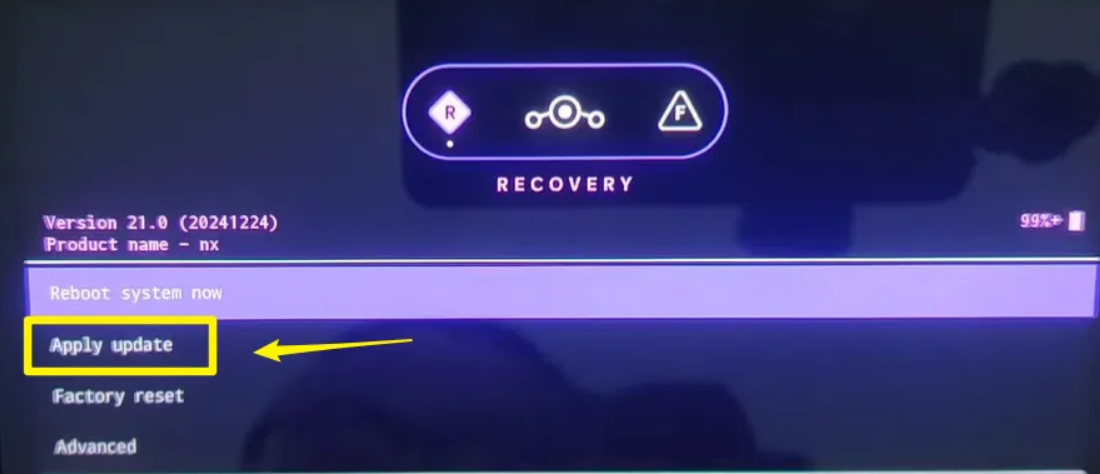
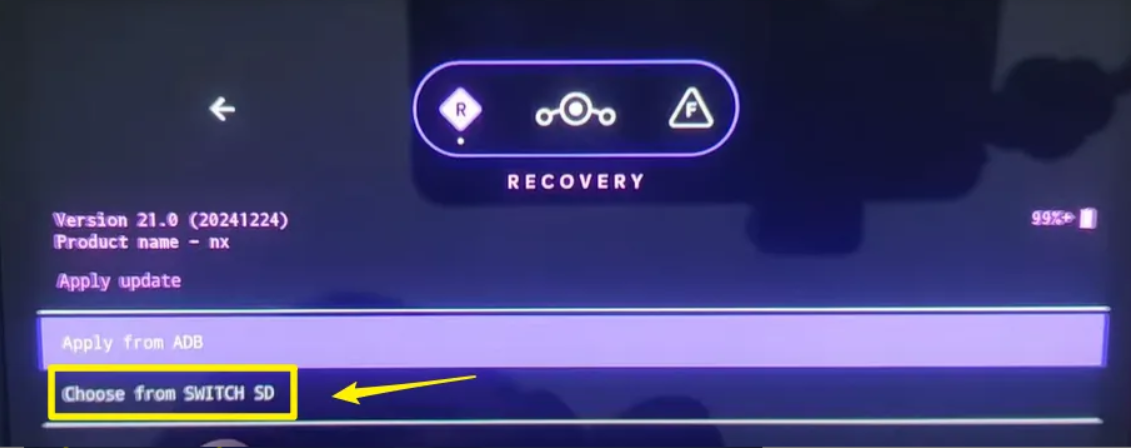
    1. In LineageOS Recovery: Install → Apply Update → Choose from SWITCH SD (or SD card).


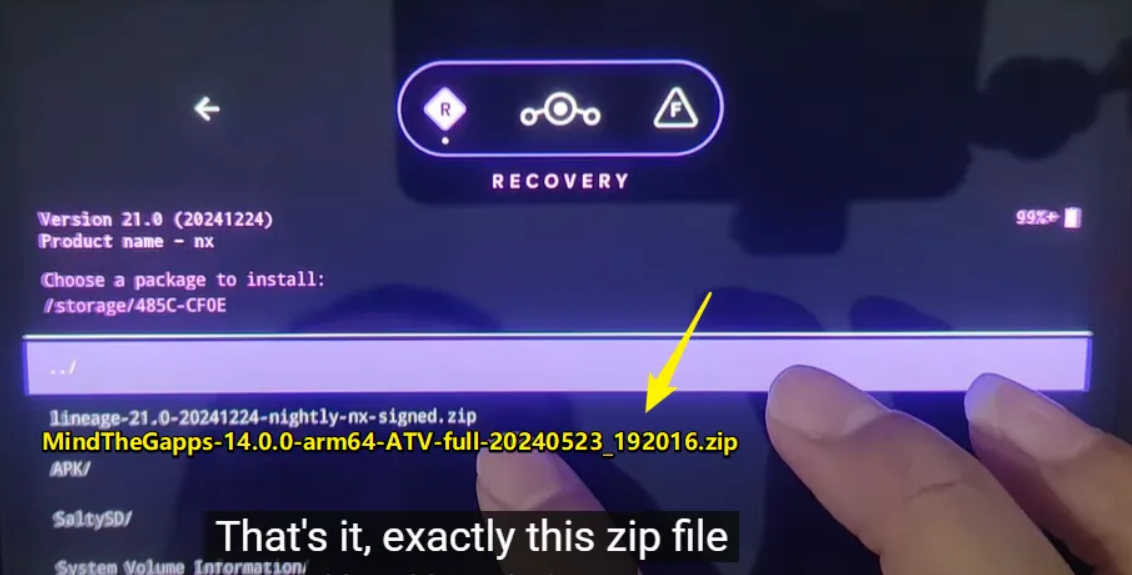
    2. Select the MindTheGapps zip.
    3. When you see “Signature verification failed”, choose Yes to proceed (normal for sideloaded packages).
    4. Let it install completely.
  4. Reboot
    1. Return to main recovery menu → Reboot system now.
    2. The device should now boot into Android TV with Google services available for the first-time setup.
  5. Conclusion

Magisk (Root)

To gain root access on the Android installation

  • For most models (especially OLED / Mariko units), use Magisk v25.2 (newer versions may have compatibility issues with older boot images or SELinux policies on Switch hardware).
  • Download: Magisk-v25.2.apk from https://github.com/topjohnwu/Magisk/releases/tag/v25.2
  • Install the APK like any app once Android is running, then follow the standard Magisk patching procedure (patch boot image via the app or manually via recovery if preferred).

Video References

Official Resources

Notes

  • Always double-check your Switch model (Erista vs Mariko / OLED) and download the matching build variant (nx for TV on some, nx_tab for tablet-style).
  • Android TV builds are optimized for docked/controller use; touch works poorly or not at all.
  • Backup your SD card contents before repartitioning or major changes.
  • If you run into signature mismatches or boot issues after GApps, repeat the data wipe + clean flash sequence.

    This should get you a clean, functional Android TV environment on your Switch. Test thoroughly after first boot.

Overview

For Windows

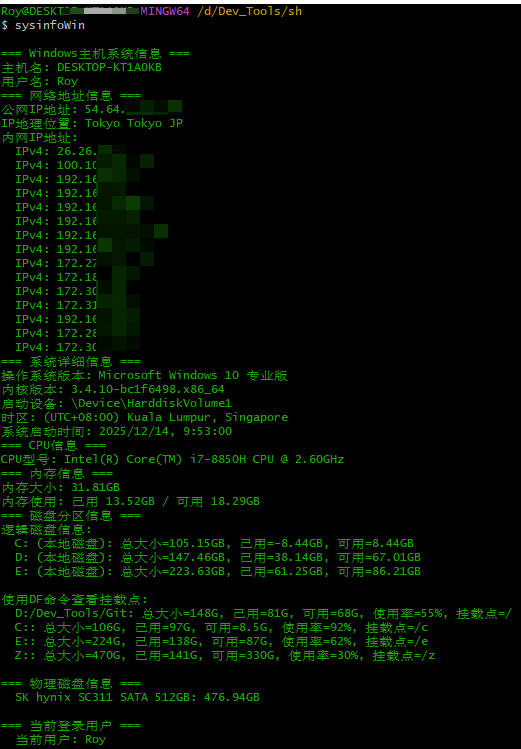
  • This script is designed to collect detailed system information from Windows machines.
  • It is written in Bash and can run in command-line environments such as Git Bash, Cygwin, or WSL.
  • The script retrieves system configuration data by calling native Windows tools and commands.

For Linux

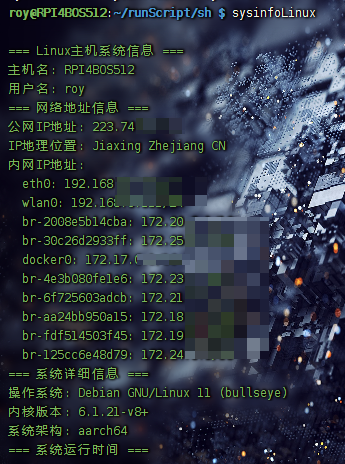
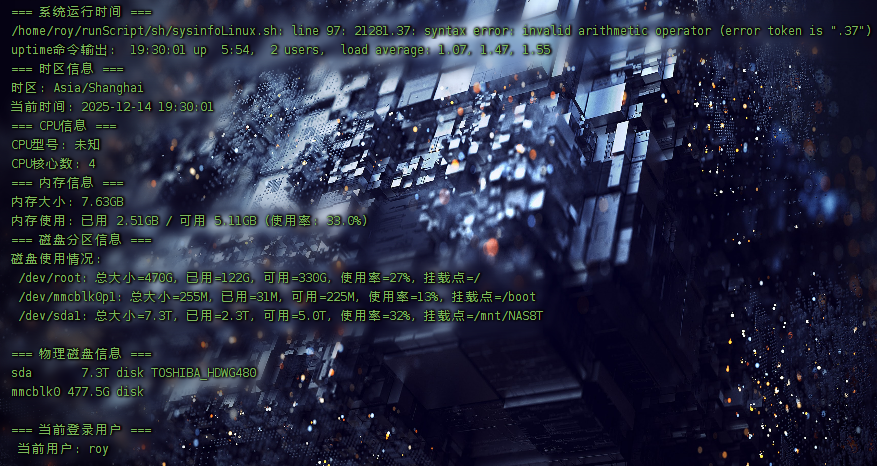
  • This script is designed for Linux and macOS systems, also written in Bash.
  • It leverages typical Linux system features such as the /proc filesystem and standard command-line utilities to collect detailed system information.

Purpose

For Windows

  • Quick system diagnostics
    • Helps users and IT administrators quickly understand hardware and software configuration.
  • System information archiving
    • Records system status before deployment, troubleshooting, or upgrades.
  • Remote technical support
    • Allows engineers to collect system details remotely for issue analysis.
  • System health monitoring
    • Tracks key system metrics such as memory usage, disk space, and CPU status.
  • Network configuration inspection
    • Displays public and private IP addresses, network interface information, and approximate location.

For Linux

  • Comprehensive system overview
    • Provides a complete snapshot of system information from hardware to software.
  • Performance baseline creation
    • Establishes performance baselines for later monitoring and optimization.
  • Server status inspection
    • Useful for server administration, especially for uptime and load monitoring.
  • Troubleshooting assistance
    • Provides useful diagnostic data for debugging system or performance issues.
  • Compatibility validation
    • Checks whether the system meets the requirements for specific software or applications.

Use Cases

For Windows

  • IT administrators performing system audits and asset management
  • Support engineers collecting client system data for troubleshooting
  • Developers verifying hardware configuration of development environments
  • Compatibility checks before system migration or upgrades
  • Security auditing and compliance verification

For Linux

  • Server administration and monitoring
  • Cloud instance configuration validation
  • Base image inspection in container environments
  • Environment checks before distributed system deployment
  • Performance tuning and capacity planning
  • Security hardening and compliance auditing

Shared Features of Both Scripts

Technical Characteristics

  • Cross-platform design
    • Both scripts target different operating systems but use standard Bash syntax.
  • No additional dependencies
    • The scripts rely only on built-in system tools.
  • Colorized output
    • Green-colored output improves readability.
  • Modular output structure
    • Information is grouped by category for clarity.
  • Basic error handling
    • Handles command failures gracefully.

Information Collected

  • Basic information
    • Hostname, username, operating system version
  • Hardware information
    • CPU model, memory size, disk configuration
  • Network information
    • Public and private IP addresses, network interfaces, geolocation
  • System status
    • Uptime, boot time, timezone
  • Storage information
    • Disk partitions, mount points, usage statistics

Benefits

  • Improved efficiency
    • Automatically collects system data instead of manual inspection.
  • Standardized output format
    • Consistent output makes comparison and analysis easier.
  • Historical reference
    • Output can be saved for system change tracking.
  • Extensibility
    • Additional checks can be added easily if needed.
  • Educational value
    • Helps users understand system structure and configuration.

Example Output

For Windows

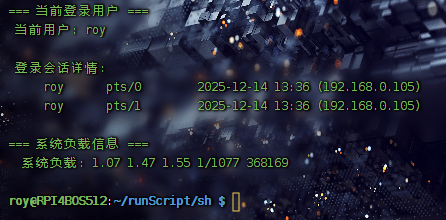
For Linux


Windows Version Script

Collect Windows System Information

1
2
3
4
5
6
7
8
9
10
11
12
13
14
15
16
17
18
19
20
21
22
23
24
25
26
27
28
29
30
31
32
33
34
35
36
37
38
39
40
41
42
43
44
45
46
47
48
49
50
51
52
53
54
55
56
57
58
59
60
61
62
63
64
65
66
67
68
69
70
71
72
73
74
75
76
77
78
79
80
81
82
83
84
85
86
87
88
89
90
91
92
93
94
95
96
97
98
99
100
101
102
103
104
105
106
107
108
109
110
111
112
113
114
115
116
117
118
119
120
121
122
123
124
125
126
127
128
129
130
131
132
133
134
135
136
137
138
139
140
141
142
143
144
145
146
147
148
149
150
151
152
153
154
155
156
157
158
159
160
161
162
163
164
165
166
167
168
169
#!/bin/bash

# Windows 主机系统信息收集脚本
# 颜色设置
echo -e "\e[32m"

echo "=== Windows主机系统信息 ==="

# 主机名和用户名
echo "主机名: $(hostname)"
echo "用户名: ${USERNAME:-$USER}"

# 网络地址信息
echo "=== 网络地址信息 ==="

# 公网IP
if command -v curl &>/dev/null; then
public_ip=$(curl -s --max-time 5 ifconfig.me 2>/dev/null || curl -s --max-time 5 ipinfo.io/ip 2>/dev/null || echo "无法获取")
else
public_ip="无法获取 (curl未安装)"
fi
echo "公网IP地址: $public_ip"

# IP地理位置
if command -v curl &>/dev/null && [[ "$public_ip" != "无法获取" && "$public_ip" != "无法获取 (curl未安装)" ]]; then
echo -n "IP地理位置: "
location=$(curl -s --max-time 3 "ipinfo.io/$public_ip/json" 2>/dev/null | grep -E '"city"|"region"|"country"' | \
sed 's/.*: "//;s/",//' | tr '\n' ' ' | sed 's/ $//')
[[ -n "$location" ]] && echo "$location" || echo "未知"
else
echo "IP地理位置: 需要网络连接"
fi

# 内网IP地址
echo "内网IP地址:"
ipconfig 2>/dev/null | grep -E "(IPv4|IP.v4)" | grep -v "169.254." | while read line; do
interface=$(echo "$line" | cut -d' ' -f1 | tr -d ':')
ip=$(echo "$line" | cut -d: -f2 | sed 's/^[ \t]*//')
[[ -n "$ip" ]] && echo " $interface: $ip"
done

# 系统详细信息
echo "=== 系统详细信息 ==="

if command -v systeminfo &>/dev/null; then
sysinfo=$(systeminfo 2>/dev/null)

# 操作系统版本
os_version=$(echo "$sysinfo" | grep "OS Name" | head -1 | cut -d: -f2 | sed 's/^[ \t]*//')
echo "操作系统版本: $os_version"

echo "内核版本: $(uname -r)"

# 启动设备
boot_device=$(echo "$sysinfo" | grep -i "Boot Device" | head -1 | cut -d: -f2- | sed 's/^[ \t]*//')
[[ -n "$boot_device" ]] && echo "启动设备: $boot_device"

# 时区
time_zone=$(echo "$sysinfo" | grep -i "Time Zone" | head -1 | cut -d: -f2- | sed 's/^[ \t]*//')
[[ -n "$time_zone" ]] && echo "时区: $time_zone"

# 系统运行时间
boot_time=$(echo "$sysinfo" | grep -i "System Boot Time" | head -1 | cut -d: -f2- | sed 's/^[ \t]*//')
if [[ -n "$boot_time" ]]; then
echo "系统启动时间: $boot_time"

# 计算运行时间
boot_date=$(date -d "$boot_time" "+%s" 2>/dev/null || echo "")
if [[ -n "$boot_date" ]]; then
current_date=$(date "+%s")
uptime_seconds=$((current_date - boot_date))
days=$((uptime_seconds / 86400))
hours=$(( (uptime_seconds % 86400) / 3600 ))
minutes=$(( (uptime_seconds % 3600) / 60 ))
echo "系统运行时间: ${days}天 ${hours}小时 ${minutes}分钟"
fi
fi
else
echo "操作系统版本: 无法获取 (systeminfo未找到)"
echo "内核版本: $(uname -r)"
fi

# CPU信息
echo "=== CPU信息 ==="

if command -v wmic &>/dev/null; then
cpu_info=$(wmic cpu get name 2>/dev/null | tail -2 | head -1 | sed 's/^[ \t]*//;s/[ \t]*$//')
[[ -n "$cpu_info" && ! "$cpu_info" =~ "Name" ]] && echo "CPU型号: $cpu_info" || echo "CPU型号: 无法获取"
else
echo "CPU型号: 无法获取 (wmic未找到)"
fi

# 内存信息
echo "=== 内存信息 ==="

if command -v wmic &>/dev/null; then
memory_bytes=$(wmic computersystem get TotalPhysicalMemory 2>/dev/null | grep '[0-9]' | awk '{print $1}')
if [[ -n "$memory_bytes" ]]; then
memory_gb=$(echo "$memory_bytes" | awk '{printf "%.2f", $1/1024/1024/1024}')
echo "内存大小: ${memory_gb}GB"

# 获取可用内存
free_bytes=$(wmic OS get FreePhysicalMemory 2>/dev/null | grep '[0-9]' | awk '{print $1 * 1024}')
if [[ -n "$free_bytes" ]]; then
free_gb=$(echo "$free_bytes" | awk '{printf "%.2f", $1/1024/1024/1024}')
used_gb=$(echo "$memory_bytes $free_bytes" | awk '{printf "%.2f", ($1-$2)/1024/1024/1024}')
echo "内存使用: 已用 ${used_gb}GB / 可用 ${free_gb}GB"
fi
else
echo "内存大小: 无法获取"
fi
else
echo "内存大小: 无法获取 (wmic未找到)"
fi

# 磁盘信息
echo "=== 磁盘分区信息 ==="

echo "逻辑磁盘信息:"
if command -v wmic &>/dev/null; then
wmic logicaldisk where "drivetype=3" get deviceid,size,freespace,volumename /format:list 2>/dev/null | \
tr -d '\r' | awk -F'=' '
/DeviceID/ {drive=$2}
/Size/ {size=$2/1024/1024/1024}
/FreeSpace/ {free=$2/1024/1024/1024; used=size-free}
/VolumeName/ {volumename=$2}
/^$/ && drive {
if (volumename == "") volumename="本地磁盘";
printf " %s (%s): 总大小=%.2fGB, 已用=%.2fGB, 可用=%.2fGB\n",
drive, volumename, size, used, free;
drive=""; volumename=""
}
'
else
echo " WMIC命令不可用"
fi

# 使用DF命令查看挂载点(备选方法)
if command -v df &>/dev/null; then
echo -e "\n使用DF命令查看挂载点:"
df -h 2>/dev/null | grep -E "^[A-Z]:" | while read line; do
echo " $line" | awk '{
printf " %s: 总大小=%s, 已用=%s, 可用=%s, 使用率=%s",
$1, $2, $3, $4, $5;
if (NF > 5) {
printf ", 挂载点=";
for(i=6;i<=NF;i++) printf "%s ", $i;
}
print ""
}'
done
fi

echo -e "\n=== 物理磁盘信息 ==="
if command -v wmic &>/dev/null; then
wmic diskdrive get model,size /format:list 2>/dev/null | \
tr -d '\r' | awk -F'=' '
/Model/ {model=$2}
/Size/ {size=$2/1024/1024/1024; printf " %s: %.2fGB\n", model, size}
' | head -10
else
echo " WMIC命令不可用"
fi

# 用户信息
echo -e "\n=== 当前登录用户 ==="
echo " 当前用户: ${USERNAME:-$USER}"

echo -e "\e[0m"

Linux Version Script

Collect Linux System Information

1
2
3
4
5
6
7
8
9
10
11
12
13
14
15
16
17
18
19
20
21
22
23
24
25
26
27
28
29
30
31
32
33
34
35
36
37
38
39
40
41
42
43
44
45
46
47
48
49
50
51
52
53
54
55
56
57
58
59
60
61
62
63
64
65
66
67
68
69
70
71
72
73
74
75
76
77
78
79
80
81
82
83
84
85
86
87
88
89
90
91
92
93
94
95
96
97
98
99
100
101
102
103
104
105
106
107
108
109
110
111
112
113
114
115
116
117
118
119
120
121
122
123
124
125
126
127
128
129
130
131
132
133
134
135
136
137
138
139
140
141
142
143
144
145
146
147
148
149
150
151
152
153
154
155
156
157
158
159
160
161
162
163
164
165
166
167
168
169
170
171
172
173
174
175
176
177
178
179
180
181
182
183
184
185
186
187
188
189
190
191
192
193
194
195
196
197
198
199
200
201
202
203
204
205
206
207
208
209
210
211
212
213
214
215
216
217
218
219
220
221
222
223
224
225
226
227
228
229
230
231
232
233
234
235
236
237
238
239
240
241
242
243
244
245
246
247
248
249
250
251
252
253
254
255
256
257
#!/bin/bash

# Linux/macOS 主机系统信息收集脚本
# 颜色设置
echo -e "\e[32m"

# 检测是Linux还是macOS
if [[ "$(uname)" == "Darwin" ]]; then
OS_TYPE="macOS"
else
OS_TYPE="Linux"
fi

echo "=== ${OS_TYPE}主机系统信息 ==="

# 主机名和用户名
echo "主机名: $(hostname)"
echo "用户名: $USER"

# 网络地址信息
echo "=== 网络地址信息 ==="

# 公网IP
if command -v curl &>/dev/null; then
public_ip=$(curl -s --max-time 5 ifconfig.me 2>/dev/null || curl -s --max-time 5 ipinfo.io/ip 2>/dev/null || echo "无法获取")
else
public_ip="无法获取 (curl未安装)"
fi
echo "公网IP地址: $public_ip"

# IP地理位置
if command -v curl &>/dev/null && [[ "$public_ip" != "无法获取" && "$public_ip" != "无法获取 (curl未安装)" ]]; then
echo -n "IP地理位置: "
location=$(curl -s --max-time 3 "ipinfo.io/$public_ip/json" 2>/dev/null | grep -E '"city"|"region"|"country"' | \
sed 's/.*: "//;s/",//' | tr '\n' ' ' | sed 's/ $//')
[[ -n "$location" ]] && echo "$location" || echo "未知"
else
echo "IP地理位置: 需要网络连接"
fi

# 内网IP地址
echo "内网IP地址:"
if command -v ip &>/dev/null; then
ip -4 addr show 2>/dev/null | grep -v "127.0.0.1" | grep inet | awk '{print " "$NF": "$2}'
elif command -v ifconfig &>/dev/null; then
ifconfig 2>/dev/null | grep -E "inet " | grep -v "127.0.0.1" | awk '{print " "$1": "$2}'
else
echo " 无法获取网络接口信息"
fi

# 系统详细信息
echo "=== 系统详细信息 ==="

if [[ "$OS_TYPE" == "macOS" ]]; then
echo "操作系统: macOS $(sw_vers -productVersion 2>/dev/null || echo '未知')"
elif [[ -f /etc/os-release ]]; then
source /etc/os-release
echo "操作系统: $NAME $VERSION"
else
echo "操作系统: 无法确定"
fi

echo "内核版本: $(uname -r)"
echo "系统架构: $(uname -m)"

# 系统运行时间
echo "=== 系统运行时间 ==="

if [[ "$OS_TYPE" == "macOS" ]]; then
# macOS获取运行时间
if command -v sysctl &>/dev/null; then
boot_time=$(sysctl -n kern.boottime 2>/dev/null | awk '{print $4}' | sed 's/,//')
if [[ -n "$boot_time" ]]; then
current_time=$(date +%s)
uptime_seconds=$((current_time - boot_time))
days=$((uptime_seconds / 86400))
hours=$(( (uptime_seconds % 86400) / 3600 ))
minutes=$(( (uptime_seconds % 3600) / 60 ))
seconds=$((uptime_seconds % 60))

echo "系统运行时间: ${days}天 ${hours}小时 ${minutes}分钟 ${seconds}秒"

# 显示启动时间
boot_date=$(date -r $boot_time "+%Y-%m-%d %H:%M:%S" 2>/dev/null)
[[ -n "$boot_date" ]] && echo "系统启动时间: $boot_date"
else
echo "系统运行时间: 无法获取"
fi
else
echo "系统运行时间: 无法获取 (sysctl命令不可用)"
fi
else
# Linux获取运行时间
if [[ -f /proc/uptime ]]; then
uptime_seconds=$(awk '{print $1}' /proc/uptime 2>/dev/null)
if [[ -n "$uptime_seconds" ]]; then
days=$((uptime_seconds / 86400))
hours=$(( (uptime_seconds % 86400) / 3600 ))
minutes=$(( (uptime_seconds % 3600) / 60 ))
seconds=$((uptime_seconds % 60))
echo "系统运行时间: ${days}天 ${hours}小时 ${minutes}分钟 ${seconds}秒"

# 显示启动时间
current_time=$(date +%s)
boot_time=$((current_time - ${uptime_seconds%.*}))
boot_date=$(date -d "@$boot_time" "+%Y-%m-%d %H:%M:%S" 2>/dev/null)
[[ -n "$boot_date" ]] && echo "系统启动时间: $boot_date"
else
echo "系统运行时间: 无法获取"
fi
else
echo "系统运行时间: 无法获取 (/proc/uptime不存在)"
fi
fi

# 显示uptime命令的输出作为补充
if command -v uptime &>/dev/null; then
echo -n "uptime命令输出: "
uptime_output=$(uptime 2>/dev/null)
[[ -n "$uptime_output" ]] && echo "$uptime_output" || echo "无法获取"
fi

# 时区信息
echo "=== 时区信息 ==="

if [[ -f /etc/timezone ]]; then
echo "时区: $(cat /etc/timezone)"
elif command -v timedatectl &>/dev/null; then
timezone=$(timedatectl show --property=Timezone --value 2>/dev/null)
[[ -n "$timezone" ]] && echo "时区: $timezone"
elif [[ -f /etc/localtime ]]; then
# 尝试从/etc/localtime推断时区
if [[ "$OS_TYPE" == "Linux" ]]; then
timezone_link=$(readlink /etc/localtime 2>/dev/null)
if [[ -n "$timezone_link" ]]; then
timezone=$(echo "$timezone_link" | sed 's|.*/zoneinfo/||')
echo "时区: $timezone"
fi
fi
fi

# 显示当前时间
echo "当前时间: $(date '+%Y-%m-%d %H:%M:%S')"

# CPU信息
echo "=== CPU信息 ==="

if [[ "$OS_TYPE" == "macOS" ]]; then
cpu_info=$(sysctl -n machdep.cpu.brand_string 2>/dev/null || echo "未知")
echo "CPU型号: $cpu_info"
echo "CPU核心数: $(sysctl -n hw.ncpu 2>/dev/null || echo "未知")"
elif [[ -f /proc/cpuinfo ]]; then
cpu_model=$(grep -m1 "model name" /proc/cpuinfo 2>/dev/null | cut -d: -f2 | sed 's/^[ \t]*//')
cpu_cores=$(grep -c "^processor" /proc/cpuinfo 2>/dev/null || echo "未知")
echo "CPU型号: ${cpu_model:-未知}"
echo "CPU核心数: $cpu_cores"

# 显示CPU频率(如果可用)
cpu_mhz=$(grep -m1 "cpu MHz" /proc/cpuinfo 2>/dev/null | cut -d: -f2 | sed 's/^[ \t]*//')
[[ -n "$cpu_mhz" ]] && echo "CPU频率: ${cpu_mhz} MHz"
else
echo "CPU型号: 无法获取"
fi

# 内存信息
echo "=== 内存信息 ==="

if [[ "$OS_TYPE" == "macOS" ]]; then
memory_bytes=$(sysctl -n hw.memsize 2>/dev/null)
if [[ -n "$memory_bytes" ]]; then
memory_gb=$(echo "$memory_bytes" | awk '{printf "%.2f", $1/1024/1024/1024}')
echo "内存大小: ${memory_gb}GB"
fi
elif [[ -f /proc/meminfo ]]; then
total_memory=$(grep -m1 "MemTotal" /proc/meminfo 2>/dev/null | awk '{print $2}')
if [[ -n "$total_memory" ]]; then
memory_gb=$(echo "$total_memory" | awk '{printf "%.2f", $1/1024/1024}')
echo "内存大小: ${memory_gb}GB"

free_memory=$(grep "MemAvailable" /proc/meminfo 2>/dev/null | awk '{print $2}')
if [[ -n "$free_memory" ]]; then
free_gb=$(echo "$free_memory" | awk '{printf "%.2f", $1/1024/1024}')
used_gb=$(echo "$total_memory $free_memory" | awk '{printf "%.2f", ($1-$2)/1024/1024}')
use_percent=$(echo "$total_memory $free_memory" | awk '{printf "%.1f", 100-($2*100/$1)}')
echo "内存使用: 已用 ${used_gb}GB / 可用 ${free_gb}GB (使用率: ${use_percent}%)"
fi
fi
else
echo "内存大小: 无法获取"
fi

# 磁盘信息
echo "=== 磁盘分区信息 ==="

echo "磁盘使用情况:"
if command -v df &>/dev/null; then
df -h 2>/dev/null | grep -E "^/dev/" | while read line; do
echo " $line" | awk '{
printf " %s: 总大小=%s, 已用=%s, 可用=%s, 使用率=%s, 挂载点=",
$1, $2, $3, $4, $5;
for(i=6;i<=NF;i++) printf "%s ", $i;
print ""
}'
done
else
echo " df命令不可用"
fi

echo -e "\n=== 物理磁盘信息 ==="

if [[ "$OS_TYPE" == "macOS" ]]; then
if command -v diskutil &>/dev/null; then
diskutil list 2>/dev/null | grep -A5 "/dev/disk" | while read line; do
if [[ "$line" =~ /dev/disk ]]; then
echo " $line"
fi
done
else
echo " diskutil命令不可用"
fi
elif command -v lsblk &>/dev/null; then
lsblk -d -o NAME,SIZE,TYPE,MODEL 2>/dev/null | grep disk | head -5
elif [[ -f /proc/partitions ]]; then
cat /proc/partitions 2>/dev/null | grep -v "major" | grep -E "^[[:space:]]*[0-9]" | awk '{print $4, $3}' | while read name size; do
if [[ "$name" =~ ^[hs]d[a-z]$ ]] || [[ "$name" =~ ^nvme ]]; then
size_gb=$(echo "$size" | awk '{printf "%.2f", $1/1024/1024}')
echo " $name: ${size_gb}GB"
fi
done
fi

# 用户信息
echo -e "\n=== 当前登录用户 ==="
echo " 当前用户: $USER"
if command -v who &>/dev/null; then
users=$(who 2>/dev/null | awk '{print $1}' | sort | uniq)
user_count=$(echo "$users" | wc -w 2>/dev/null)
[[ "$user_count" -gt 1 ]] && echo " 其他登录用户: $(echo "$users" | tr '\n' ' ')"

# 显示登录终端和登录时间
echo -e "\n 登录会话详情:"
who 2>/dev/null | head -5 | while read line; do
echo " $line"
done
fi

# 系统负载信息
echo -e "\n=== 系统负载信息 ==="
if [[ -f /proc/loadavg ]]; then
load=$(cat /proc/loadavg 2>/dev/null)
[[ -n "$load" ]] && echo " 系统负载: $load" || echo " 系统负载: 无法获取"
elif command -v sysctl &>/dev/null && [[ "$OS_TYPE" == "macOS" ]]; then
load=$(sysctl -n vm.loadavg 2>/dev/null)
[[ -n "$load" ]] && echo " 系统负载: $load" || echo " 系统负载: 无法获取"
fi

echo -e "\e[0m"

Introduction

A bypass router architecture allows the main router to continue handling PPPoE dialing and DHCP services, while a Raspberry Pi acts as a secondary gateway within the same LAN.
By assigning a static IP and configuring routing rules, devices on the network can optionally route their traffic through the Raspberry Pi.

This approach has several advantages:

  • It does not modify the existing network topology.
  • The bypass router can be removed at any time without affecting the main network.
  • Devices can selectively use the proxy gateway.

Objective

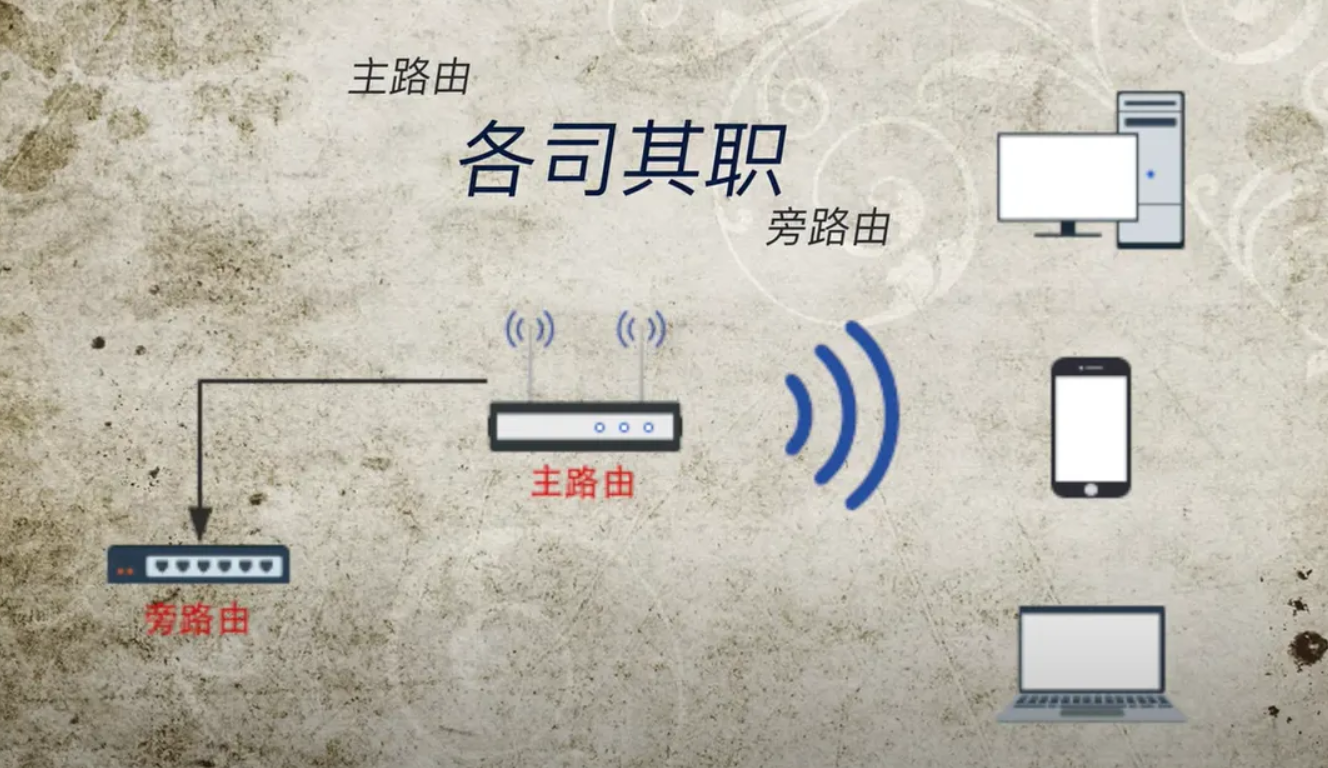
Run OpenWrt as a bypass gateway (transparent gateway) inside Docker on a Raspberry Pi.

  • Network architecture diagram:

Enable Network Interface Promiscuous Mode

  • Promiscuous mode allows both the host system and the virtualized OpenWrt instance to receive network packets.
  • Choose one of the following depending on your connection type.
    • Wired Connection
      1
      sudo ip link set dev eth0 promisc on
    • Wi-Fi Connection
      1
      sudo ip link set dev wlan0 promisc on

Download the OpenWrt Docker Image

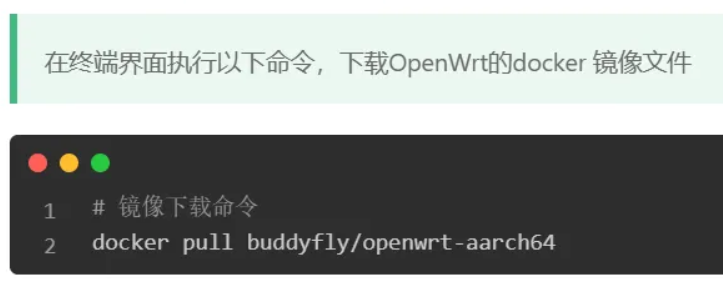
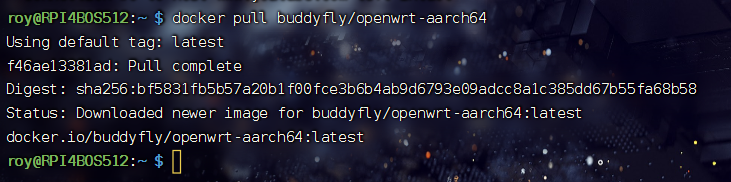
  • Run the following command to download the image
    1
    docker pull buddyfly/openwrt-aarch64


  • After downloading, verify the image exists
    1
    docker images

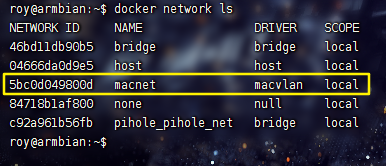
Check Whether a Docker Virtual Network Exists

  • Before creating the network, check the existing Docker networks.
    1
    docker network ls
  • If a network with the same name already exists, remove it, e.g.:macnet
    1
    docker network rm <network_name>

Create a Docker Virtual Network

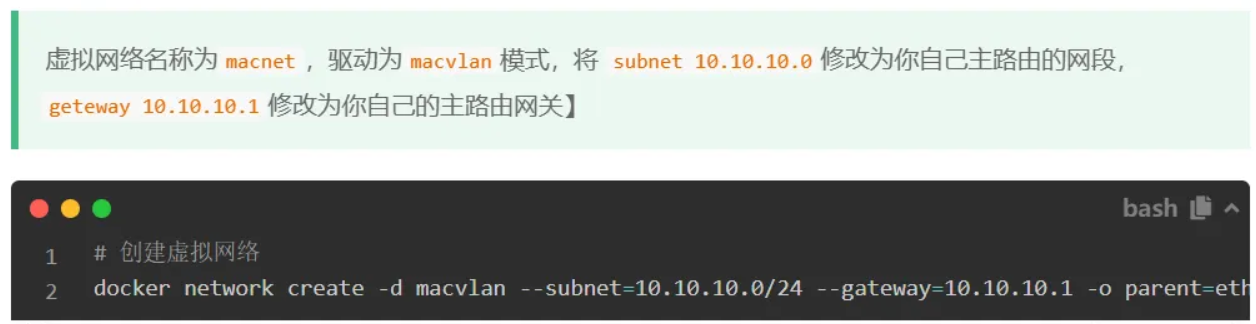
  • We will create a macvlan network so that the OpenWrt container can obtain an IP address within the same LAN as the main router.
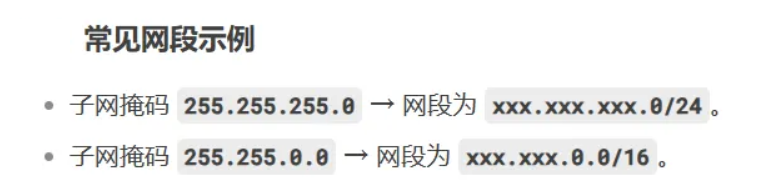
  • Replace the subnet and gateway values with your own network settings.
  • Example
    1
    2
    3
    4
    5
    docker network create -d macvlan \
    --subnet=10.10.10.0/24 \
    --gateway=10.10.10.1 \
    -o parent=eth0 \
    macnet
  • Example based on a typical home network:
    • Wired Connection
      1
      2
      3
      4
      5
      docker network create -d macvlan \
      --subnet=192.168.0.0/24 \
      --gateway=192.168.0.1 \
      -o parent=eth0 \
      macnet
    • WiFi Connection
      1
      2
      3
      4
      5
      docker network create -d macvlan \
      --subnet=192.168.0.0/24 \
      --gateway=192.168.0.1 \
      -o parent=wlan0 \
      macnet

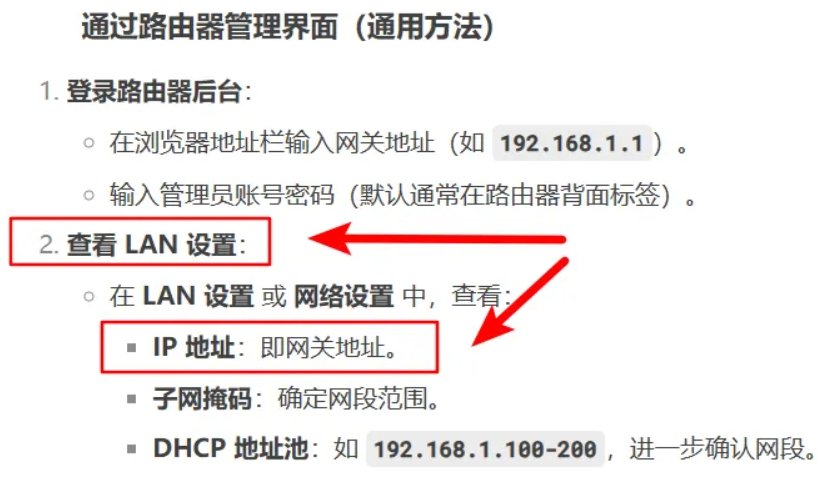
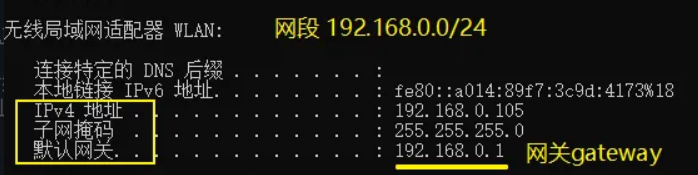
How to Check Your Router Gateway (Windows)

If you are unsure about your router’s gateway address and subnet, use one of the following methods.

  • Method 1: Router Admin Panel
    • Access your router’s management interface and check the LAN settings.

  • Method 2: Command Line
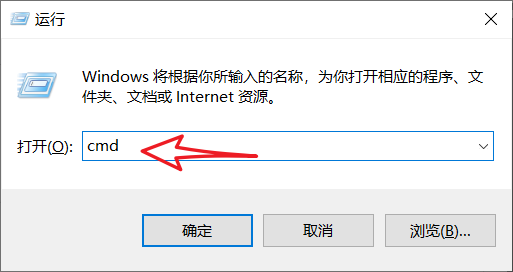
    • Press Win + R
    • Enter: cmd
    • Run: ipconfig
    • Look for the Default Gateway field.

Verify the Docker Network

  • Check whether the macvlan network was successfully created
    • docker network ls

Start the OpenWrt Container

  • Run the following command
    1
    2
    3
    4
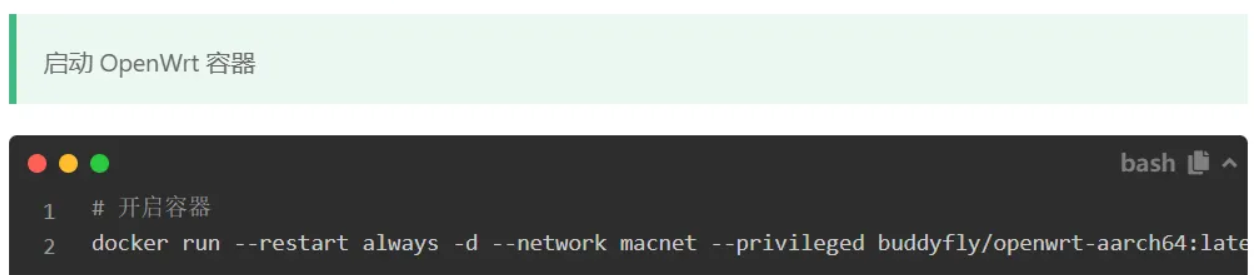
    docker run --restart always -d \
    --network macnet \
    --privileged \
    buddyfly/openwrt-aarch64:latest

  • This command
    • runs the container in background
    • attaches it to the macvlan network
    • enables privileged mode

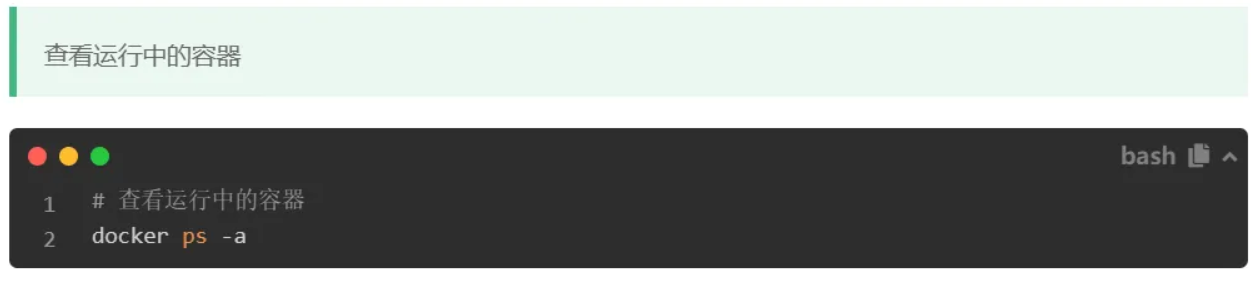
Verify the Running Container

  • Check the running OpenWrt container
    1
    docker ps -a | grep openwrt

Modify the OpenWrt Container IP Address

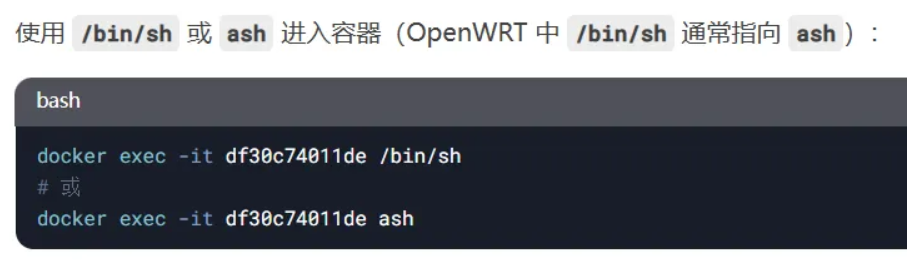
Enter the container shell

1
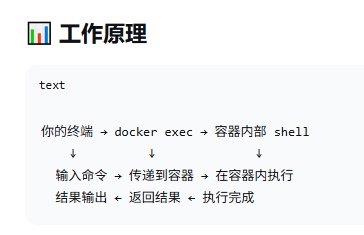
docker exec -it <container_id> ash


Edit the network configuration

1
sudo nano /etc/config/network

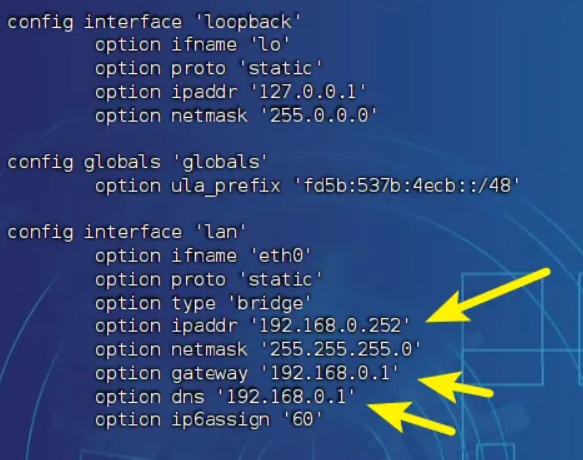
Modify the following fields

1
2
3
option ipaddr '192.168.0.252'
option gateway '192.168.0.1'
option dns '192.168.0.1'

  • Explanation
    • ipaddr → the IP address of the bypass router
    • gateway → the main router IP
    • dns → usually the same as the gateway

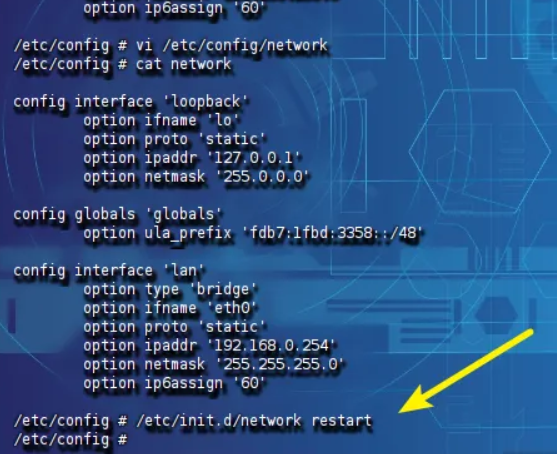
Restart the network service

1
/etc/init.d/network restart

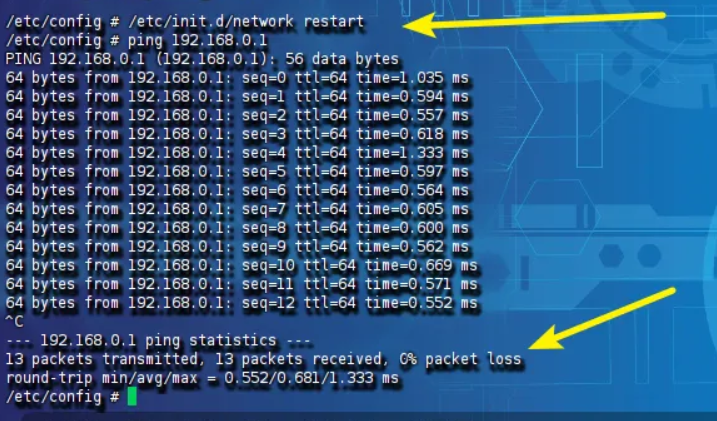
Test Network Connectivity

  • Test connectivity with the main router
    1
    ping 192.168.0.1

    If packets are received, the configuration is correct.

Permanently Enable Promiscuous Mode

  • Exit the container and configure the host system.
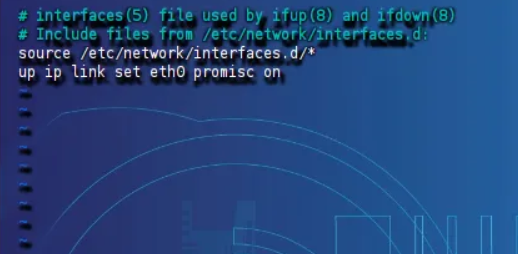
  • Edit the file
    • sudo nano /etc/network/interfaces
  • Add one of the following lines.
    • Wired
      1
      up ip link set eth0 promisc on
    • WiFi
      1
      up ip link set wlan0 promisc on
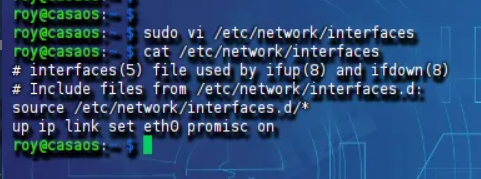
  • Verify the configuration
    • cat /etc/network/interfaces
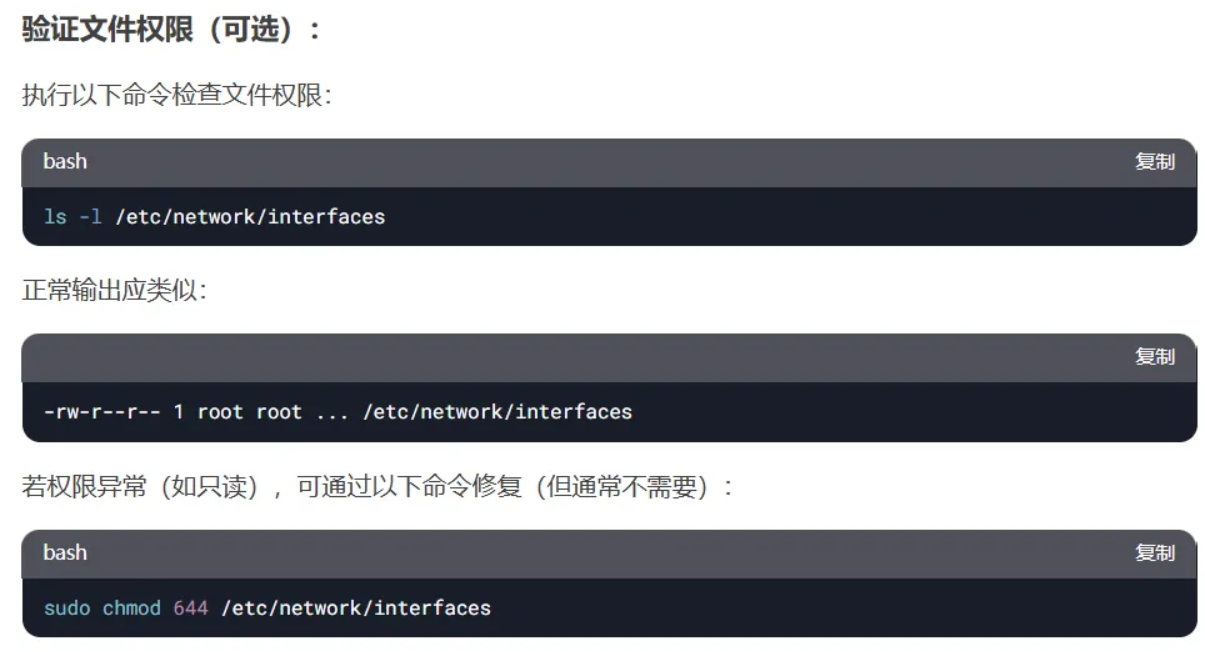
  • If permission issues occur
    1
    2
    ls -l /etc/network/interfaces
    sudo chmod 644 /etc/network/interfaces

Access the OpenWrt Gateway

  • Open the browser and enter
    1
    http://192.168.0.252
  • Default credentials
    1
    2
    username: root
    password: password
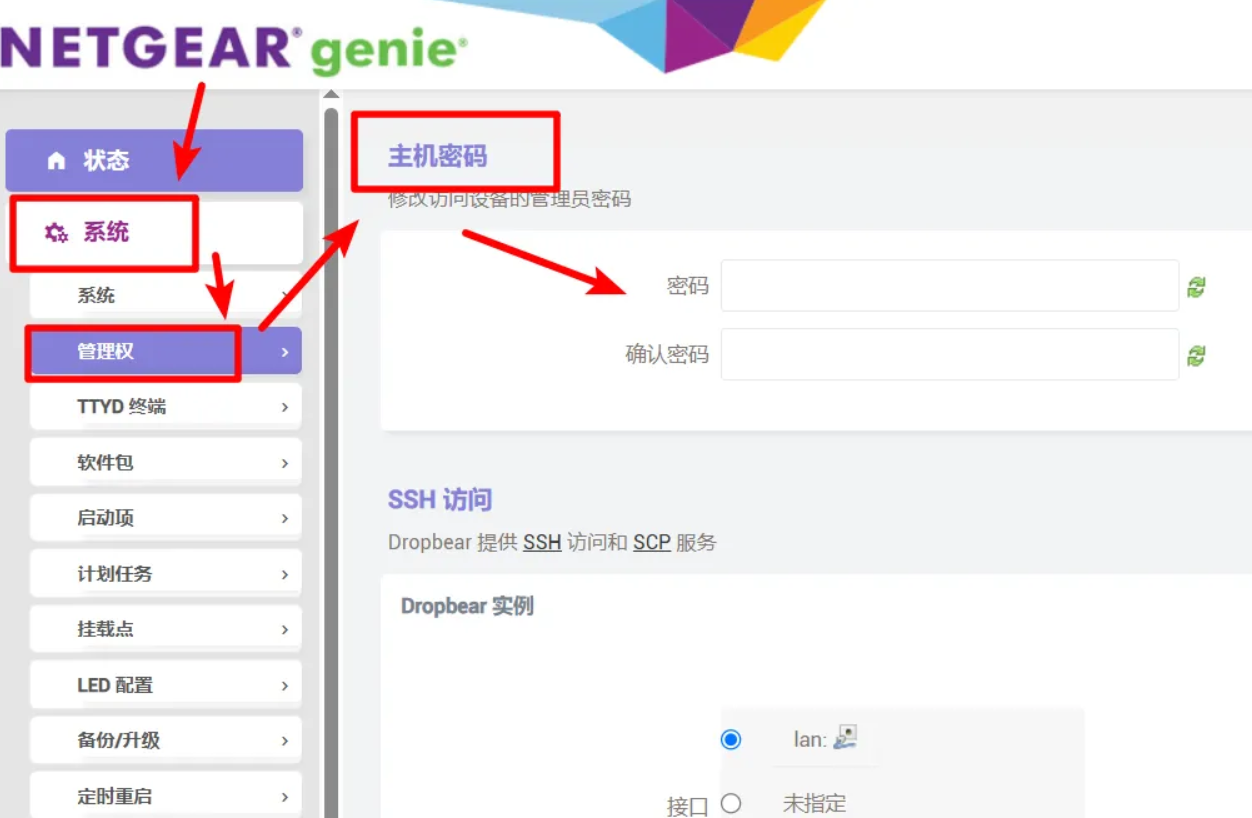
  • The first thing you should do is change the default password.

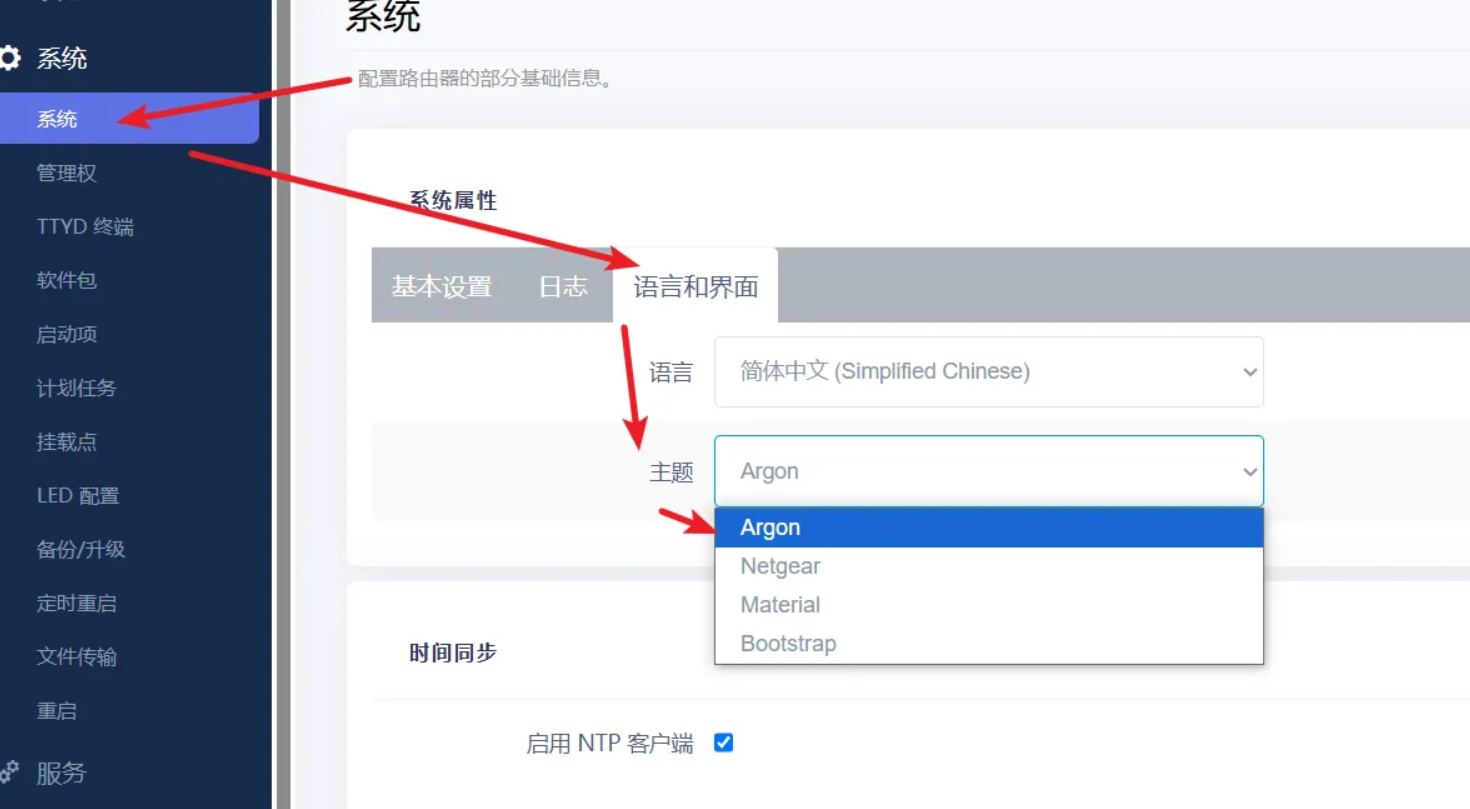
Change the System Theme

You can customize the OpenWrt interface theme through the system settings panel.

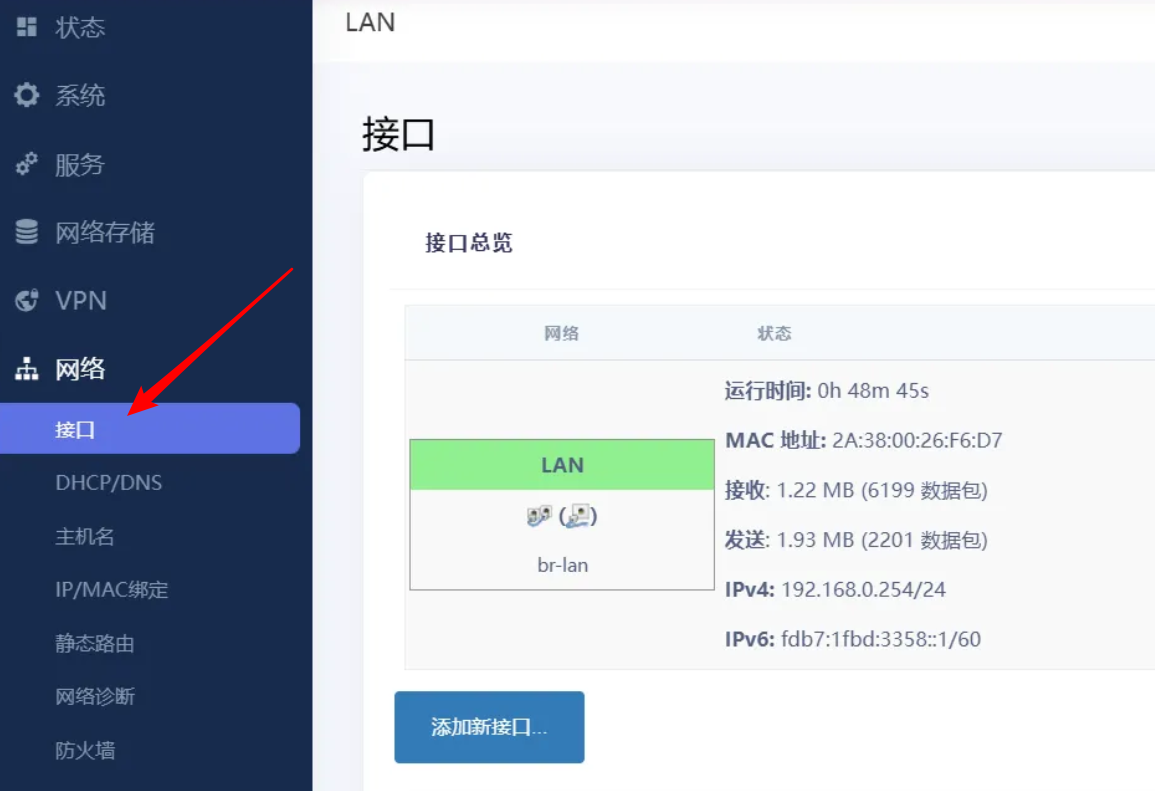
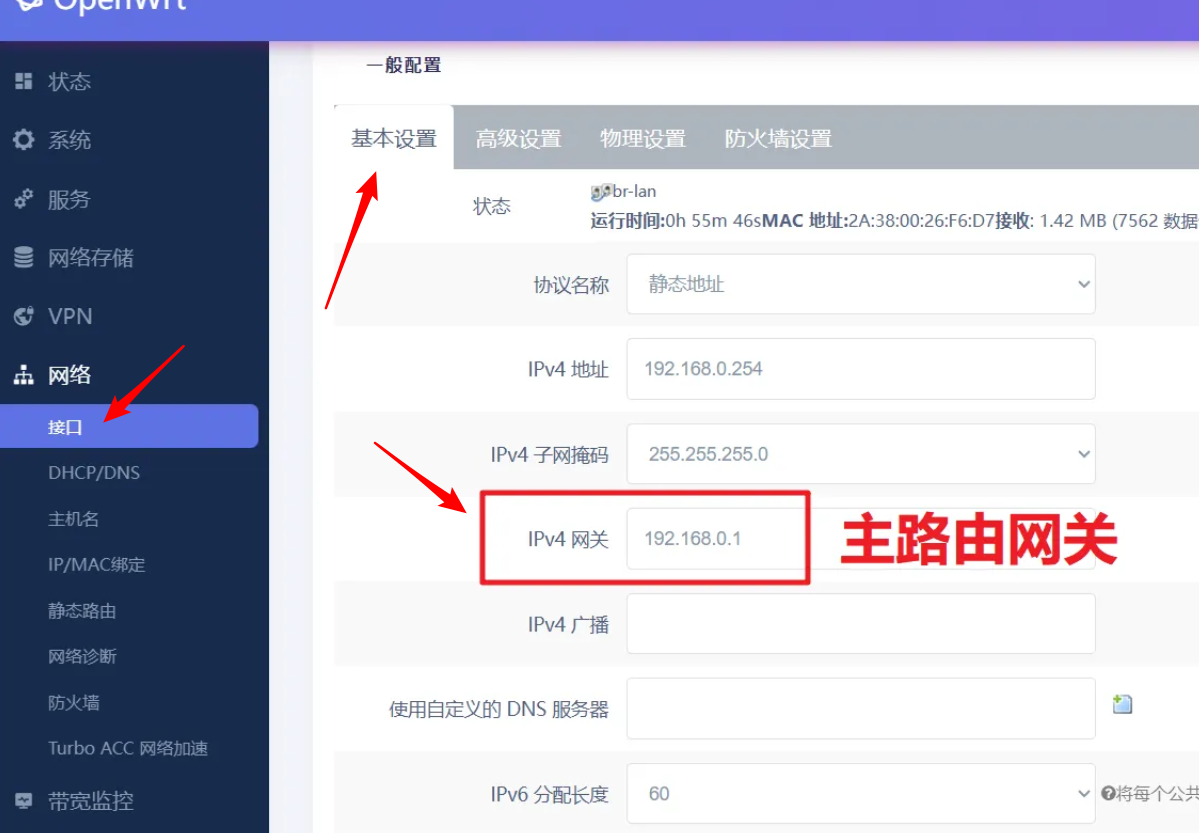
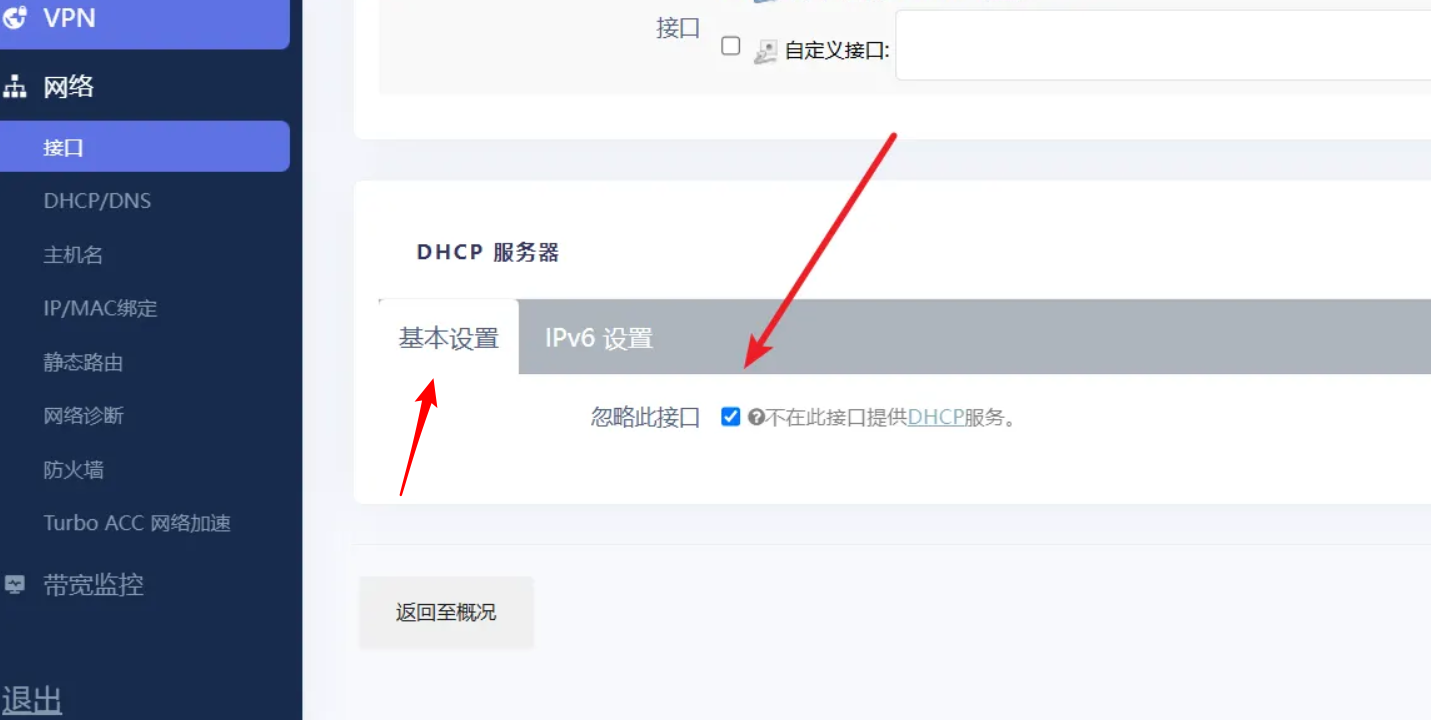
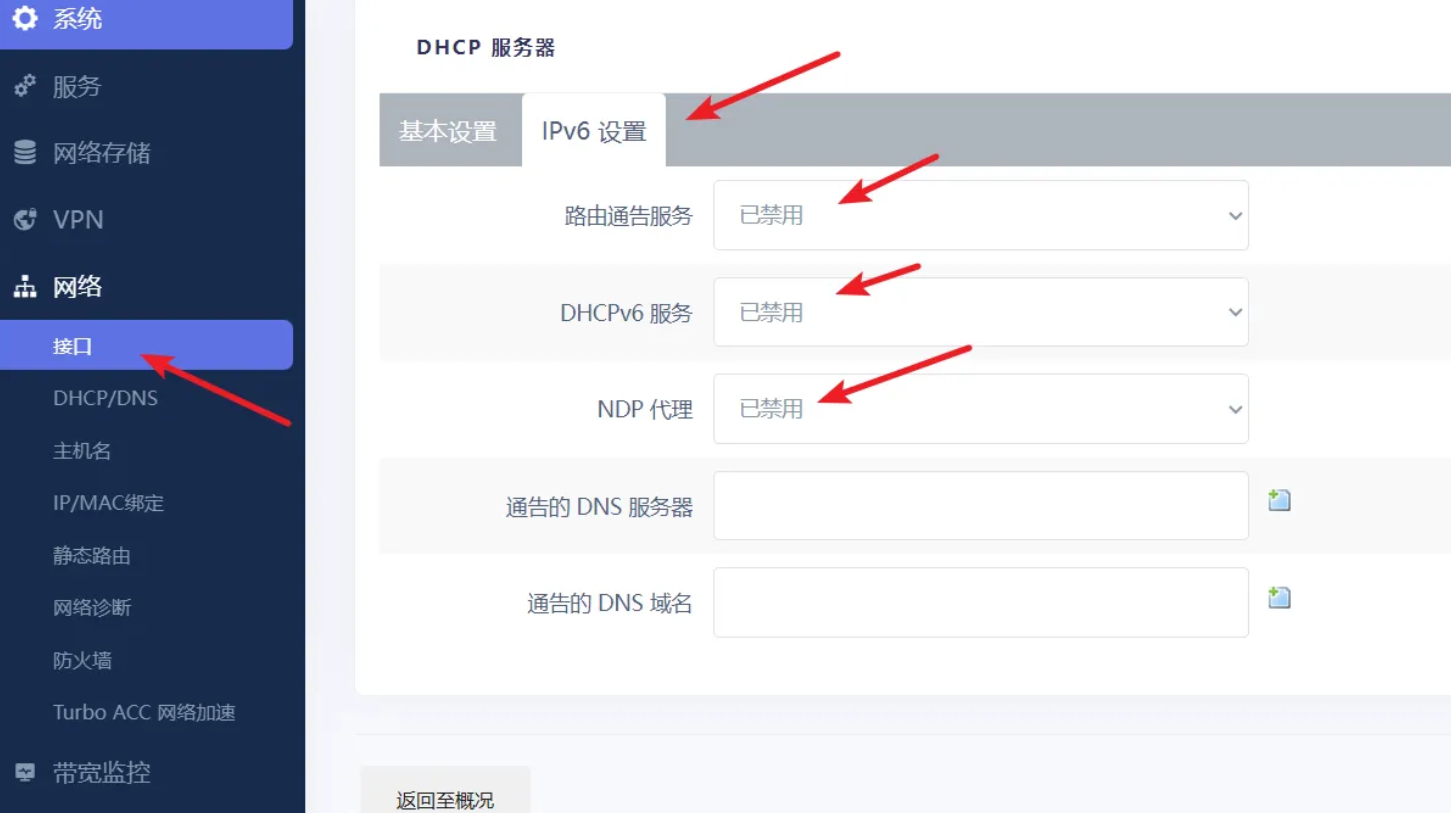
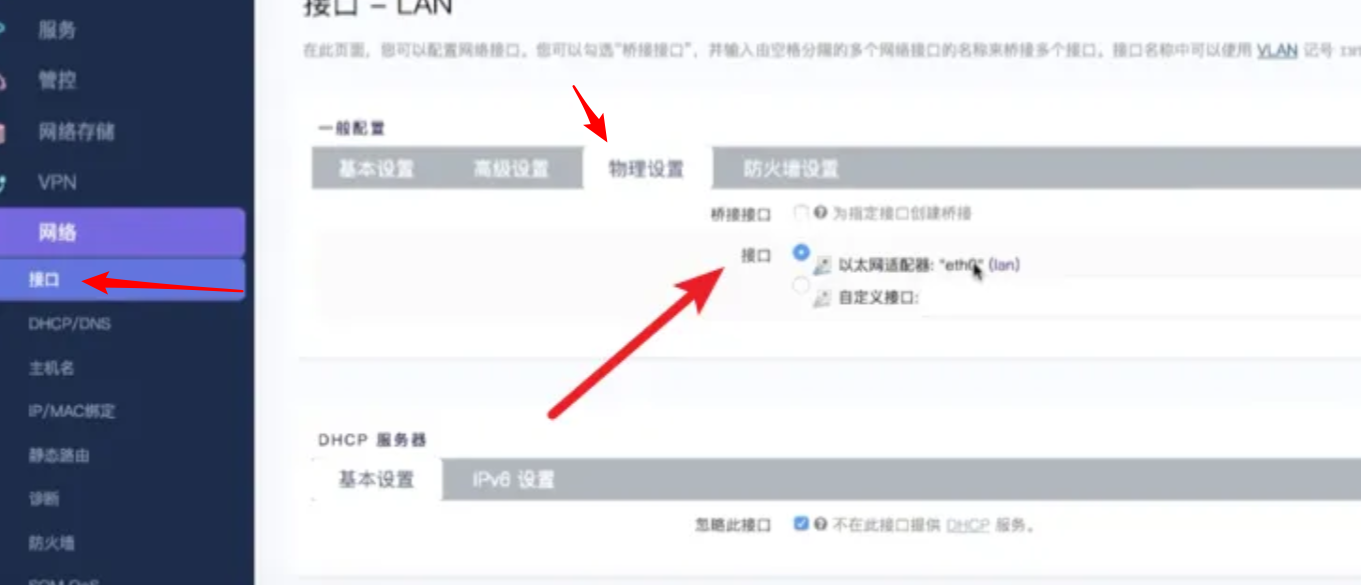
Configure the Upstream Router

Navigate to the network configuration page and set the upstream gateway to your main router.


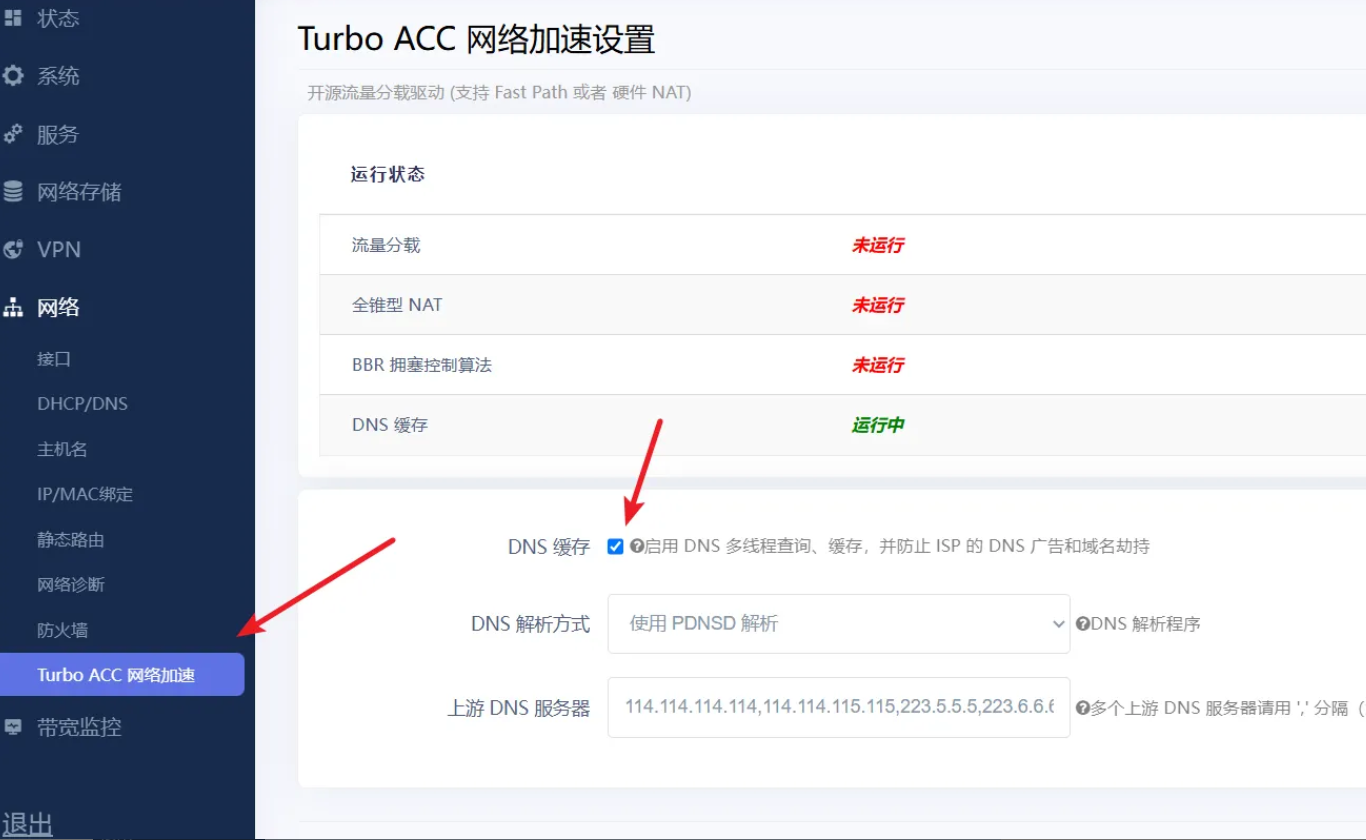
Network Acceleration Settings

Enable hardware or software acceleration options depending on your OpenWrt build.


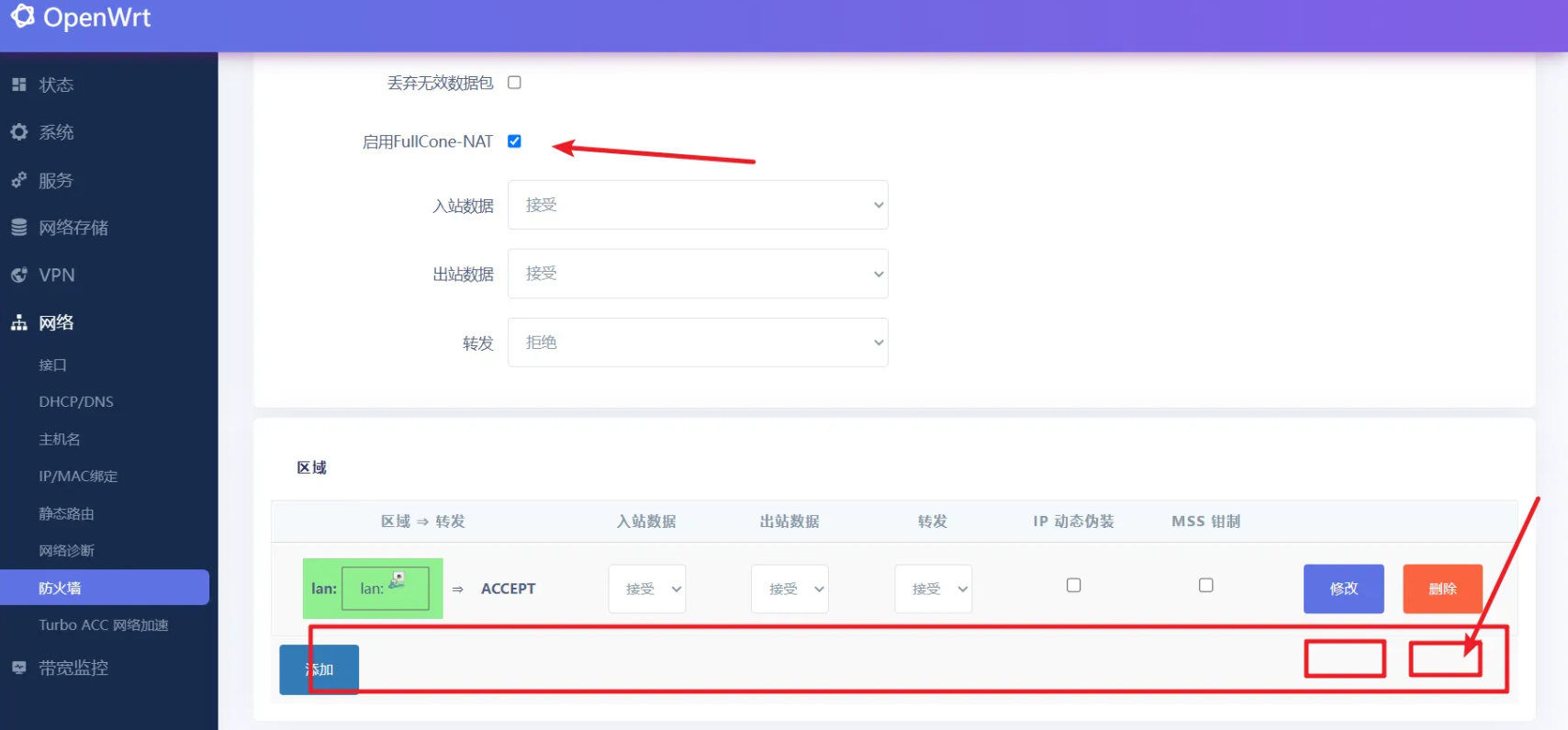
Configure the Proxy / Global Network Access

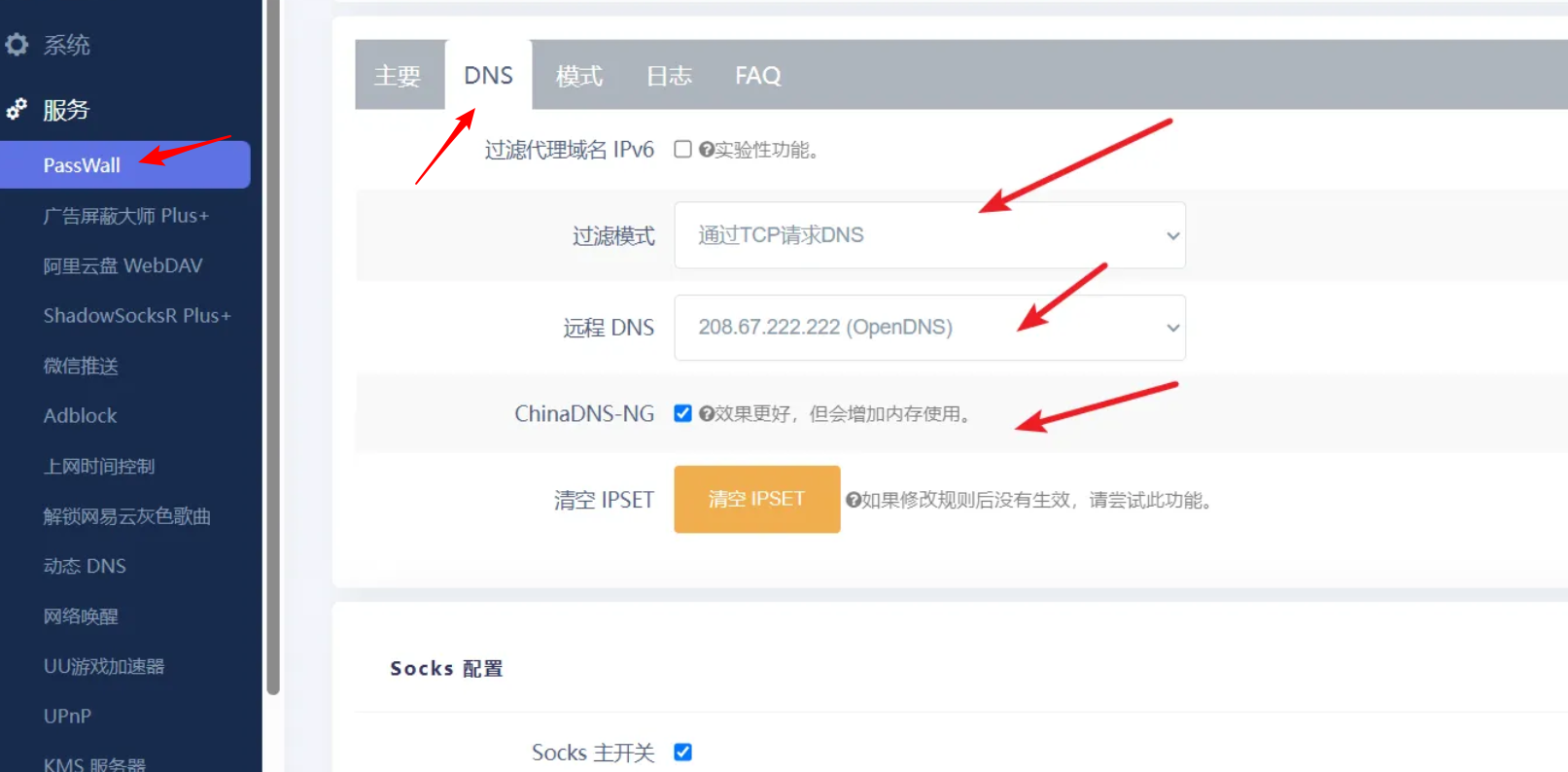
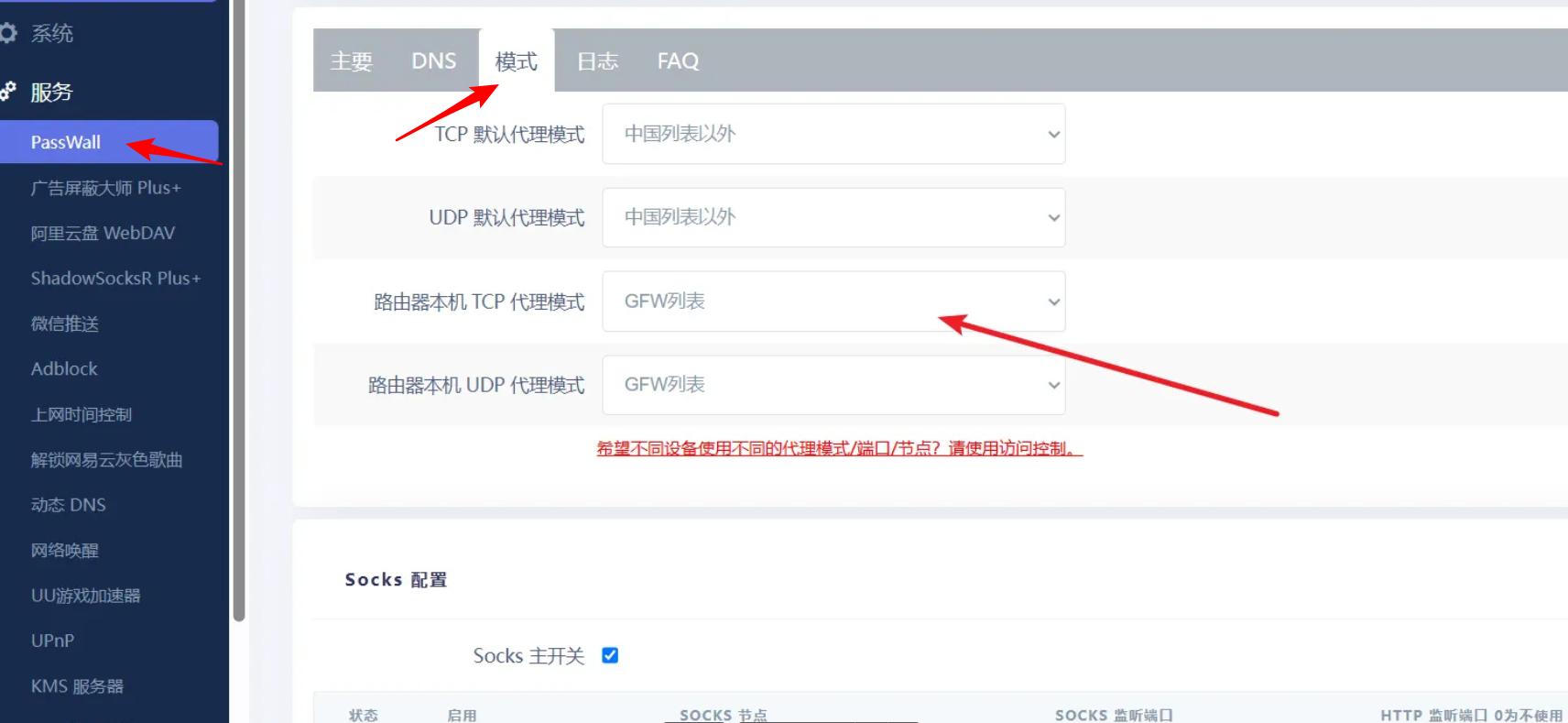
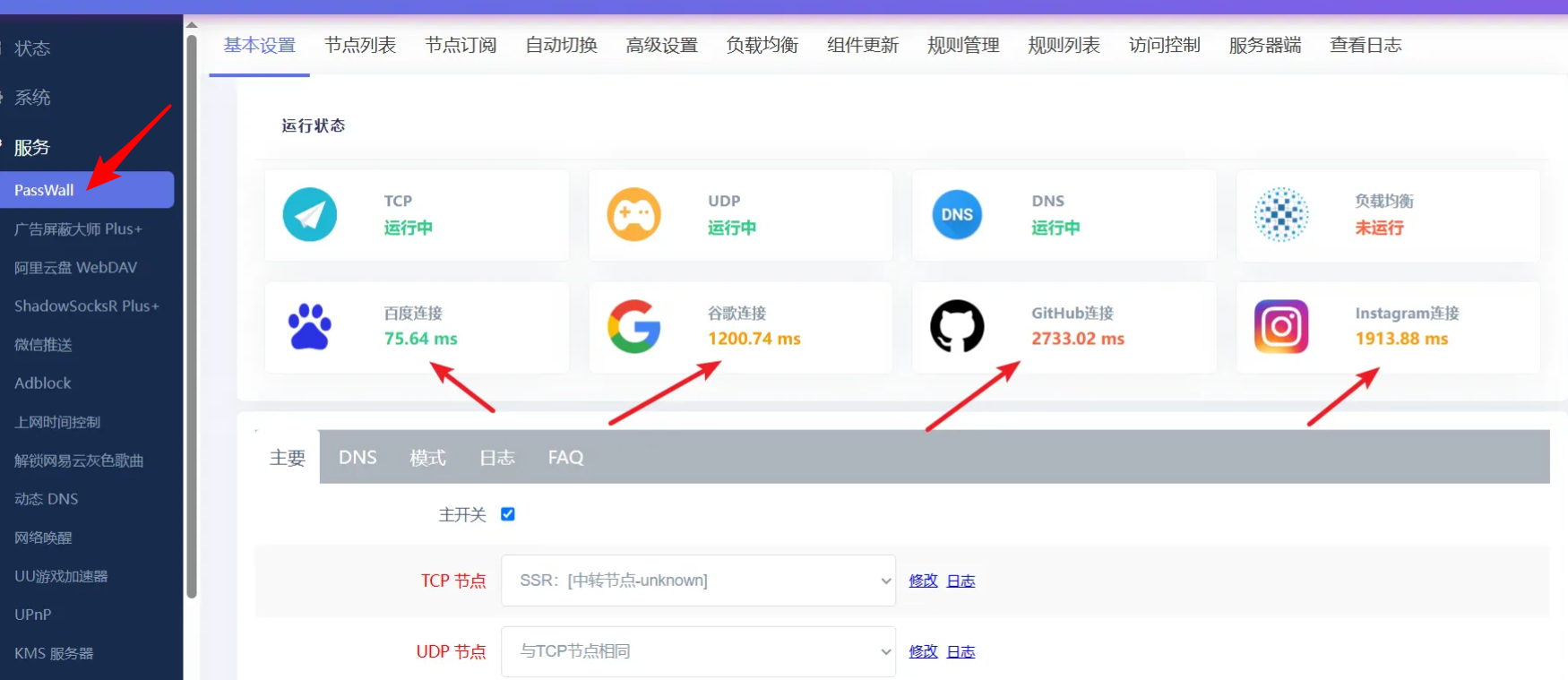
Install and configure the proxy plugin of your choice (for example OpenClash, Passwall, etc.).


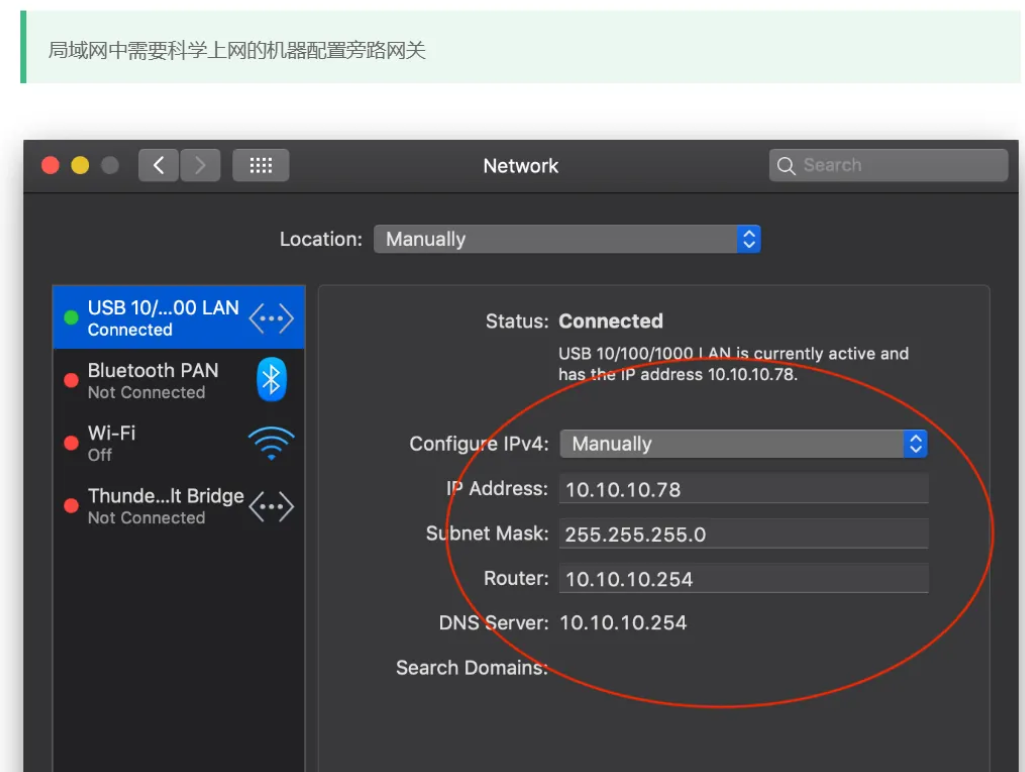
Configure Devices to Use the Bypass Gateway

  • For devices that should use the proxy
    • Set the network configuration to manual.
    • Assign an IP address within the LAN range.
    • Example
      1
      2
      3
      4
      IP Address: 192.168.0.xxx
      Subnet Mask: 255.255.255.0
      Gateway: 192.168.0.252
      DNS: 192.168.0.252

      Devices using this gateway will route their traffic through the Raspberry Pi bypass router.

Conclusion

By running OpenWrt in Docker with a macvlan network on a Raspberry Pi, we can easily create a flexible bypass router that integrates seamlessly with an existing home network.
This architecture allows selective routing of traffic through a proxy gateway while keeping the main router configuration untouched.

Connectivity Test Commands

Run the following commands on the Raspberry Pi host to verify that the gateway and external network access are working properly.

  • ip route show
  • ping 8.8.8.8
  • curl -Iv https://www.youtube.com --connect-timeout 10
  • curl -Iv https://www.google.com --connect-timeout 10

Overview

Running a management panel on a Raspberry Pi feels a bit like adding a cockpit to a tiny spaceship.
Although 1Panel was originally designed for x86 servers, it now provides an ARM64 build, which works perfectly with the architecture of the Raspberry Pi 4B.
That means you can run it directly on your Pi and turn the device into a small, self-hosted server with a clean web management interface.

Requirements

Hardware Requirements

  • Raspberry Pi 4B (2GB RAM or more recommended)
  • MicroSD card (at least 16GB, Class 10 recommended)
  • Power adapter
  • Ethernet or Wi-Fi connection

Install Raspberry Pi OS

Please refer to the following guide:


Update the System

Connect to your Raspberry Pi via SSH and run:

1
sudo apt update && sudo apt upgrade -y

Install Docker

1Panel depends on Docker, so Docker must be installed first.

1
2
3
sudo apt install curl -y
curl -fsSL https://get.docker.com | sudo sh
sudo usermod -aG docker $USER # Add the current user to the Docker group. A reboot is required for the change to take effect.
Reboot the system:sudo reboot

Installing 1Panel

Once the system is ready, you can install 1Panel using the official script.
The script automatically detects the system architecture and downloads the correct version.
If your system is 64-bit Raspberry Pi OS, it will install the ARM64 build.

Run the Installation Script

1
curl -sSL https://resource.fit2cloud.com/1panel/package/quick_start.sh -o quick_start.sh && sudo bash quick_start.sh

During installation:

  • The script will detect the ARM architecture automatically.
  • The installation process usually takes 5–10 minutes.
  • You will be prompted to configure:
    • Installation directory (default: /opt)
    • Panel port (default: 36230)
    • Username and password (strong password recommended)
  • If Docker is not installed, the script will prompt you to install or fix it automatically.


Installation Complete

After installation finishes, the terminal will display the access URL, for example:

  • http://<树莓派IP>:36230

Accessing 1Panel

Get the Raspberry Pi IP Address

  • Run the following command:hostname -I | awk '{print $1}'

Open the Web Panel

  • In your browser, enter:http://<RaspberryPi-IP>:PORT/RANDOM_PATH(Example http://192.168.0.109:36230/roy)
  • The random path is a security entry point configured during installation.


First Login

  • Log in using the username and password you configured during installation.


Retrieve Login Information

  • If you forget your username, password, or access path, run:
    1
    sudo 1pctl user-info

Version Information

Troubleshooting

  • ARM Compatibility
    • Raspberry Pi 4B works well with 1Panel, but some applications require ARM container images.
  • Running with CasaOS
    • No conflict as long as different ports are used.
    • CasaOS usually uses port 80, while 1Panel uses a custom port.
  • Uninstall
    • sudo 1pctl uninstall
  • Update
    • sudo 1pctl update
    • or update directly inside the panel.

  • Performance
    • Raspberry Pi 4B runs smoothly, but if you deploy multiple applications, monitor the temperature and consider adding a heat sink.
  • Firewall
    • If ufw is enabled, allow the panel port:sudo ufw allow <PORT>
  • Port Conflict
    • If the default port is already in use, modify the configuration: /opt/1panel/config/config.yaml
    • Then restart the service:sudo systemctl restart 1panel
  • Change Password
    • sudo 1pctl update password

References

Introduction

CasaOS is an open-source home cloud system built on the Docker ecosystem. It provides a clean web interface and allows you to install applications such as NAS tools, media servers, and smart home services with just a few clicks.
Running CasaOS on a Raspberry Pi 4B is a popular setup for building a small home server. CasaOS works well with Raspberry Pi OS (the 64-bit version is recommended), and the installation only takes a few minutes.

Prerequisites

  1. Hardware
    • Raspberry Pi 4B (2GB RAM or more recommended)
    • MicroSD card (at least 16GB, Class 10 recommended)
    • Power adapter
    • Network connection (Ethernet or WiFi)
  2. Install Raspberry Pi OS

Update System Packages

  • Connect to your Raspberry Pi via SSH.
    • Default credentials
      • Username: pi
      • Password: raspberry
  • Update the system packages
    1
    sudo apt update && sudo apt upgrade -y
  • Install curl if it is not already installed
    1
    sudo apt install curl -y

Run the CasaOS Installation Script

CasaOS provides a one-line installation script. Run the following command in the terminal:

1
curl -fsSL https://get.casaos.io | sudo bash
  • The script will automatically download and install CasaOS along with its Docker dependencies.
  • During installation, you will be asked to set the CasaOS administrator username and password.
    • Default credentials:
      • Username: casaos
      • Password: casaos
      • You can change them during setup.
  • After installation finishes, CasaOS will start automatically.

Alternative command (if curl is unavailable)

1
wget -qO- https://get.casaos.io | sudo bash


Access the CasaOS Web Interface

  1. Find the Raspberry Pi IP address
    • Run the following command in the terminal:hostname -I
    • You should see an IP address like 192.168.x.x.
  2. Open the web interface
    • On a device in the same network, open a browser and visit:http://<RaspberryPi-IP>:80( Example:http://192.168.0.109
    • Log in using the username and password you configured earlier.
    • On first login, CasaOS will guide you through the initial setup. After that, you can open the app store and install applications such as Nextcloud, Plex, or Home Assistant with a single click.


Uninstall CasaOS (Optional)

If you want to remove CasaOS, run the following command:

1
curl -fsSL https://get.casaos.io/uninstall | sudo bash

Notes and Tips

  • Port conflicts
    • CasaOS uses port 80 by default. If another service (such as Apache) is already using this port, you may need to change the CasaOS port in its configuration file.
  • Performance
    • CasaOS runs smoothly on Raspberry Pi 4B. When installing multiple applications, monitor CPU and memory usage. Using an external SSD instead of a MicroSD card can significantly improve performance.
  • Updating CasaOS
    • You can check for updates from the web interface under Settings, or run the following command casaos-ctl update.
  • Firewall settings
    • If ufw is enabled, make sure port 80 is allowed sudo ufw allow 80.
0%